Buyer Portal Overview
B2B Buyer Portal Setup and Deployment
Intro
The Buyer Portal is a React-based application that enables advanced B2B workflows such as account management, quote requests, and order histories. These guides help developers customize and deploy the BigCommerce B2B Buyer Portal across Stencil, Catalyst, and fully custom headless storefronts. Customizing the Buyer Portal lets you deliver unique experiences, extend business logic, and control branding for your B2B buyers.
Whether you use BigCommerce’s Stencil theme engine, the Catalyst storefront experience, or your own headless setup, these resources provide a step-by-step approach for forking, configuring, running, and deploying a custom Buyer Portal. The guides are designed for developers familiar with Node.js, React, and Yarn, and aim to get you started quickly with building and launching a tailored Buyer Portal experience.
Supported storefront models
- Stencil: Embed and control the Buyer Portal via header/footer scripts and theme hooks. See the Stencil guide.
- Headless (self-hosted): Run and deploy the open-source Buyer Portal next to your headless storefront. See the Headless guide.
- Catalyst: Render the Buyer Portal on top of Catalyst and wire authentication. See the Catalyst guide.
Prerequisites
- Node.js
- We recommend managing installations with nvm.
- Yarn package manager
- Install globally with
npm i -g yarn, or enable locally usingcorepack enable yarnto ensure the correct project version.
- Install globally with
- Git
- Required for cloning repositories and managing code.
- BigCommerce store with B2B Edition enabled
- Needed for configuring and deploying the Buyer Portal.
- A sandbox environment with API access (optional, but useful for live stores)
- At least one storefront with B2B Edition enabled from B2B > Storefronts.
- React and JavaScript/TypeScript experience
- V3 BigCommerce API token with B2B Edition scope (for advanced integrations)
See the B2B Buyer Portal README for the current minimum required versions of Node and Yarn.
Enabling B2B Edition for a storefront
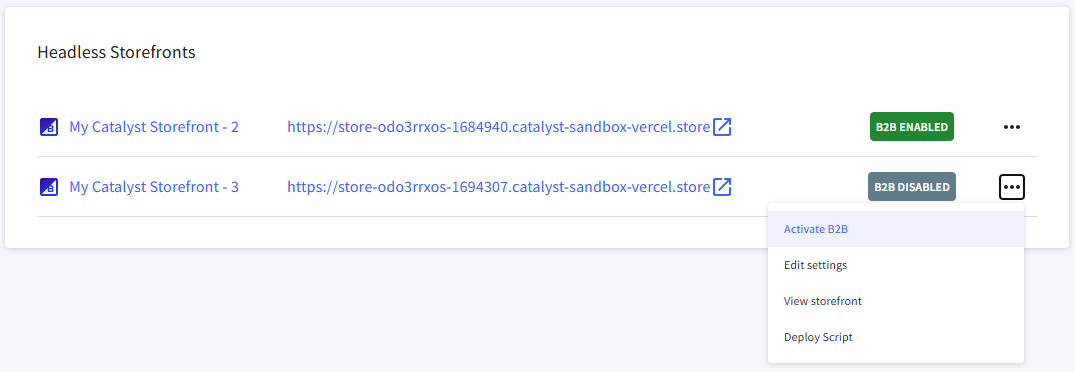
- In the B2B Edition dashboard, navigate to Storefronts and click the ellipsis (…) next to the relevant storefront channel. Click “Enable B2B” and ensure the channel updates to “B2B Enabled.”
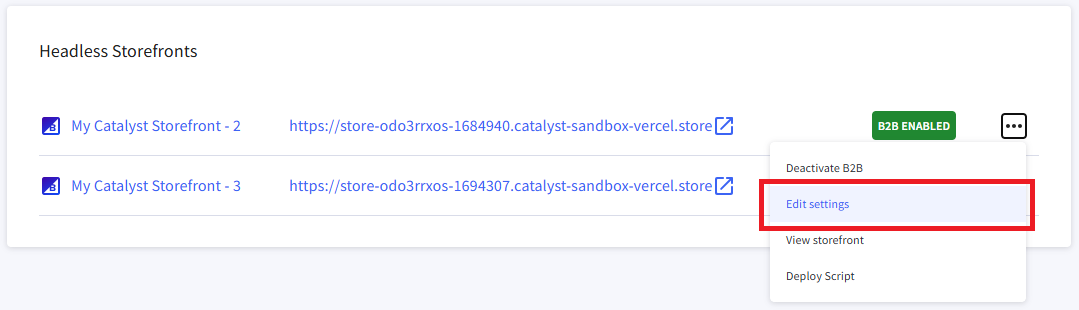
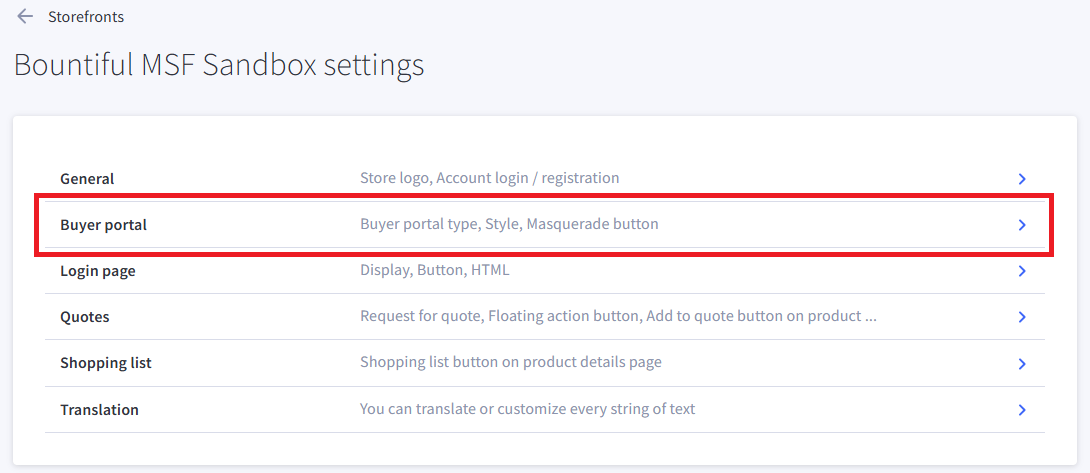
- Also in the Storefronts section of the dashboard, navigate to “Edit settings” for the storefront, select “Buyer portal” settings, and verify the “Buyer portal type” matches your intended configuration.
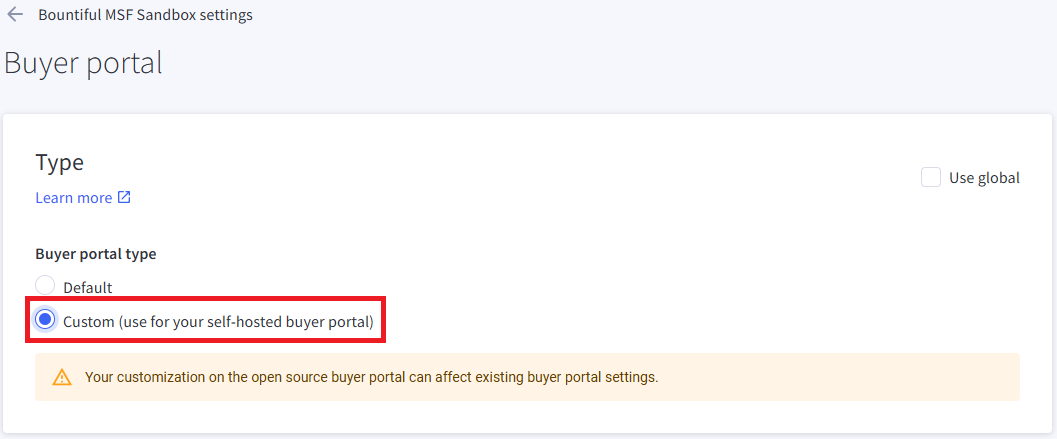
The default version of Buyer Portal may be used on any storefront type; however, configuration steps will vary between types.
Buyer Portal Concepts
What is the Buyer Portal?
The Buyer Portal is a React application providing B2B buyers a dedicated interface for business-specific workflows in BigCommerce. It connects to the B2B GraphQL API and supports two main configurations:
- Hosted Buyer Portal: Managed by BigCommerce, updated automatically.
- Custom Buyer Portal: Forked and customized by merchants/agencies for advanced branding, features, or integrations.
Architecture
The Buyer Portal is built using the following core technologies:
Why Customize the Buyer Portal?
Customizing the Buyer Portal lets you:
- Tailor UI/UX and workflows for your buyers.
- Integrate with your own business logic or third-party platforms.
- Control release cycles and updates.
- Support multi-storefront and multiple deployment strategies.
Customizing the Hosted Buyer Portal
The Hosted Buyer Portal is the default B2B buyer experience managed and automatically updated by BigCommerce. It provides a robust set of built-in customization options directly within the B2B Edition control panel, allowing you to tailor the portal to your brand and business needs with limited code requirements.
Customizable features include:
- Branding: Upload your company logo, set primary and accent colors to match your storefront’s design, and adjust other visual elements.
- Feature Toggles: Enable or disable specific Buyer Portal features such as Quotes, Order History, or Account Management depending on your business requirements.
- Layout and Display Settings: Configure portal layout preferences, including navigation, page visibility, or content blocks, to optimize the buyer experience.
- Localization: Set language and currency preferences to support international buyers.
- Account Controls: Manage buyer access, permissions, and visibility of features on an account-by-account basis.
These settings are accessible through the B2B Edition area of your BigCommerce control panel. Any changes made here are applied instantly and are supported by BigCommerce, with ongoing updates and enhancements provided automatically.
For more information on customizing the Hosted Buyer Portal, see B2B Edition Settings (Help Center).
If you want more advanced control or integration than the built-in options allow, consider switching to a custom Buyer Portal. However, for most merchants, the Hosted Buyer Portal’s built-in controls offer a fast, reliable, and supported way to create a branded B2B buyer experience.
Resources
- B2B Edition Settings (Help Center)
- B2B Buyer Portal GitHub Repository Source code, README, and documentation for the Buyer Portal project.
- Catalyst Overview
- BigCommerce WebDAV Support

