Optimized One-Page Checkout
This article covers styling and display options for Optimized One-Page Checkout.
Working with the optimized checkout SCSS file
Cornerstone includes a SCSS file that styles the Optimized Checkout page. In your local installation, this file is located at cornerstone/assets/scss/optimized-checkout.scss.
You can access the most recent version of this file in the Cornerstone repository. All themes share the same stylesheet for the Optimized One-Page checkout, even those not based on Cornerstone, so this stylesheet applies universally across Stencil themes.
Customizing checkout restrictions
When customizing the checkout page, you are free to change classes’ contents; however, do not nest elements or change any class names. BigCommerce imposes these restrictions because each class here maps to multiple optimized checkout elements. Changing the structure or naming would break updates available in future optimized checkout enhancements.
Configuring the desktop viewport
To set up optimized checkout’s responsive features within the optimized-checkout.scss file, you should configure the following breakpoint to define your preferred desktop viewport size:
Classes available for customization
Below are the classes provided in Cornerstone’s optimized-checkout.scss, with the corresponding page elements that they style. These class names and mappings are subject to change, so please check the inline comments in the optimized-checkout.scss file that you downloaded with your current Cornerstone release.
Providing customizable options in Page Builder
You can determine which aspects of Optimized One-Page Checkout merchants will customize with the Page Builder tool.
In Cornerstone’s optimized-checkout.scss, each SCSS class and property available has a corresponding key/value pair in the config.json file, which can be used as the id value in schema.json when creating customizable Page Builder options.
Currency conversion options
You can enable the display of alternate currencies on your Stencil theme’s Optimized One-Page Checkout and order confirmation pages.
Restrictions
The options on this page require that you first enable Optimized One-Page Checkout. Find instructions on how to do this in Optimized One-Page Checkout.
Note that regardless of the display options you set below, you will always process transactions in the store’s single default currency. To change that setting, see Changing Your Default Currency.
To allow shoppers to view prices in multiple currencies, you will need to add the desired currencies in the store control panel.
Shoppers will then be able to use the Currency drop-down list throughout the storefront to switch displayed prices among the enabled currencies.
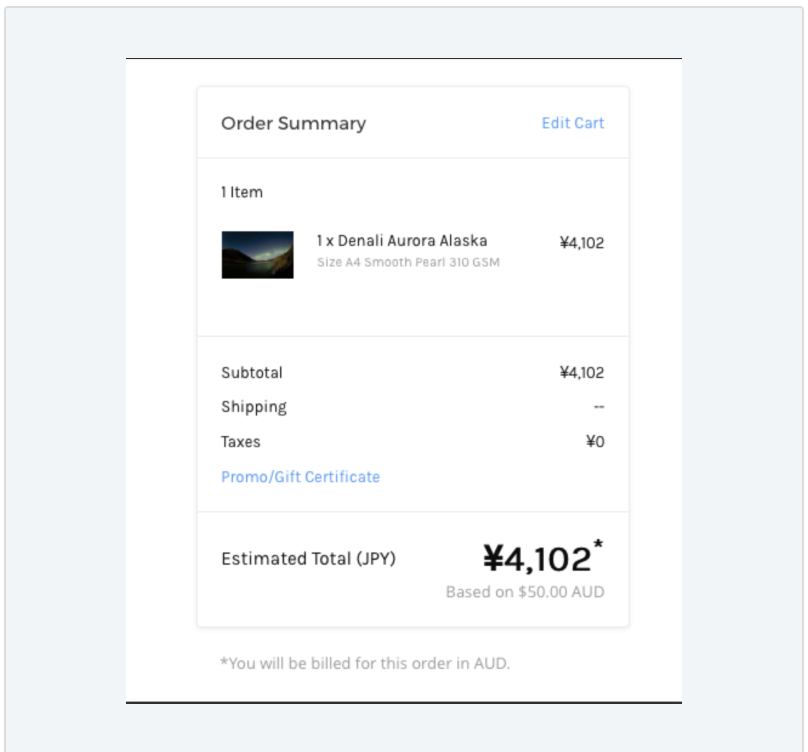
At checkout, the shopper still receives the bill in the store’s default currency. As shown below, the checkout and cart templates will show an annotation about this while flagging any converted total (in a shopper’s selected alternate currency) as an Estimated Total: