Third-Party Widgets and Page Builder
- Page Builder is a browser-based tool that offers merchants visual editing and content management capabilities to design their stores.
- A third-party widget is a configurable, reusable component created and maintained by developers outside of BigCommerce. You can use third-party widgets to display custom content in a Stencil storefront.
Creating a Third-Party Widget Using the Widgets API
Just as you can create widget templates, widgets, and placements in your store with your own API requests, apps installed from the BigCommerce marketplace might do so as well, using a similar OAuth token obtained during installation.
Modifying a BigCommerce Widget
You can extend a BigCommerce-provided widget by modifying the existing API parameters in the widget template. The API parameters for a widget template are as follows:
Configure settings for a widget
To modify a BigCommerce-provided widget, re-configure the existing settings in the widget template’s schema property when creating a widget template via the API. The settings you define in this property will be exposed in the Page Builder UI, providing merchants the ability to modify how the widget appears on their storefront.
You can change widget’s customization options by modifying the template’s schema. Once you have modified the schema, place the modified JSON object in the request body as the schema value, and make a POST request for the Widget Template to expose the new customization options on Page Builder.
One simple example of a simple BigCommerce widget is the divider. If you CREATE an instance of the divider widget on your store and do a GET request for the divider via the Widgets API, you should see the following JSON value returned for the “schema” property.
Existing schema for the divider widget
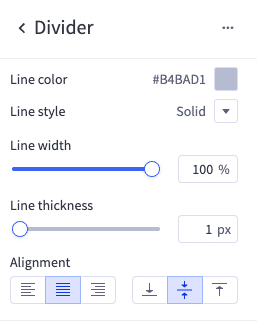
This screenshot represents how the schema is rendered in the Page Builder UI.
If you would like to change the options that exist for a widget in Page Builder, you can modify the schema to represent the customization options you would like to make available. In the code sample below, we will limit the amount of customizations a merchant can make to the divider by removing options from the schema. Once the schema for the Widget is modified, you will place the modified JSON object in the request body as the schema value and make a POST request for a widget template in order to expose the Widget’s new customization options on Page Builder.
In the JSON object below, we have removed all customization options for the divider except Line Color and Line Style. This change will limit the merchant’s ability to customize the divider to these two settings.
Modified divider schema
Exposing Your Third-Party Widget Template in Page Builder
To expose a third-party widget template in Page Builder, make a POST request for the Widget Template. Include the widget’s name, template, and schema in the body of your request. The schema value should be the modified JSON object with customizable settings you want to incorporate for the widget.
If you successfully create the widget template, you should see the widget with its customizable options reflected in Page Builder, under the Custom section.
You do not need to make a POST request for the Widget or Widget Placement to reflect the new widget in Page Builder.
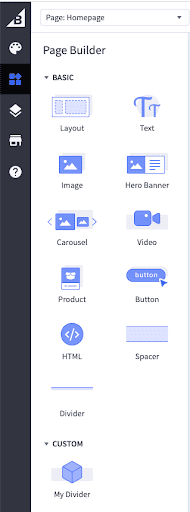
This screenshot showcases the custom divider widget exposed in Page Builder.

