Lab - Language File
Lesson 10 of 16 · 30 min
In this lab, you will:
- Edit an existing translation key in en.json
- Create a new translation key in en.json
- Create a new lang file
- Test new lang file
Prerequisites
- Previous labs have been completed
- Store profile is set to display the language based on the user’s browser setting
Step 1: Edit an Existing Translation Key in en.json
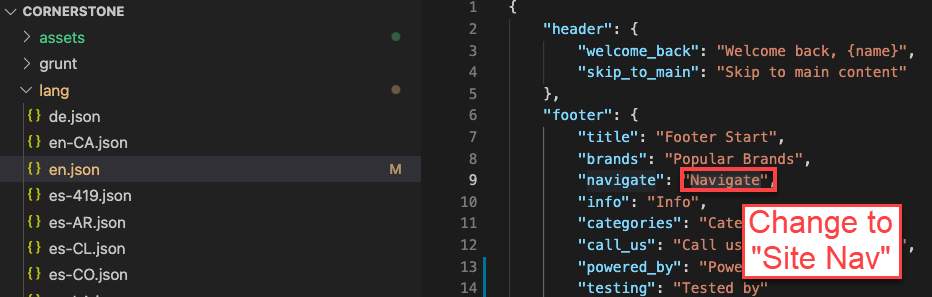
- Navigate to lang > en.json
- Change the “footer” text string for “navigate” from “Navigate” to “Site Nav”
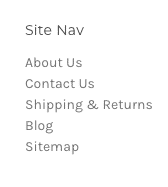
- Observe change in footer on storefront
Step 2: Create a New Translation Key in en.json
- Navigate to lang > en.json
- Add another key value pair under header:
.jpg)
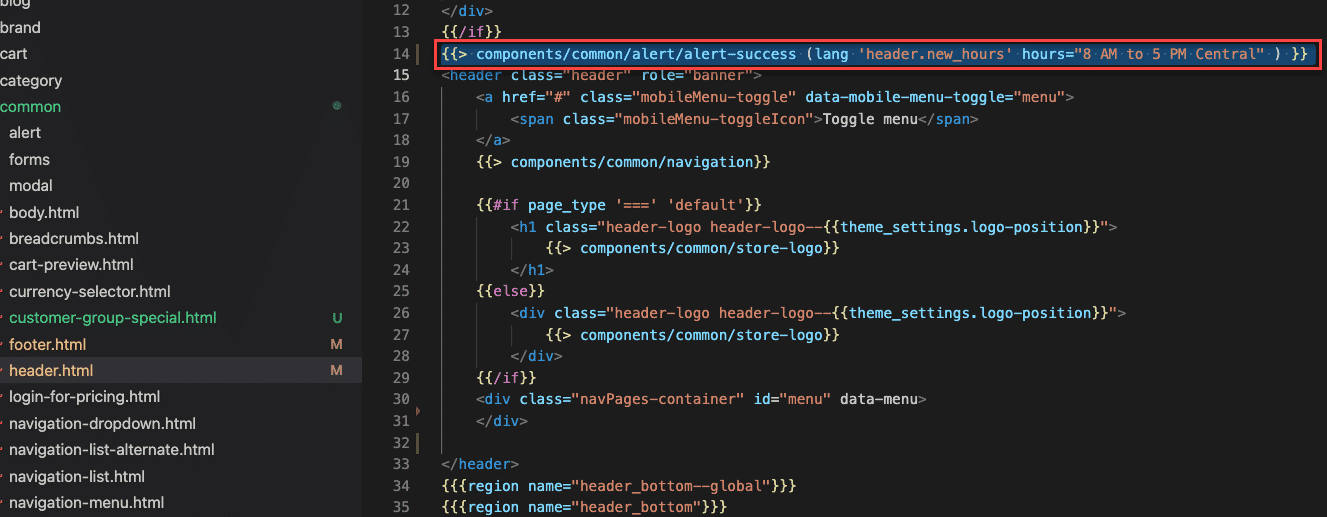
- Edit the /templates/components/common/header.html
- Add the following code after the {{/if}} tag and before the
<header>tag:
- Observe the new component at the top of your site:
.png)
Step 3: Create a New Language File
- Right-click the lang folder
- Select New > File
- Name the new file da-DK.json
- Copy the Danish translated footer values below and paste into the da-DK.json file
Step 4: Test New Language File
- Using the Chrome browser, Navigate to Settings > Advanced > Language
- Add a new language Danish - dansk
- Move to the top of the priority list
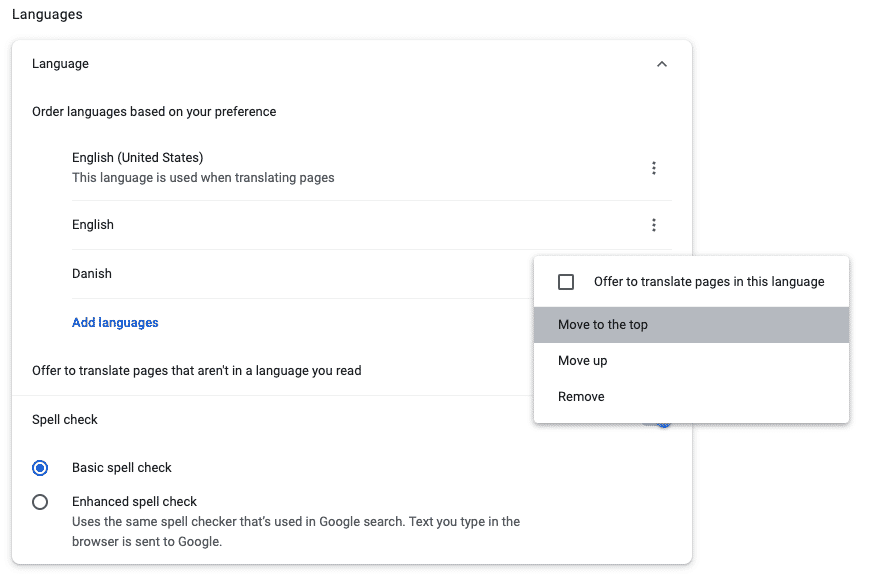
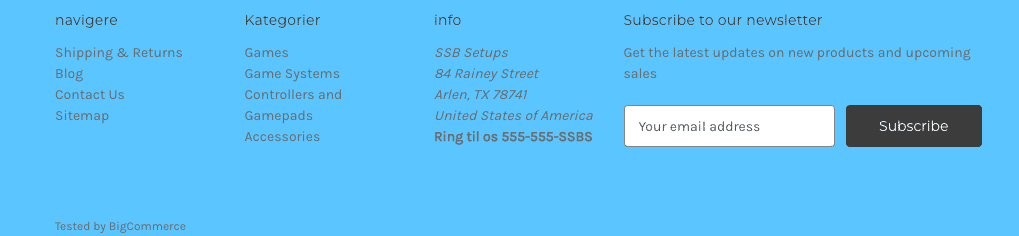
- Observe translated footer: