Lab Activity: Add React Components with NPM
In this lab activity, we’ll be making a drawer that sends a coupon code to the customer’s email using Material UI’s React framework.
Objectives
- Add npm package to the theme
- Install React to npm packages
- Update webpack.common.js
- Create components
- Import dependencies
- Add the coupondrawer div to base.html
- View finished product
Prerequisites
- Stencil CLI installed
- BigCommerce store
- Cornerstone Stencil theme with npm installed
- Knowledge of HTML and JavaScript
Adding npm Packages to a Theme
Stencil’s architecture allows for organized customization using npm and React. In production, you can use these tools for stylizing seasonally themed products, temporary promotions, or event tickets. Below is a short tutorial on using npm and React to customize your Stencil theme.
The resulting customization will look like the following:
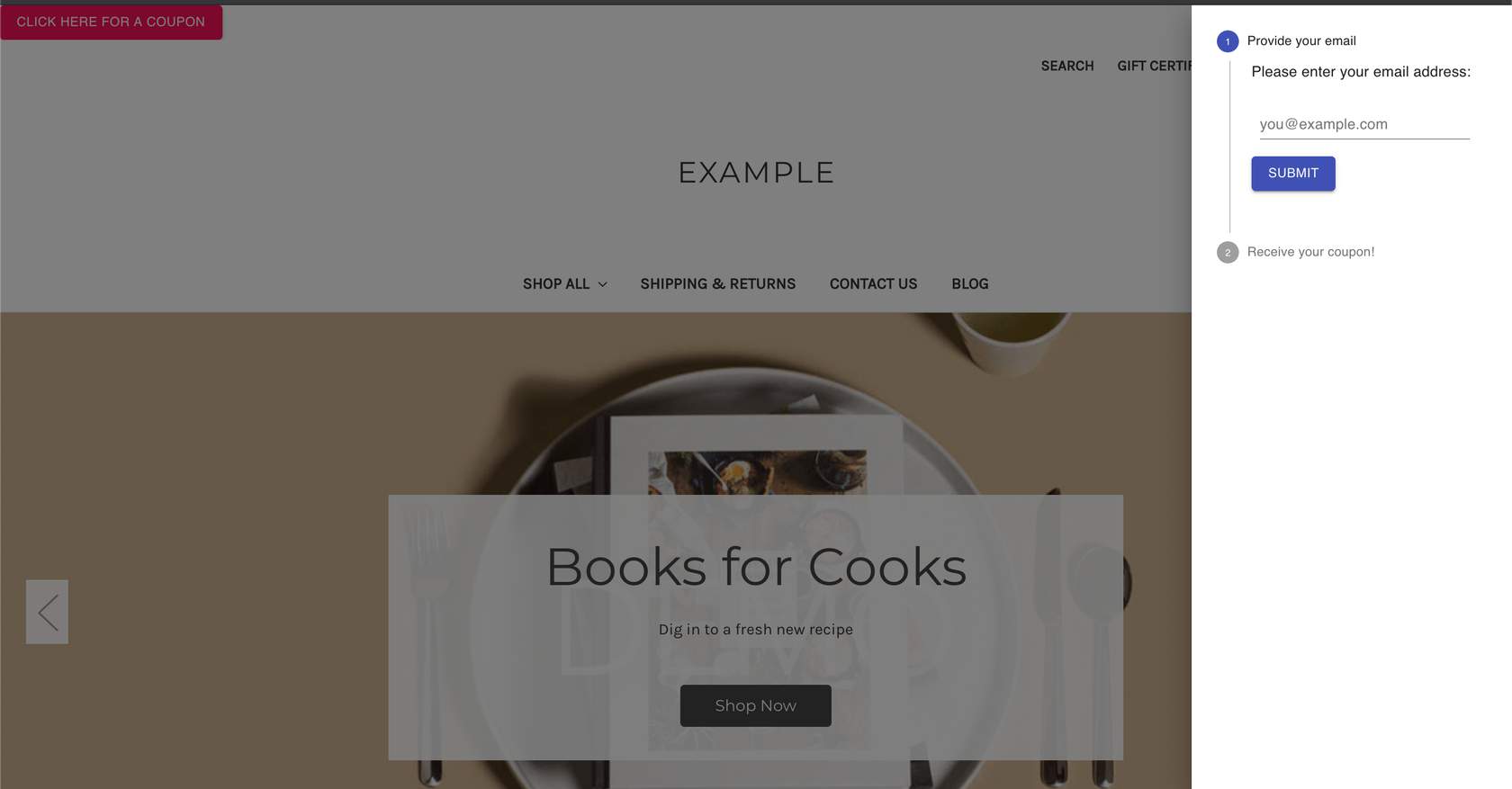
You should have most of the following already setup. Use the steps to verify as you go through this activity.
Installing React to npm packages
To build this customization, complete the instructions in the following sections.
Install dependencies
For this activity, we’ll be using packages from MUI Core. These components require certain modules.
Navigate into the root Cornerstone theme folder, then install the following npm packages.
Update webpack.common.js
Update webpack.common.js with the new presets and plugins.
Create components
In the following steps, we’ll be adding React components to assemble our coupon drawer.
- Navigate to the ./assets/js folder
- Create a /components folder within the /js folder
- Navigate into the /components folder
- Create a CouponDrawer.js file
- Copy the following code into the file:
- In the same /components folder, create a VerticalStepper.js file
- Copy the following code into the file:
- In the same /components folder, create a TextField.js file
- Copy the following code into the file:
Import Dependencies
- Import the React dependencies and the new CouponDrawer component we’ve created into assets/js/app.js:
- At the bottom of the file, render the CouponDrawer component and** assign** it an id
Add the CouponDrawer div to base.html
- Navigate to templates/layout/base.html
- Add a new div element with our new id inside the body
Final Product
- View the finished product using the Stencil CLI command stencil start in the Cornerstone theme directory
- Open your browser and navigate to localhost:3000 to view your local storefront
Note: This coupon drawer example does not send coupon codes to the emails entered. This is only an example to show how to customize your storefront theme.

