Lab Activity: Bundle & Push the Stencil Theme
Objectives
- Upload a theme to the Storefront
Prerequisites
- Bundled the theme into a .zip file
Upload a Theme
BigCommerce provides two alternatives for uploading a theme to your BigCommerce store.
- Control Panel Upload
- Command Line Upload
The Control Panel upload process was covered in the Stencil Essentials course. This course will teach you how to upload a theme with the stencil push command.
Bundle and Push
- Enter the following command in CLI:
- Enter y to apply the theme to your store
- Select the theme variation you would like to apply
- Navigate to the URL of the store to view the applied theme
Command Line Upload (OAuth Required) This stencil push command allows you to both bundle and upload your theme to the store with a single terminal command, and in one continuous process. The stencil push command is available only for themes that you have successfully initialized using an OAuth Token (with Themes: modify scope).
Stencil CLI is designed to display the same notifications, prompts, and selection options that you would receive when using the control panel’s GUI.
Successful Upload
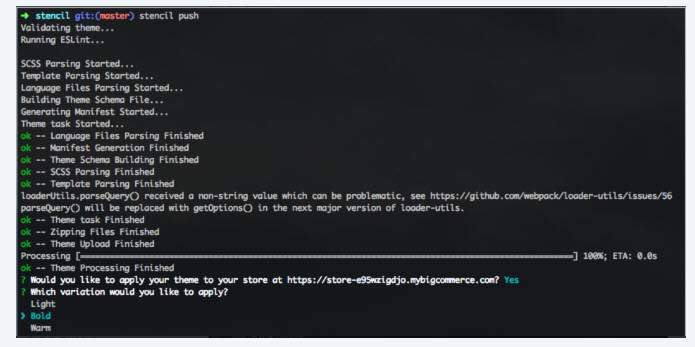
Upon a successful upload, you will be prompted: Would you like to apply your theme to your store at <storehash>? (y/n) Any response except y or Y will be processed as “No.” You can always apply the theme later through the control panel.
Apply Which Variation?
If you chose to apply the newly uploaded theme, you will be prompted with: “Which variation would you like to apply?”
Use your arrow keys to move the selection caret/highlight to the variation you want, and then press Enter.
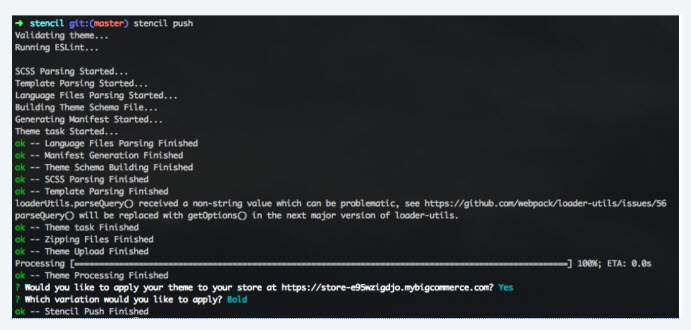
Stencil CLI will then confirm which variation is active on the storefront.
Note: stencil pull
Pulls the configuration from the active theme on your live store and updates your local configuration.
This is useful if any theme settings have been changed within Page Builder, as it will prevent you from overwriting them with your next theme upload by first syncing them.

