Stencil CLI Options and Commands
This article is a comprehensive command reference for Stencil CLI, BigCommerce’s powerful theme development and deployment tool. For installation instructions for your OS, see Installing Stencil CLI. For more information on BigCommerce’s Stencil Theme Engine, see About Stencil. Continue reading below for detailed information on each Stencil CLI command and option.
BigCommerce is currently sunsetting its node-sass fork in favor of the latest sass/node-sass. To ensure that your storefront is up to date, use the latest active or maintenance node version in Stencil CLI and use the CLI command to resolve incompatible SCSS directives, which can cause issues with the styling of your storefront. Your current production site will continue to function as designed, but all future updates will require you to address any SCSS compatibility issues with Node.js 20. This upgrade is necessary to ensure the security of our platform and that you are not running out-of-date packages that may expose your projects to additional security vulnerabilities.
Commands overview
The syntax to run a Stencil CLI command is as follows:
Running stencil help outputs a full list of commands and their descriptions. For more detailed information and usage examples, click a link in the table below:
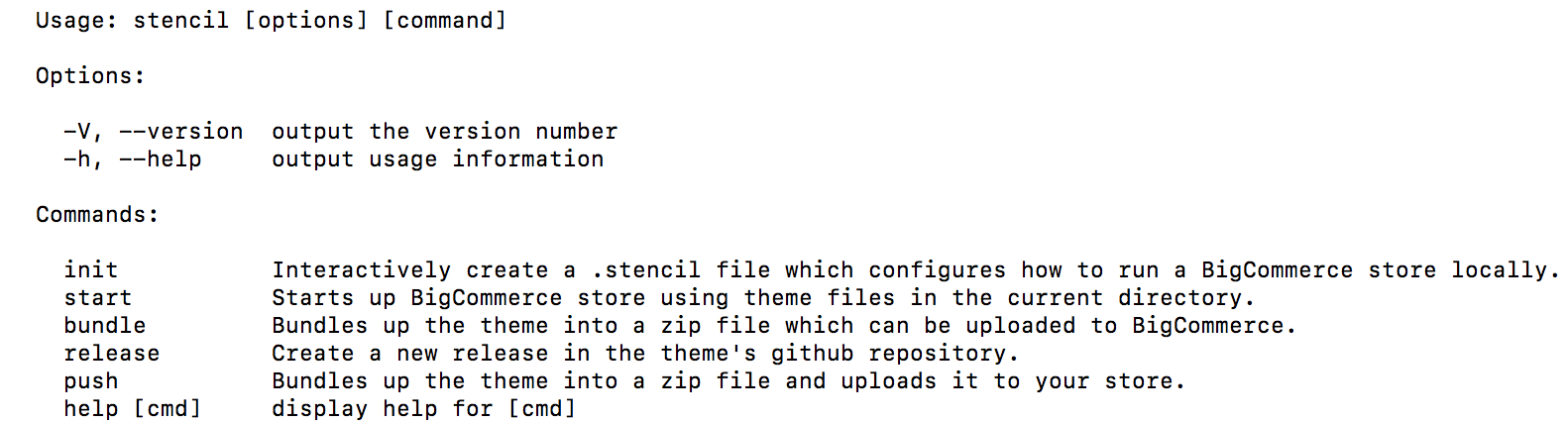
stencil help
Displays help and returns all options available for the specified command.
stencil init
Creates a .stencil file or secrets.stencil.json and config.stencil.json files (if using Stencil V3.1 release or later) used to configure the live preview when stencil start is run. You can specify the configuration information using the optional switches; if you do not specify the configuration information via options, Stencil CLI will prompt you to do so.
NOTE: For custom templates, use only the config.stencil.json file. The config.stencil.json file contains theme-related configuration information like store URL, custom templates, etc. The secrets.stencil.json file contains the access token.
stencil start
Starts the live theme preview using the theme files in the current directory.
—theme-editor and —theme-editor-port [port]:
BigCommerce deprecated -theme-editor and --theme-editor-port [port] options as of v1.23.1. Please use Page Builder instead.
Authentication errors
If you receive an Unauthorized, please use a valid username/token error, authentication has failed. Make sure the API token you supplied is correct. For more information on creating store API accounts and generating tokens, see Obtaining Store API Credentials.
stencil bundle
Bundles up the theme into a structured .zip file, which can be uploaded to BigCommerce.
stencil pull
Pulls the configuration from the active theme on your live store and updates your local configuration. This is useful if any theme settings have been changed within Page Builder, as it will prevent you from overwriting them with your next theme upload by first syncing them.
stencil push
Bundles up the theme into a structured .zip file; then directly uploads (pushes) the .zip to BigCommerce.
—filename:
You can use the -f or --filename option in cases where you have already run stencil bundle to bundle your theme, but the resulting .zip file has not yet been uploaded to BigCommerce. Use the generated .zip file’s filename as a parameter to identify the generated file in your theme directory. An example of the command is outlined below.
When you run stencil push, you can apply one theme to multiple storefront or channels.
When you run stencil push with the -f or --filename option, Stencil CLI skips all its bundling steps and diagnostics. It proceeds directly to uploading the specified file, displaying its processing progress bar to show upload status.
stencil download
Download the theme files from your live store, overwriting files in your local directory.
stencil release
Creates a new release in a theme’s GitHub repository. Developers outside BigCommerce can use this for forks (not master) of Stencil’s Cornerstone base theme, or for their own parallel themes independent of Cornerstone.

