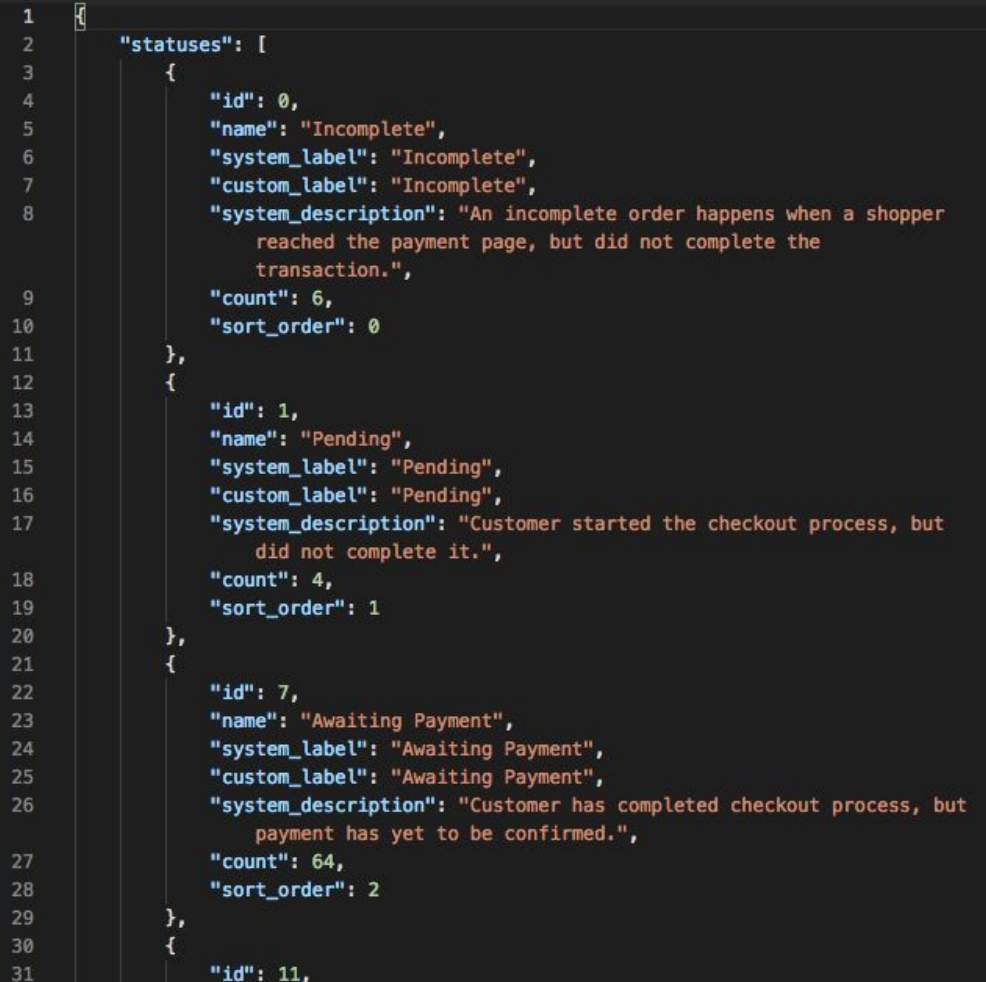
Orders - Hands-on Lab
Lesson 20 of 26 · 45 min
Orders API
In this lab, you will:
- Create an order with an existing simple product
- GET an order
- Update an order
- GET a count of orders
Prerequisites
- BigCommerce store (sandbox or live)
- Basic knowledge of APIs
- REST client (Postman)
Create An Order with An Existing Simple Product
- Copy and paste the request below into Postman
If you created your environment correctly in the previous lab, {{store_hash}} will use your store’s store hash automatically.
- Copy and paste the code below into the body section of Postman
- Replace
{simple_product_id}with the ID of a simple product in the store - Select POST next to the request URL
- Click the Send button
- Observe response
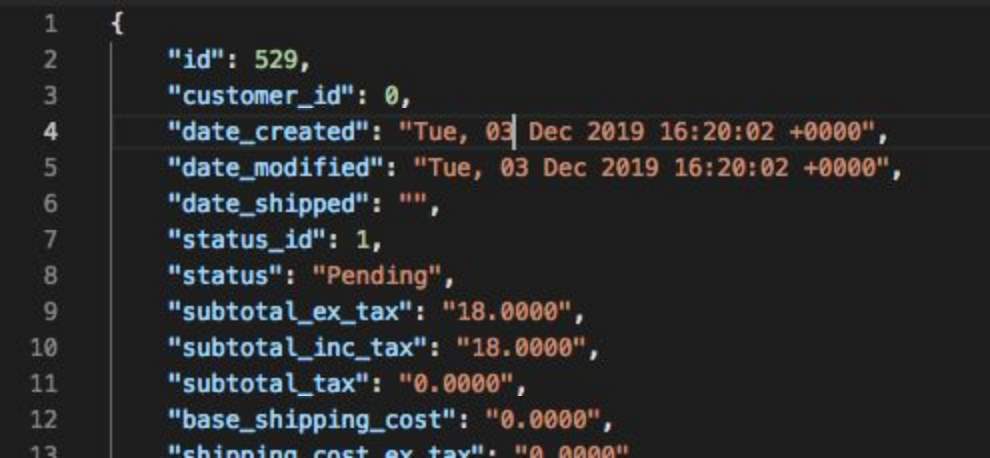
GET an Order
- Copy and paste the request below into Postman
If you created your environment correctly in the previous lab, {{store_hash}} will use your store’s store hash automatically.
- Replace
{order_id}with the id of the order created in the previous steps - Select GET next to the request url
- Click the Send button
- Observe the response
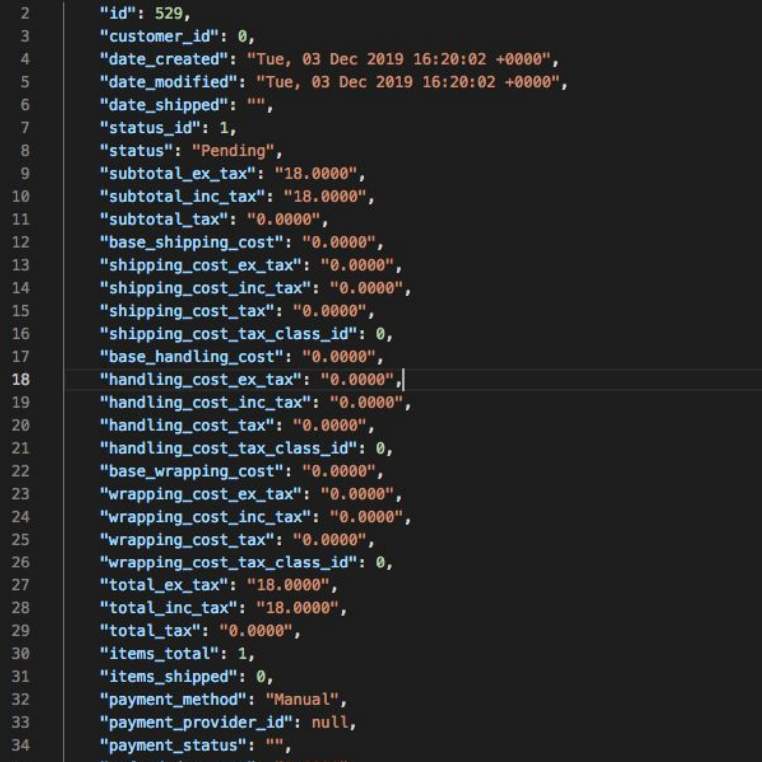
Update an Order (Update Billing Address)
- Copy and paste the request below into Postman
- Replace
{order_id}with the id of the order created in previous steps - Copy and paste the code below into the body section of Postman
- Select PUT next to the request url
- Click the Send button
- Observe the response and address updated
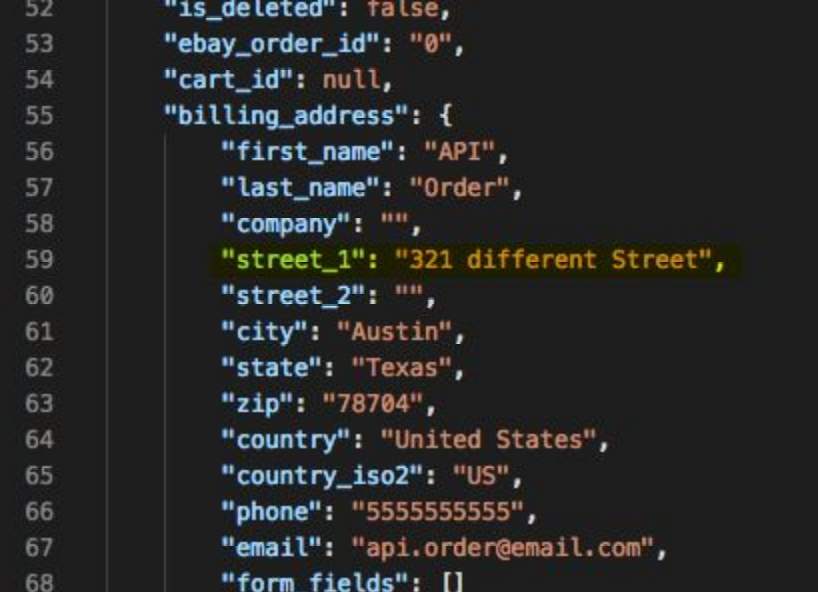
GET a Count of Orders
- Copy and paste the request below into Postman
- Select GET next to the request URL
- Click the Send button
- Observe response