Internationalization
Introduction
Internationalization and localization describe the ability to present a personalized shopping experience for shoppers in different locales. Catalyst uses the Next.js App Router Internationalization library to detect and track a shopper’s preferred locale, making it possible to serve content in the proper language, apply locale-specific formatting, or even tailor your product offerings to specific locales.
We’ll start our exploration of internationalization from the standpoint of a single Catalyst channel supporting multiple locales. However, we’ll then discuss potential multi-storefront setup as well.
Available Locales
Recall that your Catalyst storefront’s available languages are selected when initially setting up the storefront channel. You can also change the default and available languages at any time in the Localization tab when viewing the channel in the control panel.
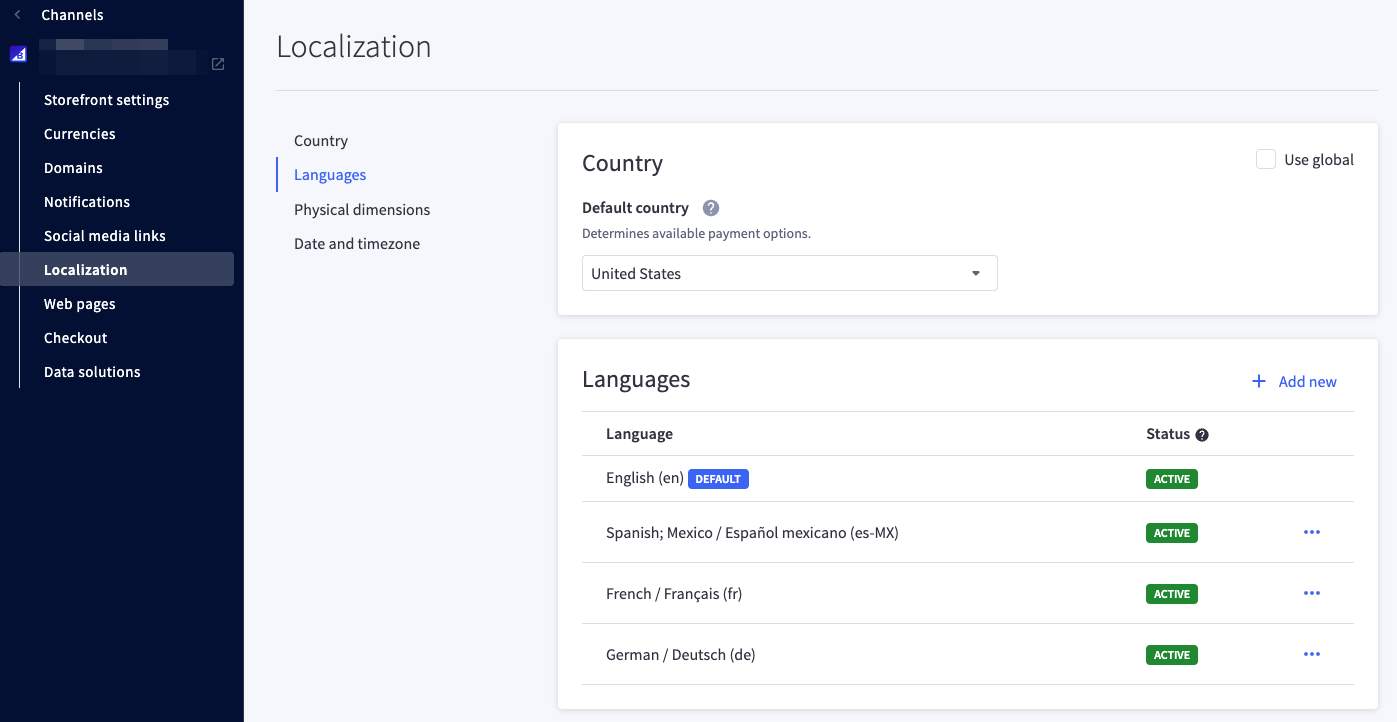
Each available language is expressed with a locale code (for example, en).
Available locales for the Catalyst storefront are fetched and stored in build-time config whenever a new build is run or when the development server is started. See the following key locations in the Catalyst project:
- next.config.ts: The
SettingsQuerydefined here is run to fetch available languages during build. - build-config: Files related to the management of build-time locale config are located here.
- build-config/build-config.json: This file should exist in your project if the dev server has been run. This contains the generated locale config.
Changing the available languages in your storefront channel will require a redeployment/rebuild of your Catalyst application in order to take effect.
How Locale Is Detected
A shopper’s browser preferences are used to detect locale by default, using the Accept-Language HTTP request header and matching this to one of the available locales configured on the storefront channel. If the detected locale is not available for the channel, Catalyst will use the locale set as default.
The Catalyst routing system, in tandem with the Next.js App Router Internationalization library, supports an optional URL segment to set locale:
mystore.com/fr/my-product
A user whose detected locale is different from the default will be redirected to a URL like the above. If browsed directly, the explicit URL segment will also set the corresponding locale context.
Whether locale is detected automatically, determined by the storefront’s default locale, or explicitly found in the request URL, the established locale context is available via the [locale] Next.js parameter.
See the following files for details on locale detection:
- middlewares/with-intl.ts - Initial locale detection with Next.js App Router Internationalization is done here, with context provided by the build-time locale config.
- middlewares/with-routes.ts - We’ve already seen the role this file plays in routing a request to its final destination. This includes explicitly including the locale segment in the rewritten URL.
Language and Currency Switchers
By default, Catalyst includes a language switcher and currency switcher in the site header if multiple languages or currencies are available.
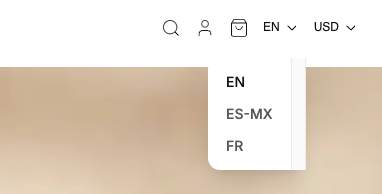
These are populated by the configured locales and currencies on the storefront channel. Available locales are dependent on the build-time config, and the language switcher utilizes the URL segment as described above.
Currently, only transacting currencies are available in the currency switcher.
Localization of Static Text
In this section, we’ll explore how static text that is part of your Catalyst application is translated into the shopper’s language.
Storing Translations
In your Catalyst directory, there is a /messages/ subdirectory that is used for localization. Each language file in this directory corresponds with a locale, such as /messages/en.json, which contains the default English phrases.
Each language that you want to support must have its own JSON file, and each language file should be named based on the BCP 47 specification of language tags and country or region codes.
Each translation file must also contain key-value pairs. You can define translations based on pre-defined keys used to translate the Catalyst storefront’s basic ecommerce functionality. These translated values will display to shoppers as static string translations. It is common practice to use the existing en.json file as a template for the schema. For example, the en.json file contains the following translation keys and their English-language strings:
Using Keys in React Components
Now, let’s look at how translations are used in server and client components.
The example below shows how translations are used in a server component. The call to getTranslations() with the locale and “namespace” pulls in the translated key-value pairs from the correct translation file.
Translation in client components is done a little differently. The root app/[locale]layout.tsx file sets up a NextIntlClientProvider that is necessary for the appropriate client component hooks. Client components then use the useTranslations method to translate static text:
Localization of Dynamic Content
The majority of text presented to your shoppers will originate not with static strings in your code but with your catalog data, CMS content, or other merchandizing integrations.
While localization strategy will depend on the features and capabilities of the providers you use for your content, here we’ll discuss the multi-language and multi-locale capabilities available in Catalyst’s built-in data sources.
BigCommerce Data
You will enter details for your BigCommerce data in your storefronts’s default language, but you can provide language-specific overrides using Translation Management GraphQL API.
Utilizing the Translation Management GraphQL API, it’s possible to set Product’s Common Fields, Options, Modifiers, Custom Fields, Categories, Brands, and Filters, as well as Customer Address Fields, Customer Form Fields, Checkout Settings, Order Statuses and Promotions, Payment Methods, Shipping Methods, Tax Zones and Settings per each locale.
Catalyst sets the locale context of queries to the GraphQL Storefront API using the Accept-Language request header, so all rendered content will appear in a shopper’s preferred language if it exists. This also ensures that cart data, for example, is associated with the correct locale.
The file client/index.ts is where the Accept-Language header is set.
Makeswift Content
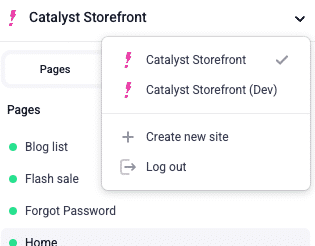
Similar to catalog data, Catalyst identifies a locale context when loading page content managed by the Makeswift visual editor.
Initial locales are set to match the storefront’s available languages when the Makeswift site is created, and you can configure your available locales in Makeswift’s site settings.
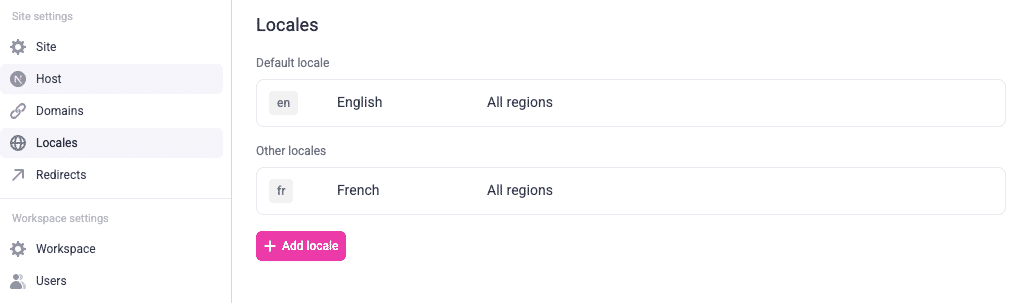
The editor’s locale switcher makes it possible to custom tailor not only text for specific locales, but also aspects of layout and content visibility.
Multi-Storefront
An alternative strategy to multi-language on a single storefront channel is to set up separate channels for different locales, which can be necessary if more than just language should vary. If available products, category structure, available currencies, or available shipping methods should vary by locale, then multi-storefront is likely an ideal strategy.
Path-Based
Catalyst has built-in support for mapping a locale path to a specific channel. The following example, in channels.config.ts, maps the /fr subpath to channel ID 12345:
With this mapping in place, when French is the detected locale (such as when visiting a URL like mystore.com/fr/my-product), API requests to BigCommerce will be made to the channel ID specified.
Domain-Based
If your own setup requires each storefront to be on its own domain, there are multiple ways to accomplish this.
In the most straightforward scenario, each domain should be pointed to a separate production deployment of Catalyst, where varying environment configuration can handle the correct mapping to the storefront channel:
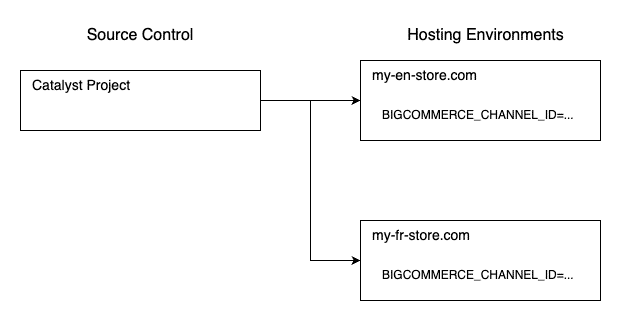
Alternatively, your requirements may necessitate a single deployment handling multiple domains:
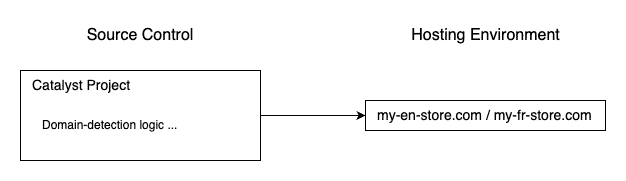
Catalyst does not currently have built-in tooling for a true multi-tenant scenario such as this, but it can be accomplished with customization. See this Vercel guide and sample multi-tenant app.
Likely steps to consider include:
- Creating a
[domain]Dynamic Route Segment similar to[locale], as seen in the example app - Setting the domain URL segment with middleware, as seen in the example app
- Consuming the domain route param and using it to conditionally set a channel ID where the API client is used

