Lab - Deploying Your Buyer Portal
Introduction
You’ve spent several exercises customizing your own fork of the B2B Buyer Portal. Loading this custom code into your Stencil storefront from your locally running server has worked well so far, but of course you ultimately need your Buyer Portal to be deployed and available from a publicly accessible URL.
In this exercise, we’ll practice deploying your Buyer Portal via the built-in WebDAV storage available in your BigCommerce store.
In this lab, you will:
- Build your Buyer Portal assets
- Deploy Buyer Portal files to your store’s WebDAV storage
- Update your store’s header/footer scripts to load the production-ready Buyer Portal
Prerequisites
- A local Buyer Portal project as completed in previous lab exercises
- A BigCommerce sandbox store or trial store
- B2B Edition enabled in your store
- A Stencil storefront channel, enabled for B2B
- A command-line interface on your local machine
- Node.js 22 or later
- The yarn package manager
- A WebDAV client configured with your store’s WebDAV credentials
WebDAV Client
The most notable new prerequisite for this lab is a WebDAV client.
Cyberduck is a popular free WebDAV client.
See the BigCommerce documentation for instructions on generating WebDAV credentials in your store control panel and configuring your client.
Once you have your WebDAV client configured and successfully connecting to your storage, you are ready to proceed!
Setup
As a reminder, you’re responsible for your own source control during these exercises. This would be a good time to commit all your previous work!
This exercise continues where you left off previously. If you want to start with a fresh copy of the completed project (for example, if you encounter any build errors), you can use the following command to clone the finished state:
Don’t forget to copy .env-example as .env.
Step 1: Determine Your Base URL
Before we build the Buyer Portal assets, we need to determine the fully qualified URL where these assets will ultimately reside.
Once we get to the step of deploying the Buyer Portal files to your store’s WebDAV storage, we will be uploading them to a specific subdirectory: content/b2b-1.0/.
This relative path will be appended directly to your store’s base URL. This base URL is the same URL you use to browse to the storefront (and can also be found in your control panel with the “View storefront(s)” link in the top navigation bar.)
Buyer Portal Base URL: https://<my-store-domain>/content/b2b-1.0/
In a sandbox or pre-production store with no domain applied, your store base URL will be <my-store-prefix>.mybigcommerce.com. This means your Buyer Portal base URL will be in the form:
https://<my-store-prefix>.mybigcommerce.com/content/b2b-1.0/
Step 2: Build the Buyer Portal Assets
- Open
.envin your Buyer Portal project and edit or add vars as follows.
Make sure to include the trailing slash in the VITE_ASSETS_ABSOLUTE_PATH value.
- Run the build command from the root directory of your project.
When rebuilding your custom Buyer Portal, you should clear the local contents of .turbo/cache before running yarn build
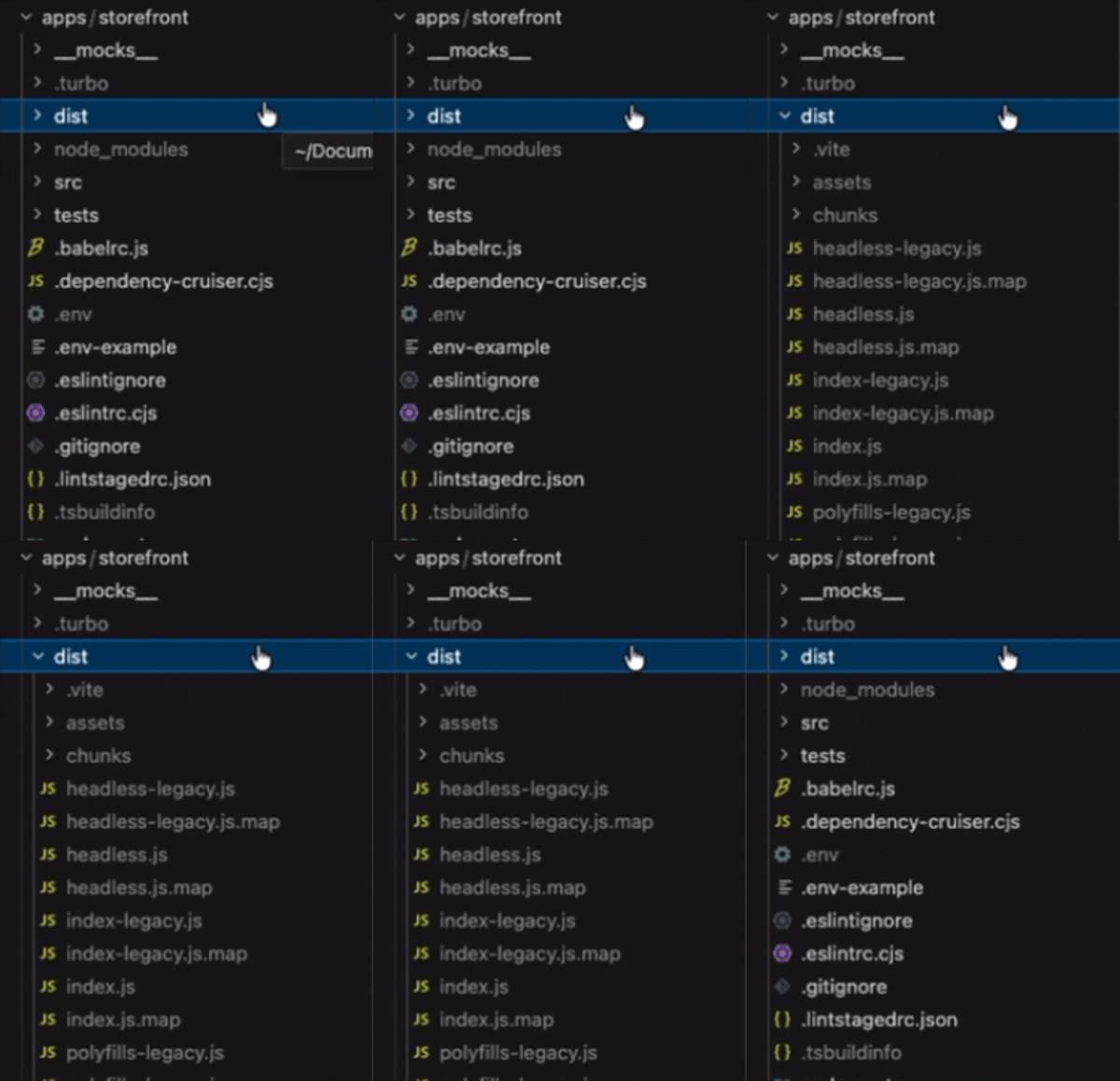
After building, apps/storefront/dist should contain the final Buyer Portal assets.
Troubleshooting
If you encounter any errors during the build and you’ve modified the code beyond the steps shown in these lab exercises, review the error messages in the terminal output.
All TypeScript checks must pass in order for the build to complete successfully, so any TypeScript errors introduced in your code must be addressed.
If necessary, try a fresh clone of the completed project. (See Setup above.)
Step 3: Upload to WebDAV Storage
- Open your WebDAV client (e.g., Cyberduck) and connect to your store’s WebDAV storage.
- Upload the
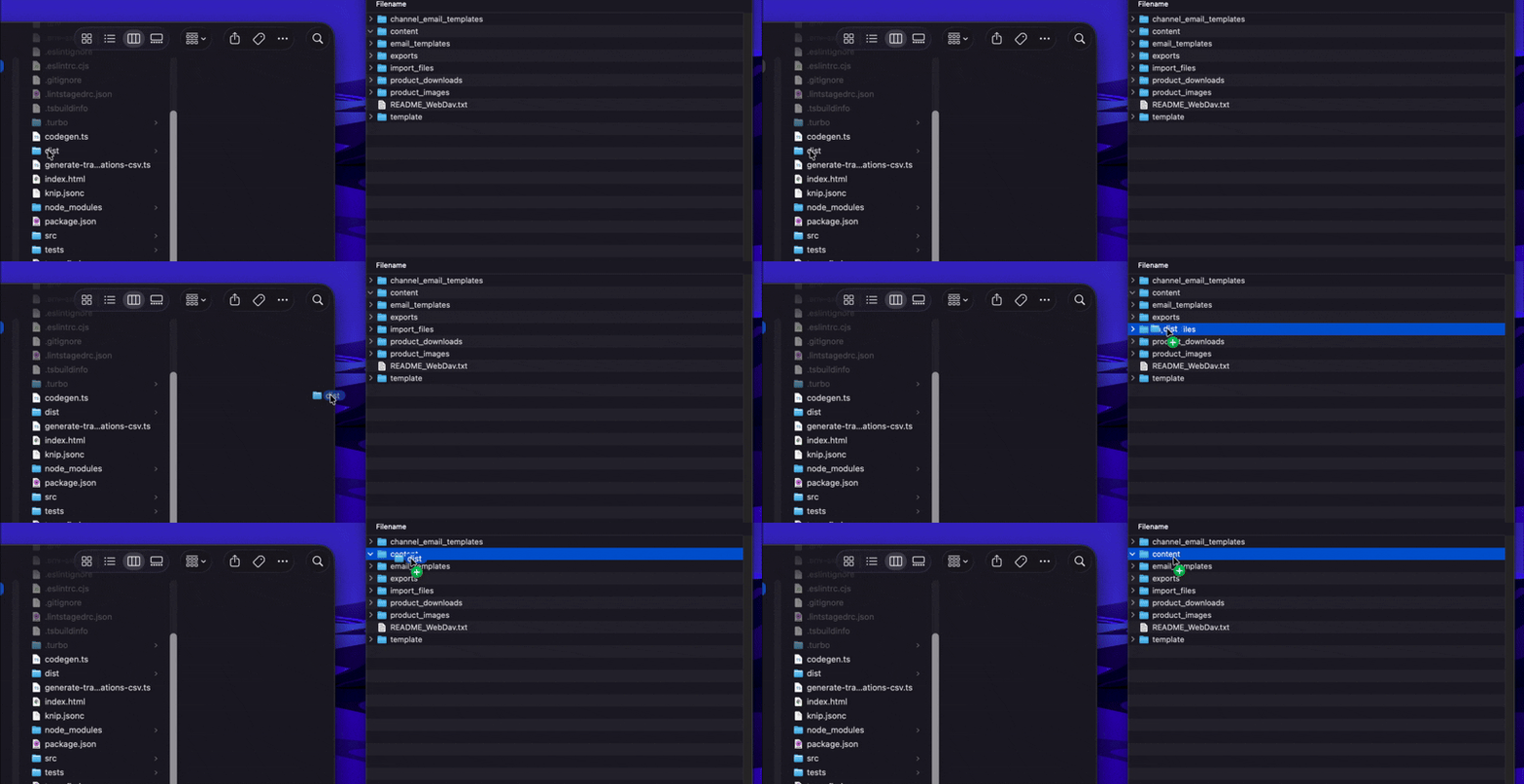
distdirectory fromapps/storefrontinto thecontentdirectory in WebDAV.
With a client like Cyberduck, it’s easiest to open your project in your file manager and drag dist into the content folder in the client app.
- In your WebDAV client, rename the
distdirectory tob2b-1.0.
The result should be a viable public URL on your storefront in this form:
https://<my-store-domain>/content/b2b-1.0/index.js
- Verify that your Buyer Portal files have been uploaded to the correct location by browsing directly to the
index.jsURL in the form shown above.
Your browser should render the raw content of the index.js file.
Step 4: Update Storefront Settings
Your storefront scripts are currently loading the Buyer Portal assets from your local development server. We need to update them to load the production-ready assets from your store’s WebDAV storage. More than just the file paths will differ with these scripts.
- Log into your BigCommerce control panel.
- Navigate to Script Manager.
- Update the header script as described in the Stencil Guide in the Buyer Portal repo.
See the link above for the latest version of the header and footer scripts.
Make sure you are using the scripts under the “Deploying the project” section, not “Running Project Locally”. The format of the scripts is different.
The header script should look something like the following:
- Save the header script.
- Update the footer script as described in the Stencil Guide.
The footer script should look something like:
- Modify the footer script to replace
<YOUR_APP_URL_HERE>with the Buyer Portal base URL determined in the previous steps, as well as to remove the*.from each filename.
Example:
- Save the footer script.
With your new scripts in place, navigate to your storefront. Verify that your custom Overview page functionality still works. Watch the network tab in your browser dev tools to verify that index.js is loading from your deployed location.
Troubleshooting
If your browser dev tools show that B2B-related assets are failing to load or throwing errors:
- Double check that the
VITE_ASSETS_ABSOLUTE_PATHin your project matches the base URL you are including in Script Manager. (A rebuild will be necessary if this is incorrect.) - Verify that you can browse directly to the
index.jsURL in your browser and see the raw content of the file. - Double check the URLs in the footer script in Script Manager.
Final Considerations
Switching Back to Local Development
To summarize the steps required to switch your storefront back to using the local Buyer Portal server:
- Update
.envto setVITE_IS_LOCAL_ENVIRONMENTtoTRUE. - Run
yarn devto start the local dev server. - Update your header and footer scripts in Script Manager to the appropriate scripts from the Stencil Guide.
Remember to pay attention to the port your local server is running on and incorporate this in your scripts.
Subsequent Deployments
As you go through development cycles to iterate on your custom Buyer Portal, subsequent deployments should involve the following:
- Formulate a new base URL for your Buyer Portal assets. (e.g.,
https://<my-store-domain>/content/b2b-1.1/) - Update
.envto setVITE_ASSETS_ABSOLUTE_PATHto the new base URL. - Repeat the steps for building and deploying your assets.
- Update the footer script in Script Manager with the new base URL.
Note that because we’re using a directory-based strategy (b2b-1.1) for versioning, the previously deployed version of the Buyer Portal will continue to be used up until your footer script is updated. If there are any issues with the new version, reverting is as easy as updating your footer script back to the old URL.
The Build Hash
Our inclusion of a unique directory with a version number in the assets URL is an example of “cache busting.” Because the assets’ URLs change when you deploy a new version, Buyer Portal functionality will not be disrupted by stale cached assets.
You might also choose to use a date-based directory name, such as b2b-20270101.
Contrasting with a directory-based approach, you might also choose to use the built-in build hash for versioning and cache busting. Enable this default behavior by removing VITE_DISABLE_BUILD_HASH from .env before building.
With the default hash behavior, each build file will be suffixed with a hash value (e.g., index.<hash>.js). If you rely on this approach for cache busting, you might be using a URL like the following in Script Manager:
https://<my-store-domain>/content/b2b/index.<hash>.js
The benefits of the hash approach are that you don’t have to manually create a version naming convention, and that VITE_ASSETS_ABSOLUTE_PATH can remain consistent rather than changing with each new version. The downside is that you will always overwrite your previous build files when deploying, making the old build files immediately inaccessible and making it more complicated to roll back to a previous build.
Bring Your Own CDN
In this exercise, we’ve used the built-in WebDAV storage available in your BigCommerce store to host your Buyer Portal assets. This is a viable option for production stores as well as sandbox scenarios.
However, you might prefer to use a third-party CDN to host your build files, based on your infrastructure needs or your organization’s policies or existing services. Buyer Portal static assets can be loaded from any publicly accessible URL. Just make sure to pre-determine the base URL where your assets will be available and set VITE_ASSETS_ABSOLUTE_PATH accordingly before building.
More Information
See the Buyer Portal documentation regarding building and deploying.
In Catalyst
If you’re using the available Catalyst integration with the Buyer Portal, some steps followed in this lab will be different. As previously discussed, the code for injecting the portal lives within the Catalyst codebase rather than relying on Script Manager. In addition, you might choose to deploy your Buyer Portal build files directly with your Catalyst project.
See the Catalyst guide for a more detailed discussion.

