Lab - Simulate a CRM Integration
Introduction
This exercise will simulate an external CRM integration by fetching support case data from an API and displaying it in the Buyer Portal.
In this lab, you will:
- Perform a mock token exchange with the CRM
- Make a mock data fetch for support case data
- Display the support case status on the Overview page
Setup
This exercise continues where you left off previously. Make sure the dev server is started in your Buyer Portal project:
If you need a fresh start, you can follow the instructions below to set up a new project complete with previous exercise code.
- Copy the project with the appropriate tag.
- Install dependencies.
- Run the dev server.
Remember!
Script Manager in your store control panel must contain appropriate header/footer scripts to load the Buyer Portal from your local environment on the appropriate port.
Revisit the initial setup lab for full details on setting up your environment.
Exercise Reference Copy
If it’s helpful to compare your own code as you go, you can clone or download the completed version of this labs as a reference.
The Mock CRM Service
The lab boilerplate code already includes a minimal implementation of a mock CRM service. See the implementation here.
This implementation includes:
- A mock client simulating fetches to these REST endpoints:
/storefrontToken/company/orderCases
- Service methods
fetchStorefrontTokenandfetchOrderSupportCasesthat wrap the mock client calls.
The client simulates a workflow for integrating with a hypothetical “backend for frontend” (BFF) service - a thin middleware layer proxying data from the CRM to the Buyer Portal.
Important notes about the mock implementation:
- The mock client simulates a random delay of 1-5 seconds for each request.
fetchStorefrontTokensimulates a token exchange. In a real-world implementation, the BFF service would verify that the BigCommerce B2B storefront token is valid and matches a given company in the CRM, then return a signed JWT with a unique token and CRM ID for the company. In this mock implementation, the request automatically succeeds and returns a randomly generated token.fetchOrderSupportCasessimulates a data fetch for support case data from the CRM, for whichever B2B orders are passed in. In a real-world implementation, the BFF service would store minimal support case data pushed to it from the CRM, as well as take care of validating the CRM JWT from the Buyer Portal. In this mock implementation, the token validation is done in the client itself, and a static array of case data is returned regardless of what B2B order IDs are passed in.
The following diagram shows the hypothetical request flow between the client (Buyer Portal), BFF service, BigCommerce B2B, and CRM:
Managing the CRM Token
In a previous lab exercise, we added a new Redux slice allowing us to manage the CRM token in the Buyer Portal global state.
We added these entry points:
- When the Buyer Portal is initialized in
App.tsx, a value is set in the global state. - In the
RecentOrderscomponent, the CRM token is retrieved from the global state.
We’ll be updating the initialization logic to perform a token exchange with the mock CRM service.
Step 1: Perform Token Exchange
Remember, all file paths referenced in these exercises are relative to apps/storefront/src in your Buyer Portal project.
- Open
shared/service/crm-bff/initCrm.tsand implement the logic to perform the token exchange with the mock client.
- Open
App.tsxand update imports to includeinitCrmand add the selector from the Redux store.
- Near the top of the
Appcomponent, add the following to fetch the values we need from the global state.
Note that the callbacks passed to useAppSelector for the built-in values from the company slice are defined inline. For our crm slice, however, we have exported an explicit selector for use in scenarios like this, meaning we don’t have to be concerned with the details of the slice and its structure.
- Update the existing React side effect that sets the CRM token in the global state.
Important!
Our logic here only performs the token exchange if a token isn’t already present in the session. Due to the test value already stored in the previous lab exercise, you will likely need to use your browser developer tools to delete the old value before you can see the token exchange in action.
In your session storage, look for the key “persist:crm” and delete the value.
You should now be able to observe the effects of the token exchange in your browser developer tools, when reloading the Overview page:
- The console log will show request and response details for the mock client request.
- As before, you’ll see a console log of the value retrieved from global state and the fresh
persist:crmvalue in session storage.
Observe that the mock client request will occur on any Buyer Portal page, and also that this request won’t be repeated once the value is stored in session storage.
Step 2: Fetch Support Case Data
In this step, we’ll use the mock client and the user’s CRM token to fetch support case data for the recent orders.
- Open
pages/Overview/components/RecentOrders.tsxand add a React state value to track the “B2B orders” separately from the main orders array.
Note we’re now setting the identical array of B2B orders in both the orders and b2bOrders state values. The former populates the rendered table and allows this rendering to proceed without being blocked by the CRM fetch. The latter allows us to construct a side effect to load the CRM case data.
- Update the side effect that currently simply logs the CRM token.
As soon as the main B2B order records have been loaded, crmFetchSupportCases will now be called to fetch the support case data (including a status). The fetched data is simply being logged for now.
Note that the side effect now depends on b2bOrders being non-empty.
By reloading the Overview page and expanding the “Recent Orders” accordion, you should now be able to observe the fetch. Watch the console in your browser developer tools to see both the mock client request/response and the array logged by RecentOrders.
Step 3: Display the Support Case Status
In the process of adding the CRM-fetched support case status to the orders rendered on the page, we’ll have to expand the interfaces that define an order’s fields.
- Open
pages/Overview/components/RecentOrders.tsx, add a new interface that extendsOverviewOrder, and update theordersstate accordingly.
Note that the b2bOrders state is still an array of OverviewOrder, since it only ever contains the un-enhanced B2B orders.
- Update the type information for column definitions with
rendercallbacks.
- Update the side effect that makes the CRM fetch.
updatedOrders is set by looping over b2bOrders, finding the matching CRM case, and adding the supportCaseStatus to the final object. This is then set on the orders state value that populates the rendered table.
- Add a column value to render the support case status.
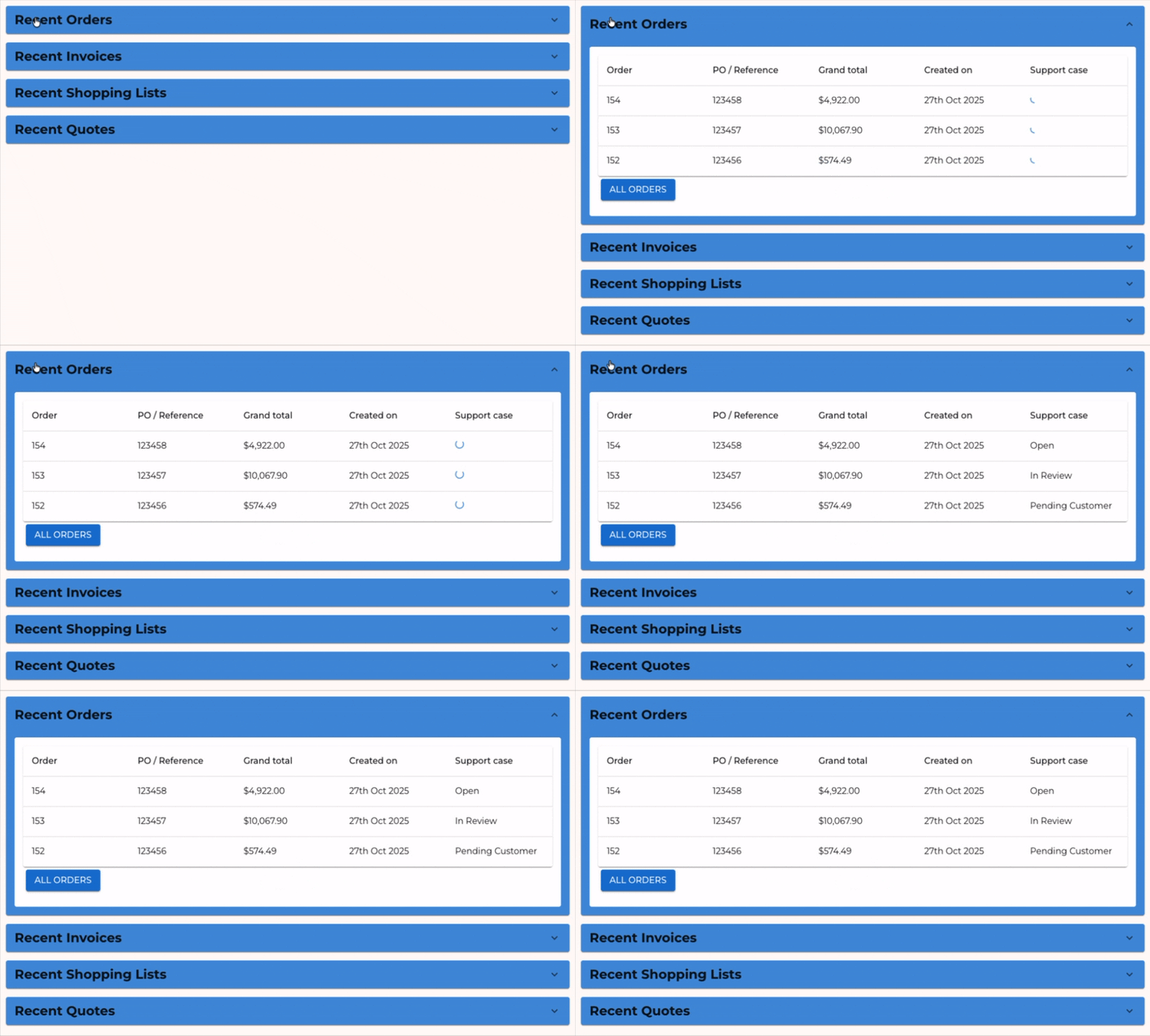
The “Recent Orders” table should now operate as follows:
- The initial fetch with the B2B GraphQL API will occur when the accordion is expanded.
- The table will be rendered immediately when the B2B orders are available, with a loading spinner in the Support case status column.
- The CRM fetch will be triggered as soon as B2B orders are available, and the Support case status column will be populated with the CRM case status as soon as the response is received.