Using Catalog Price Objects
As a theme developer, you can use the catalog price object to highlight the savings that a merchant is offering over the MSRP directly on the storefront by referencing the product’s price object and the correct property for the product.
Merchants can use control panel options to set the following prices for a catalog product:
These options and assigned values are each represented in the catalog price object, allowing theme developers to pull the information and render it onto the storefront to highlight the savings offered by a merchant.
Catalog price object examples excluding tax
No sale price defined in control panel
Assume that a merchant has defined the following for a product in the control panel:
- Default Price
- Cost
- MSRP
A corresponding catalog price object for the product will be structured as shown below:
In this example:
Sale price defined in control panel
Assume that a merchant has defined the following for a product in the control panel:
- Default Price
- Cost
- MSRP
- Sale Price
A corresponding catalog price object for the product will be structured as shown below:
In this example:
Properties noted will only be displayed if a sale price is set on the product.
Prices and conditional logic example
Stencil structures product prices for backward compatibility with the BigCommerce platform’s traditional treatment of prices. This behavior enables you to add logic that determines whether to display a strikeout price on the storefront.
The example below tests for the presence of the sale_price_without_tax property. (You could also look for the sale_price_with_tax property.) The presence of the sale_price_without_tax property means that the product has been given a sale price.
With the logic below, the page will display a strikeout standard price next to the Sale Price field, indicating the current selling price of the product.
Catalog price object examples including and excluding tax
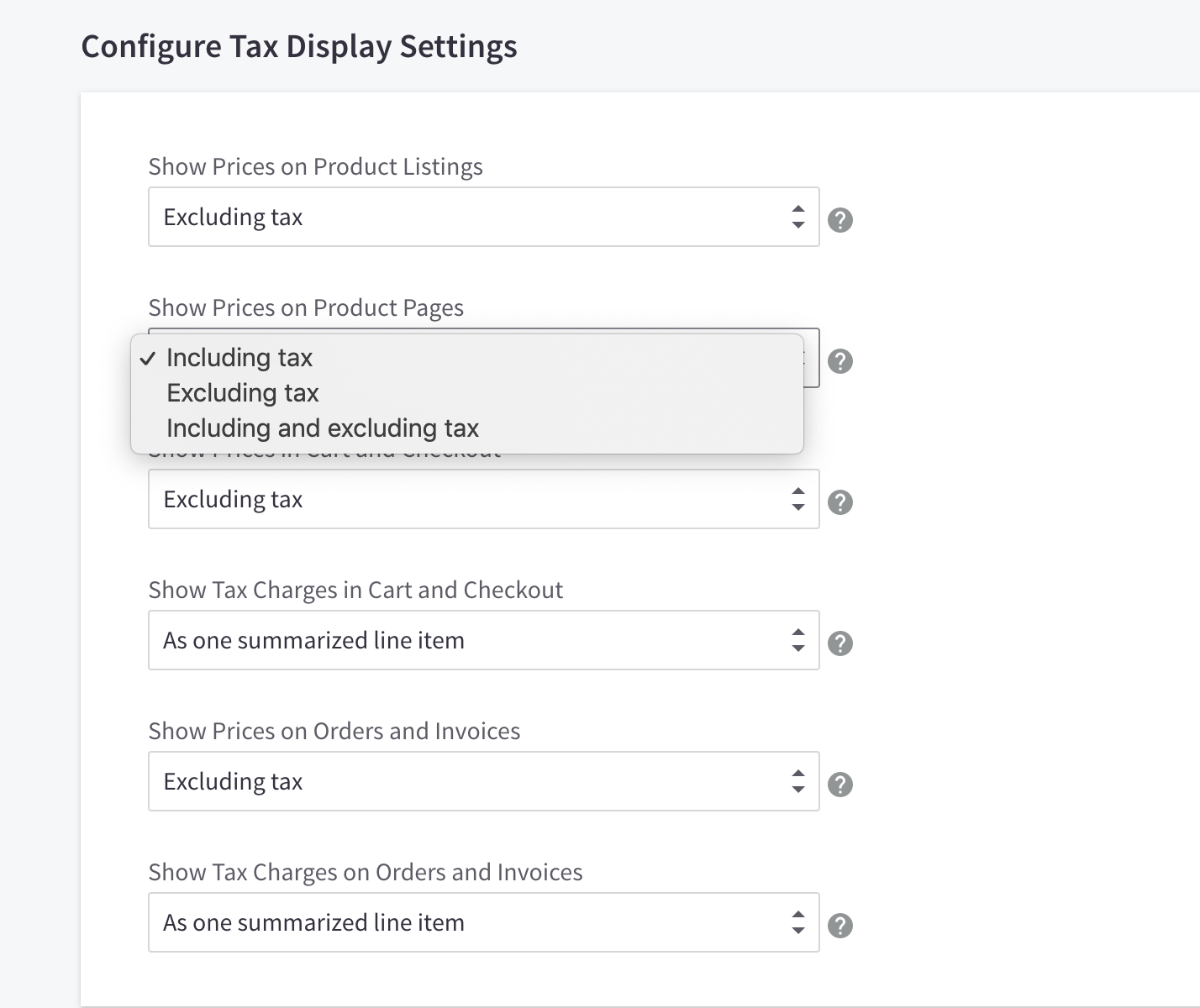
Depending on the store’s Tax Display Settings, the price object will display prices in one of the following ways:
- Including tax
- Excluding tax
- Including and excluding tax
This display setting affects how values are returned in the catalog price object and how the values appear on storefront pages.
No sale price defined in control panel
Assume that a merchant has defined the following tax configurations for a product in the control panel:
- Show prices on product pages including and excluding tax
- Use a flat rate of 10% tax
There is no defined sale price for the product.
A corresponding catalog price object will be structured as shown below:
In this example:
Tax display configurations
The same properties and values are returned for Including tax and Including and excluding tax display settings. These properties and values are not available for a control panel setting of Excluding tax.
Sale price defined in control panel
Assume that a merchant has defined the following tax configurations for a product in the control panel, alongside a defined sale price:
- Show prices on product pages including and excluding tax
- Use a flat rate of 10% tax
In this example:
Control panel quick reference
The table below explains the mapping between the control panel fields and the catalog price object properties and values.
Resources
Related Articles
- Theme Objects
- Adding a Product (BigCommerce Knowledge Base)

