Building Channels Quick Start
This advanced, quick-start tutorial is for BigCommerce partners wishing to market their solution within Channel Manager’s Create Channel flow. For an introduction to channels on BigCommerce, see Channels Overview.
Prerequisites
- Experience building apps
- Familiarity with Channels Toolkit
Create a channel
Apps selected as solutions within the Create Channel flow must generate a basic channel. This setup automatically links the app to the newly created channel, allowing it to appear in the Channel Manager as managing a specific channel. It also enhances the app’s native look and feel for merchants. To modify UI sections, use the Create a channel menu endpoint.
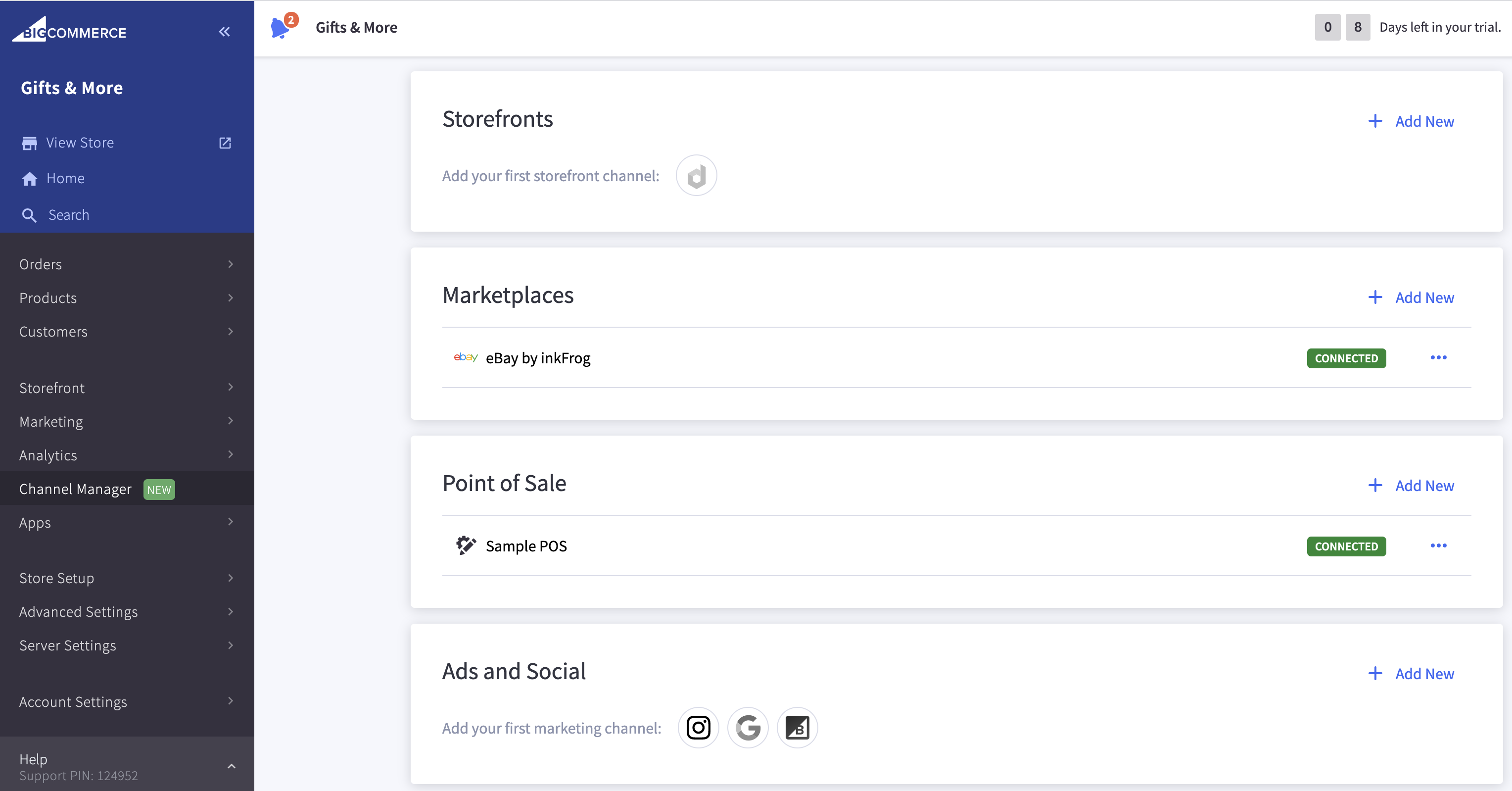
To create a channel, send a POST request to /v3/channels.
- For a list of accepted
typeandplatformvalues, see Channels API Reference. - For instructions on finding your app’s ID, see Find and App’s ID.
Create a channel with navigation
We recommend that apps also create navigation sections to better integrate the app’s interface within the BigCommerce control panel.
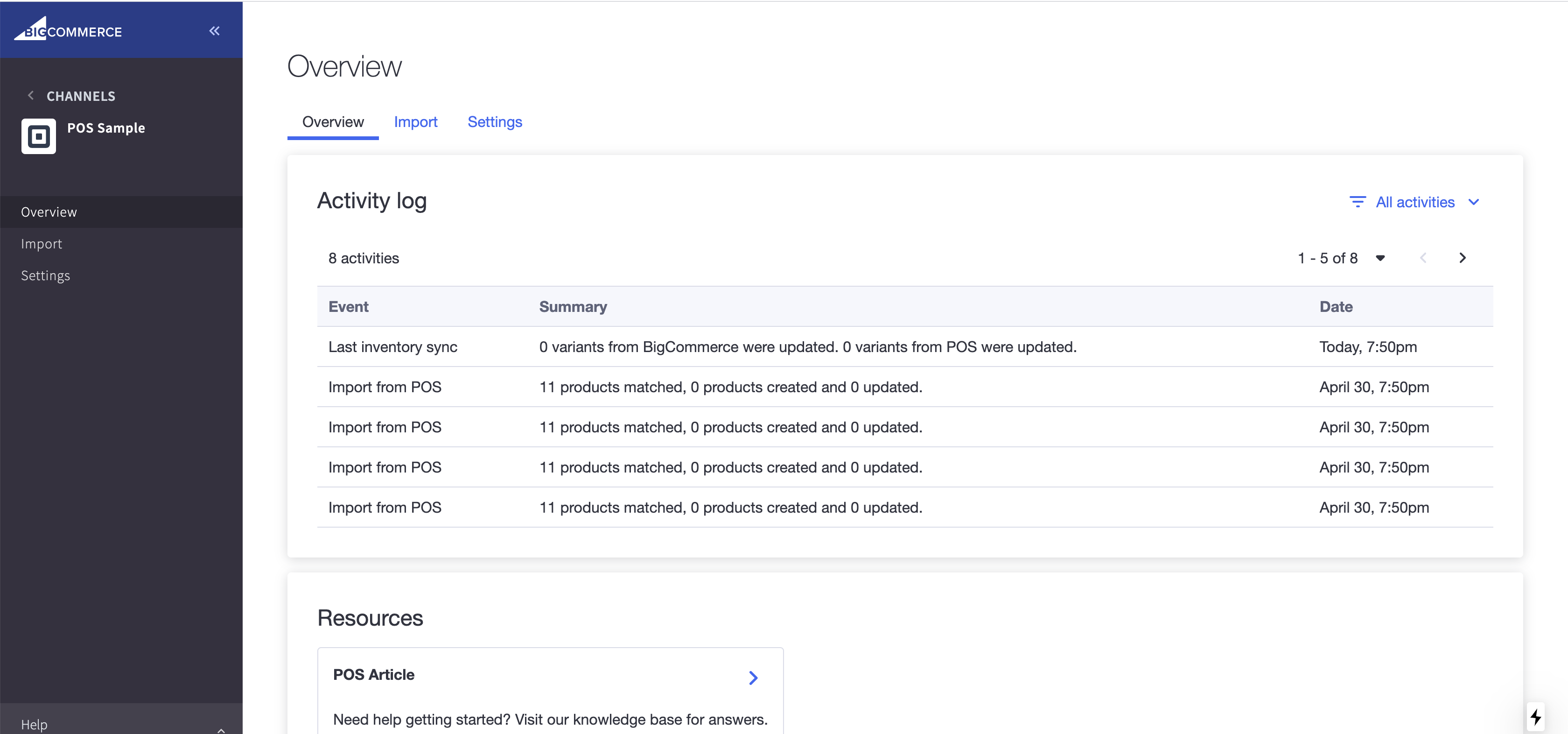
To create a channel with navigation, use the Channel Menus API after creating a channel record.

