Lab - Customize Components
Lesson 6 of 16 · 30 min
In this lab, you will:
- Rearrange components on a page
- Add and remove components
Prerequisites
- Previous labs have been completed
Before proceeding, either switch back to the original variation (stencil start), or ensure you are making changes in the Settings of the variation created above.
Step 1: Rearrange Components on a Page
- Navigate to Templates > Components > Common
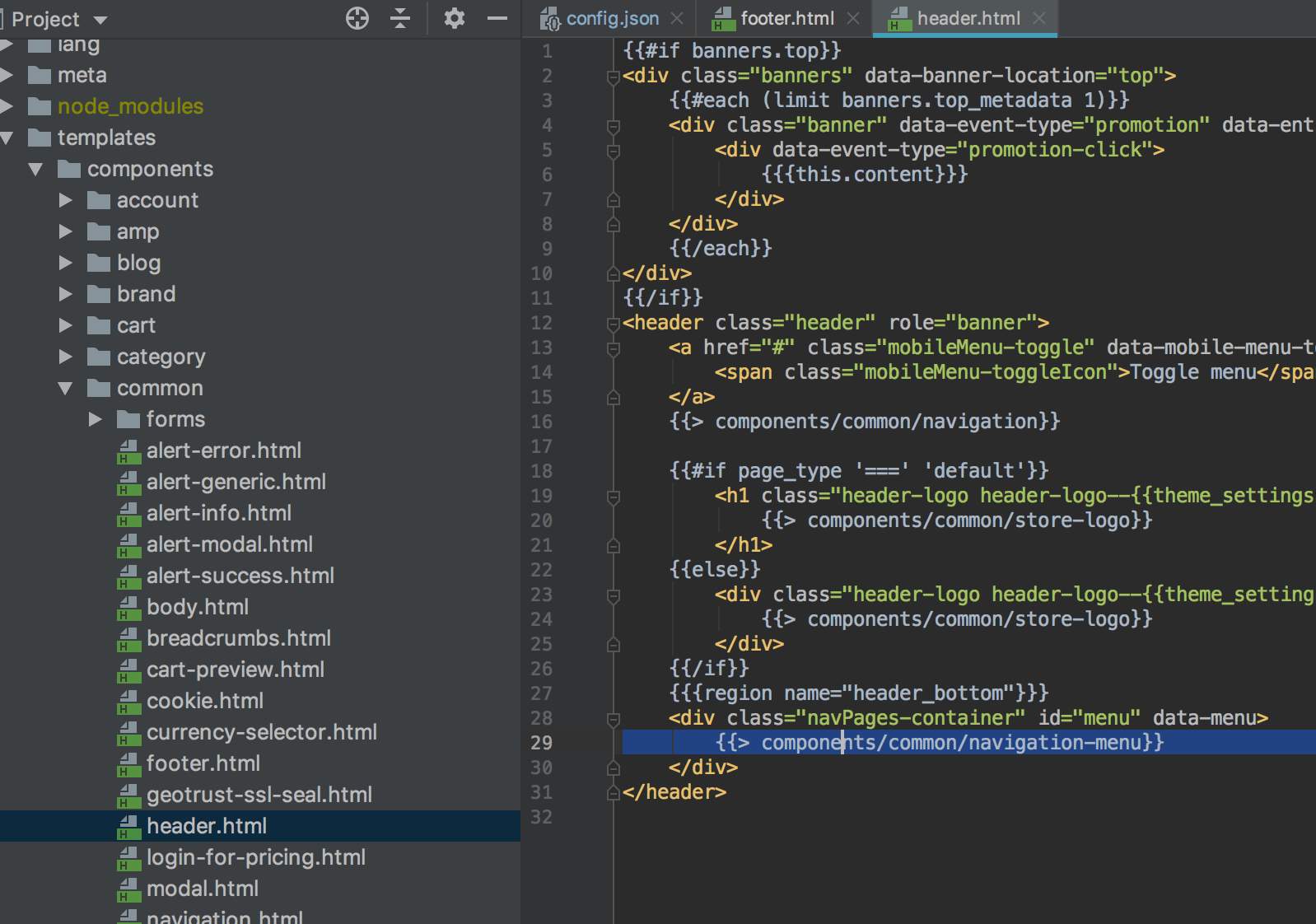
- Open templates/components/common/header.html
- Locate and cut the following snippet:
- Paste at the very top of the file
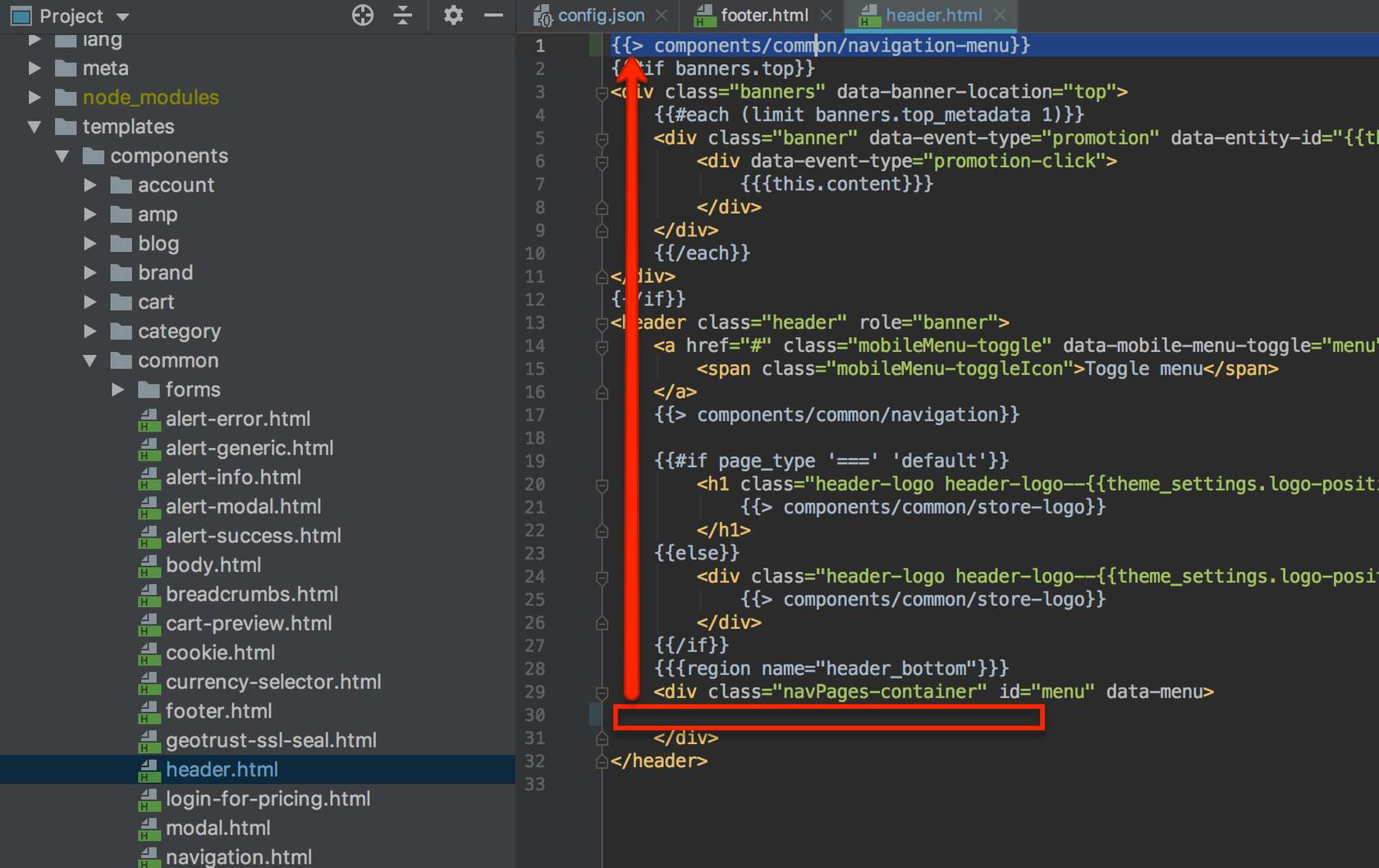
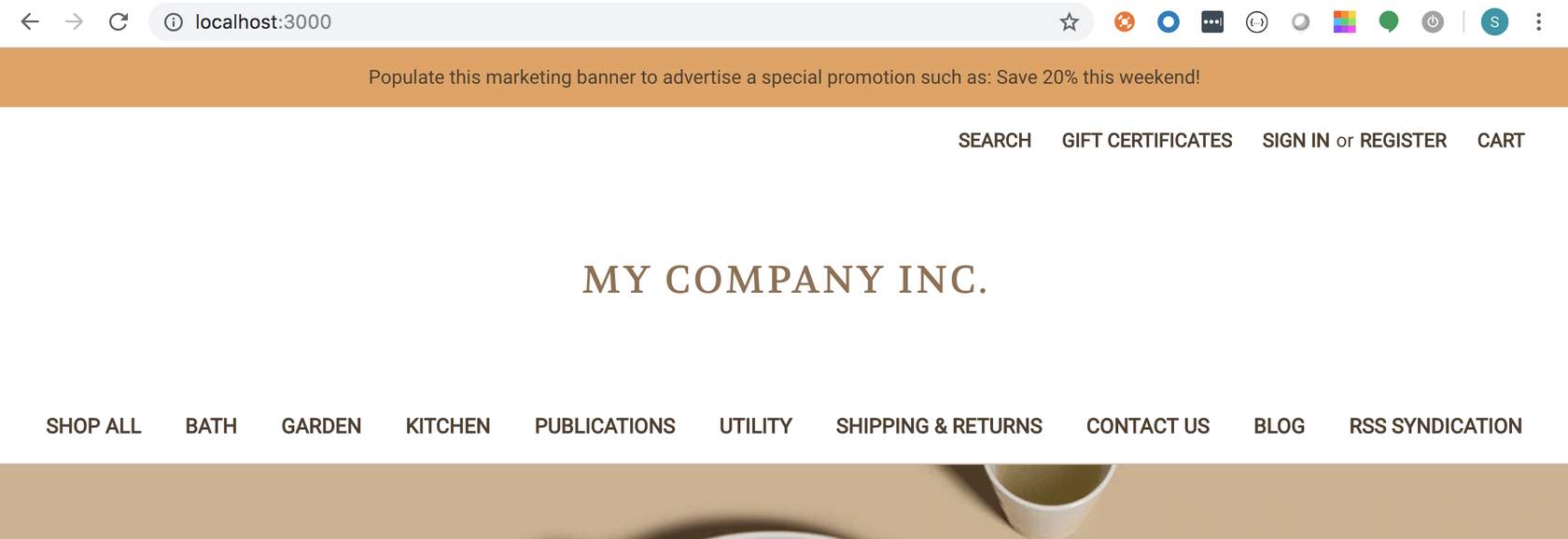
- Observe navigation menu moved to top of page
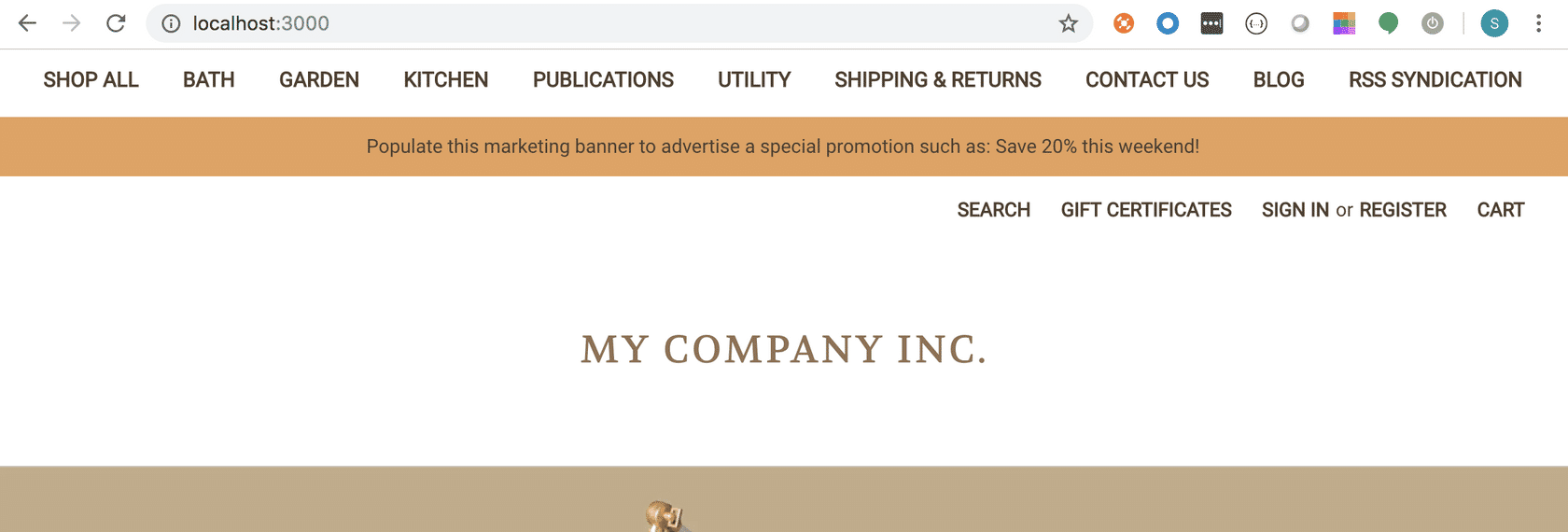
Step 2: Remove Social-Links Component
Introduction
Before you begin the next step, make sure you have visible Social Links on your storefront. Social Links will only be visible if they have been enabled through the Storefront > Social media links in the control panel.
Additionally, if you haven’t enabled any social link icons in the control panel (Storefront > Social media links), only the text from the custom component will be visible.
- Navigate to Components > Common
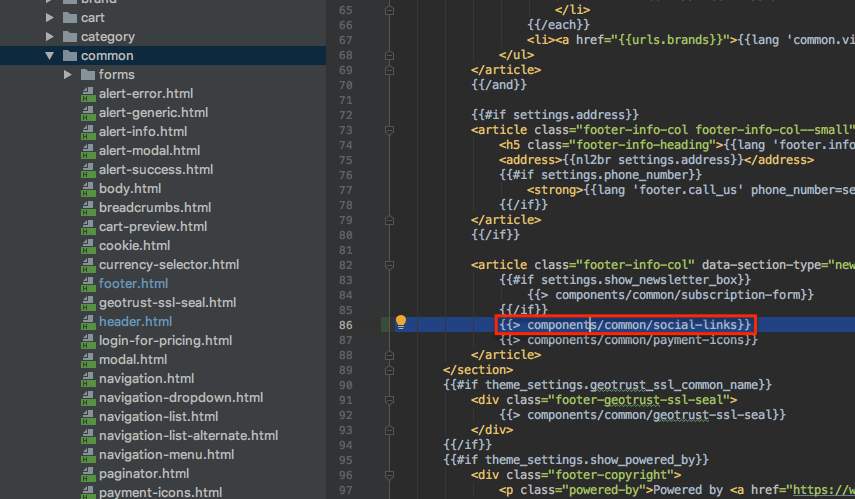
- Open footer.html
- Locate and delete the following snippet:
Step 3 - Add a New Component
- Right click on Component
- Select New > HTML File
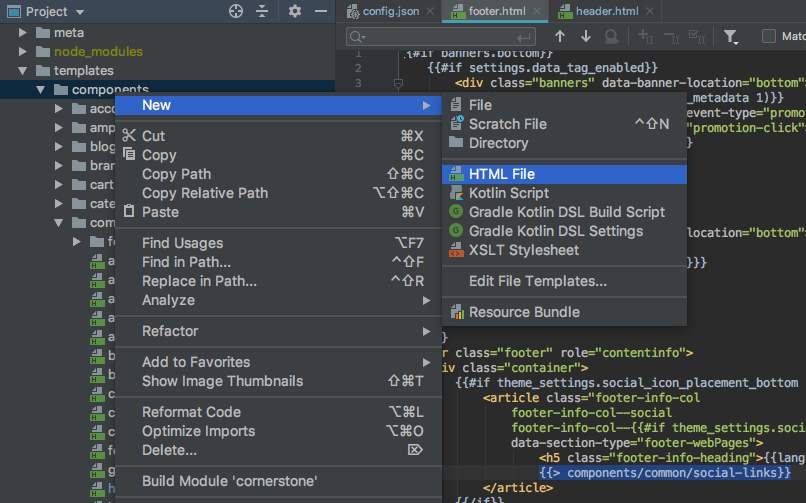
- Name the new file “test.html” and click OK
- Replace the contents of the new file with plain text (ex. TEST)
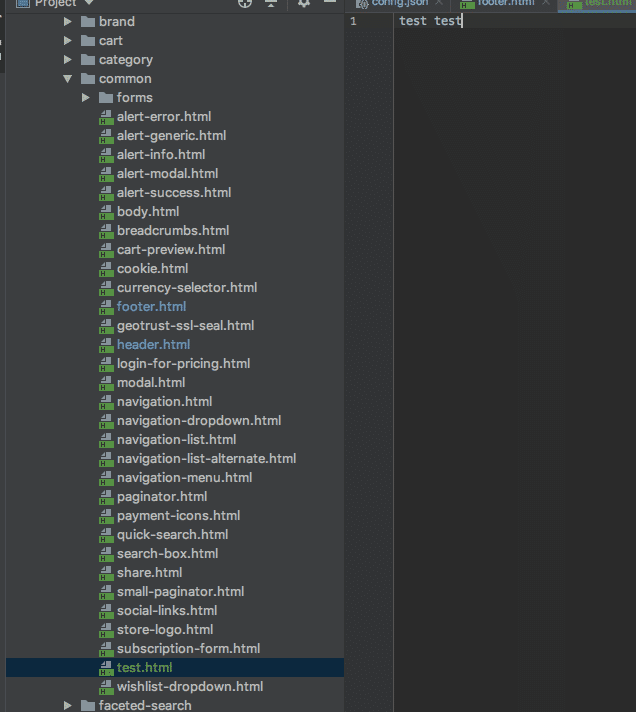
- Add the new component to the footer.html file directly under the payment-icons component
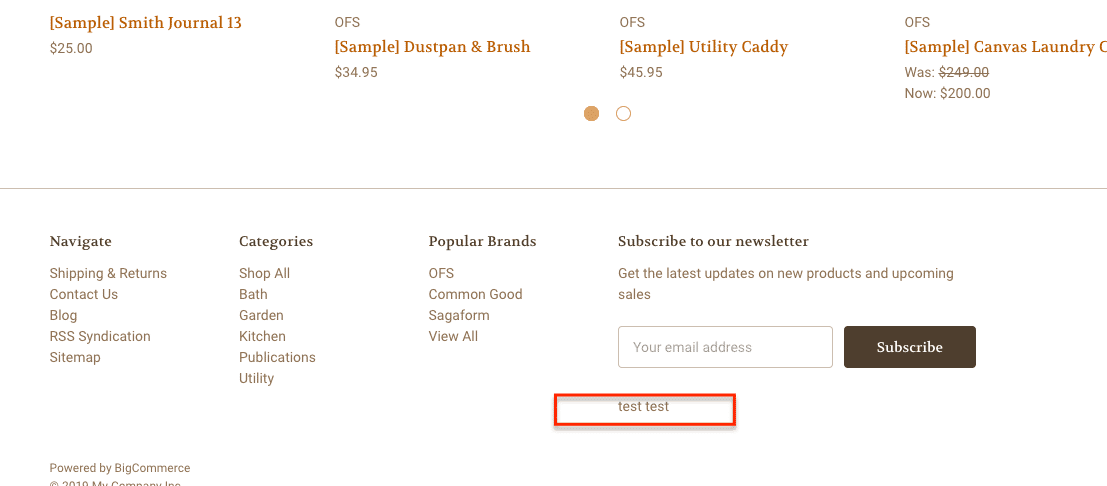
- Observe test component text on storefront