Front Matter Objects
When you create a storefront web page that requires specific attributes to be displayed (such as ‘New Products’), you must first declare the object and attribute on the page in a front matter block at the top of the page’s HTML template file. The front matter block makes the attribute accessible on the page.
Don’t forget:
Be sure that you are using the most recently supported Node version. Refer to the Stencil CLI README.MD for the latest node version supported.
You can access our documentation for a list of objects available and the partials where they can be referenced, feel free to bookmark this link.
Declaring Front Matter Objects
The front matter block makes information available on the page. Then, to display the information on the storefront page you will reference the object using Handlebars within the page’s HTML.
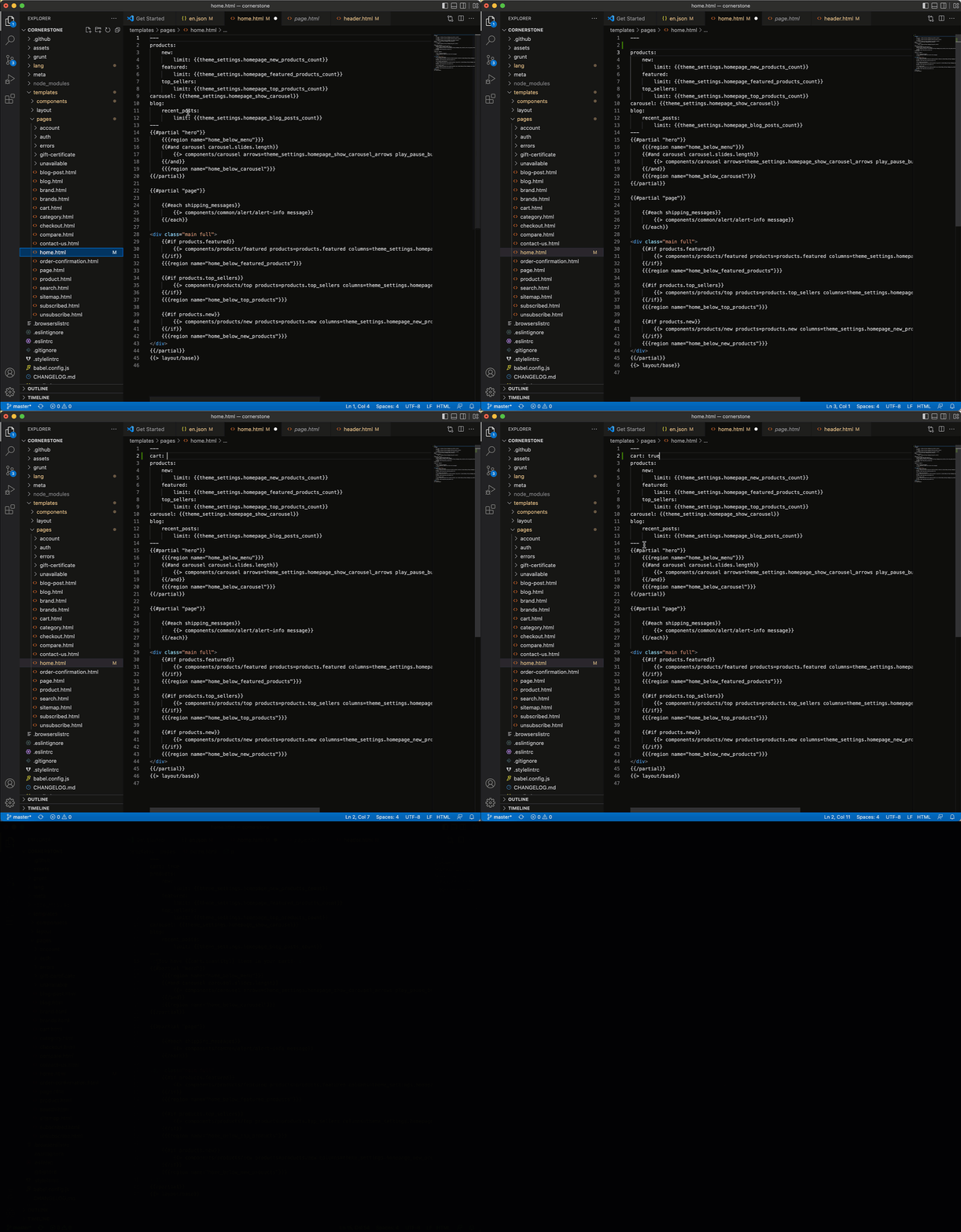
For example, to display ‘cart quantity’ on a storefront’s homepage, you first need to make the cart accessible on the home page. To achieve this, include the front matter block below at the top of the home.html file to declare the products object with its new attribute.
Example:
After including the front matter block at the top of the home.html file, the Cart Quantity attribute will be accessible in the home page’s context.
NOTE: Simply including the front matter block will not display the attribute on the page.
In order to actually display the cart quantity on the desired storefront page, you will reference the attribute using Handlebars in the context of the same file to which you have added the front matter block.
In this example, we will include the following code in Cornerstone’s home.html file to display the Cart Quantity on your store’s home page (home.html: templates/pages/home.html).
Example:
Restrictions
You can use front matter to specify attributes on the tops of pages in your templates/pages/ subdirectory.
You cannot use front matter to accomplish this on pages in the following subdirectories:
- templates/components/
- templates/layout/
- templates/pages/custom/
- Injecting objects in the front matter of templates/pages/page.html will make the objects available to custom templates
- Indent using only spaces, not tabs. (YAML forbids tabs, to avoid inconsistent encoding of tabs across platforms.) An indent of even one space indicates a child
- Front matter on a given page cannot exceed 64 KB
- If a front matter directive contains an invalid option, Stencil CLI will silently ignore that option
Filtering Attributes
Some attributes can accept indented keys, or key-value pairs, to further define the attribute. For example, the limit is a key commonly used to restrict the number of objects to return for an attribute. To return products similar to the product that a customer is currently viewing – with a limit of six – you would declare front matter as follows:
Most keys have a default value, as listed in the front matter Attributes Reference. Specifying the key without a value will call that default value. The default limit value for similar by views happens to be 4, so inserting a limit with no integer will display four products.
Developer Best Practice: Filtering for Faster Page Loads
To keep your pages lightweight, specify only the attributes you need per page. Also, use the limit key (with appropriate values) for attributes that accept it.
Combining Front Matter and Handlebars
The next example builds on front matter object invocation and filtering, by showing a corresponding Handlebars statement in HTML.
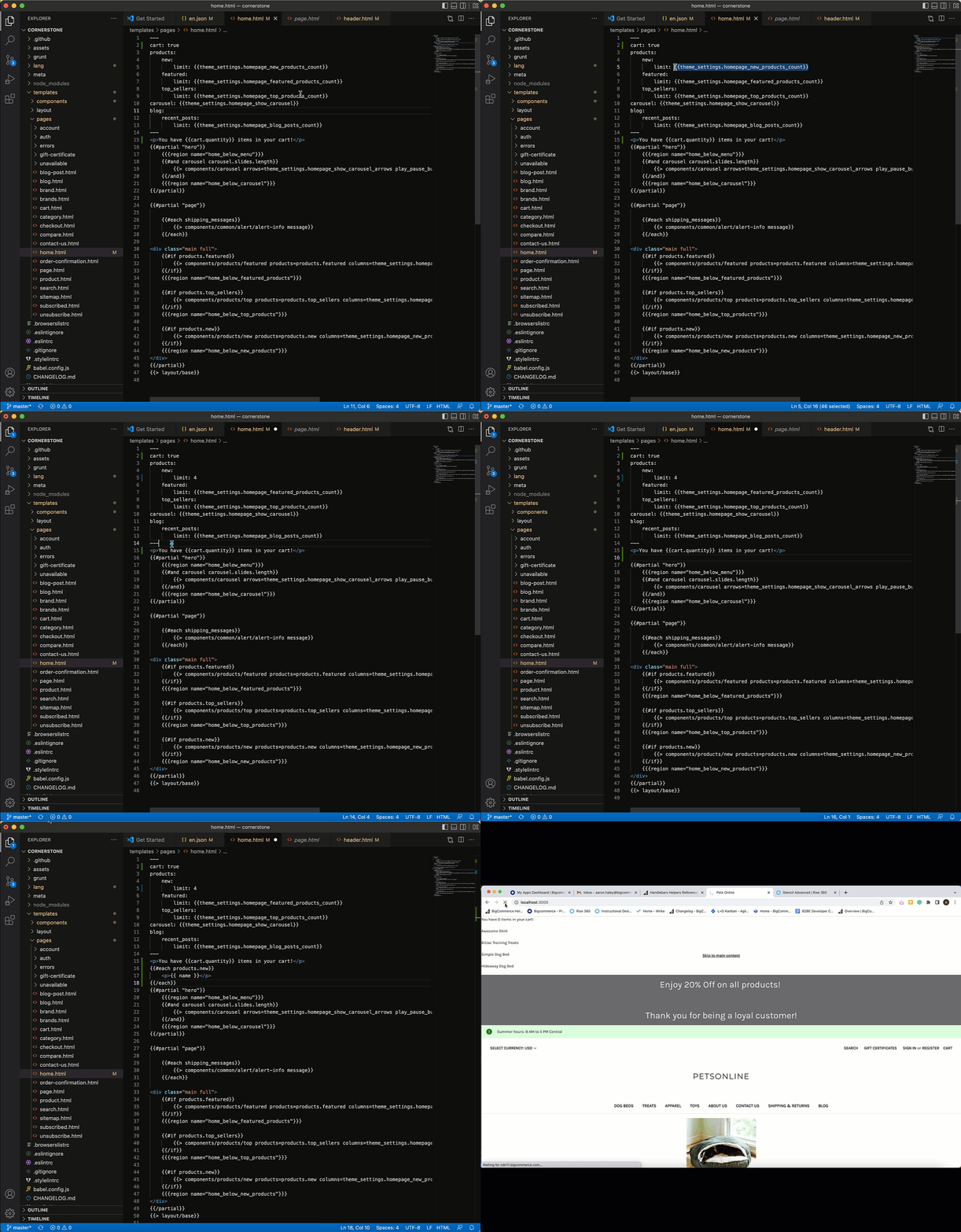
You can declare the products object to return four new products and then display each product’s name with the following code:
Reading the Handlebars
In the above HTML, the {{ name }} identifier calls an attribute of Stencil’s common product card model, which consolidates details about a given product. For this and other objects that you can access through HTML see the Handlebars Helpers reference.
Default vs. Custom Attributes
To make templates readily useful, they automatically include a page’s default attributes. For example, a theme’s product.html page will automatically include a product attribute.
However, if you want to include additional attributes on a page, you can declare those attributes in front matter using the conventions shown above.
Declaring Multiple Attributes
Below is an example that assumes you want to include a product’s reviews and also related products.
To display images for the related products, the HTML statement <img src=“{{getImage image ‘gallery’}}”> relies on Stencil’s {{getImage}} custom Handlebars helper:
GraphQL Front Matter Attributes
You can add GraphQL Storefront API queries to your theme via the front matter block in a template file.
The example code below shows how you can request a product’s variants by augmenting the existing product.html template:
Best Practice
Use the GraphQL Storefront API Playground to test GraphQL queries before adding them to your template.
You can launch the playground in the context of your store by going to:
Control Panel > Settings > Storefront API Playground
Once you have added a query to your template’s front matter block, execution happens automatically when the page loads. The data returned by the query will be returned in the page’s context and made available to the handlebars under the GQL key.
The example below shows how you can retrieve the variant data from the above query in product.html:
GraphQL Errors
If a GraphQL query is invalid, Stencil returns an errors object with locations and message properties to the following example:
Query Data Using Variables
You can inject special variables into a query to fetch data relevant to that page. The following is the complete list of available variables:
- category.html : $categoryId
- product.html : $productId
- brand.html : $brandId
- page.html : $pageId
- contact-us.html : $pageId
- blog-post.html : $blogPostId
Query Data Without Using Variables
You can also query data without using variables. The example below shows a query for a category tree that is 3 levels deep.
Example query:
The example query above returns the following JSON object:
GraphQL Front Matter Queries for Current Customer Information
You can also query information about the current customer using GraphQL front matter declarations. Values like customer notes, tax exempt category, and customer attributes are available from GraphQL but not from Stencil, so declaring them in Front Matter is another way to access the data without making a request from JavaScript.
The example code below shows how to request information about the current customer on the homepage by modifying the existing templates/pages/home.html template:
Once the query has been added to the Front Matter block in home.html, you can access the query result in Handlebars. Note that the customer result will be null if the customer is not logged in.
The example below shows how you can retrieve the customer data from the above query in home.html:
Note that if your store does not have a customer attribute with id: 1 then you can use the Customer Attributes API to create one or modify the entityId in the query to refer to an attribute in the store.

