BigCommerce GraphQL Tools
Storefront API Playground
The Storefront API Playground is a testing tool that can be accessed from the control panel of a Stencil store. BigCommerce’s GraphQL API uses the Storefront API Playground to let you run requests in the browser.
The Storefront API Playground is our implementation of GraphiQL, which is a fairly common tool. Developers who have used GraphQL before should immediately be able to make the connection to their previous experience.
Accessing the Storefront API Playground
To access the Storefront API Playground and documentation:
- Login to a BigCommerce store
- Navigate to Settings > API > Storefront API Playground
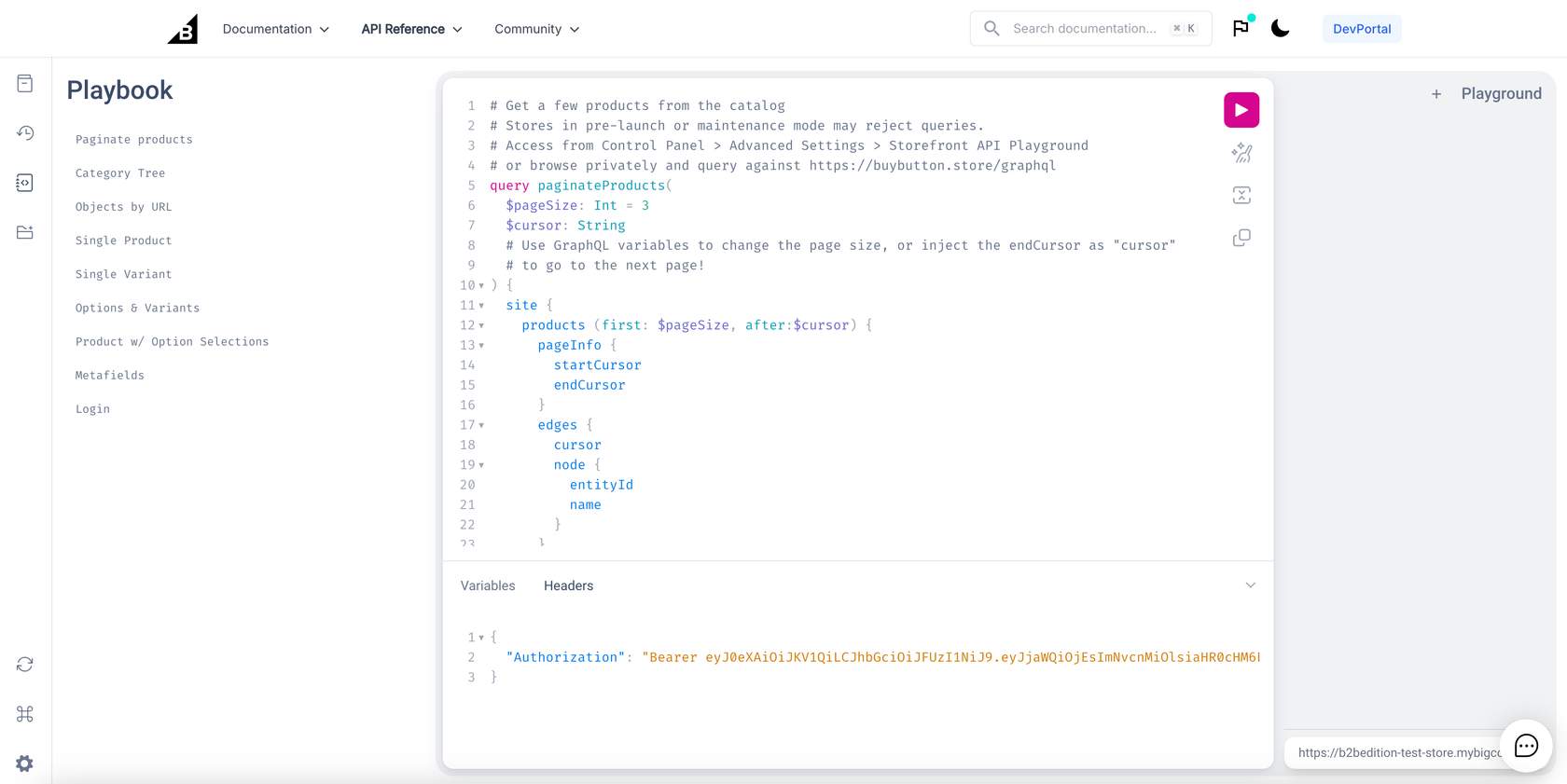
If the Storefront API Playground link is not visible, this may be because your store is not using a Stencil theme. Apply a Stencil theme to access the Storefront API Playground.
Accessing the Storefront API Playground Manually
Accessing the Storefront API Playground manually (i.e., from developer.bigcommerce.com/graphql-storefront/playground) doesn’t automatically connect to your store to the playground like the control panel flow does. Instead, this link is connected to the Buy Button Sample Store and can still be used to test out simple queries. You can still use this link to connect to your store, but you will need to provide your own Storefront API token, which is covered in the next module.
How to Use the Storefront API Playground
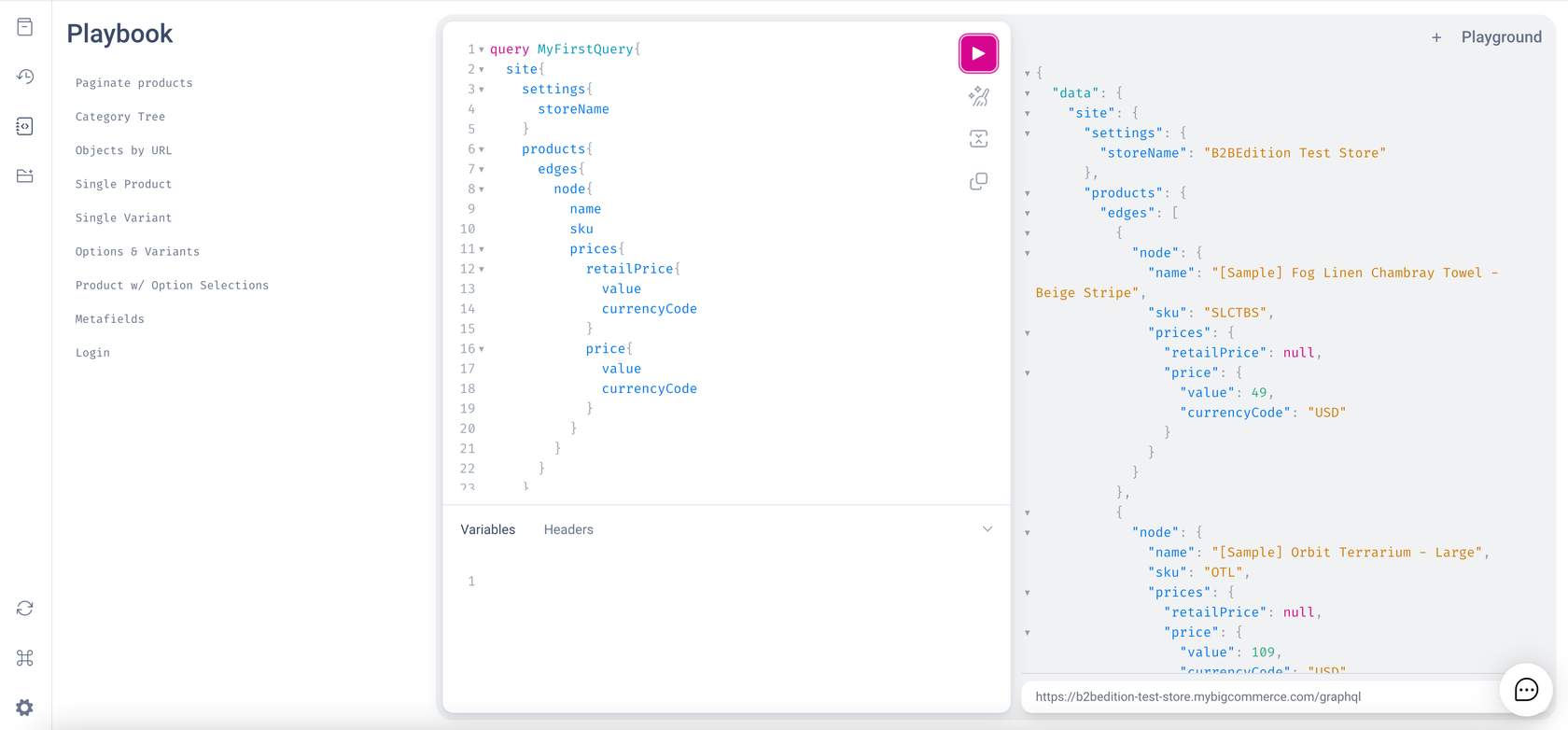
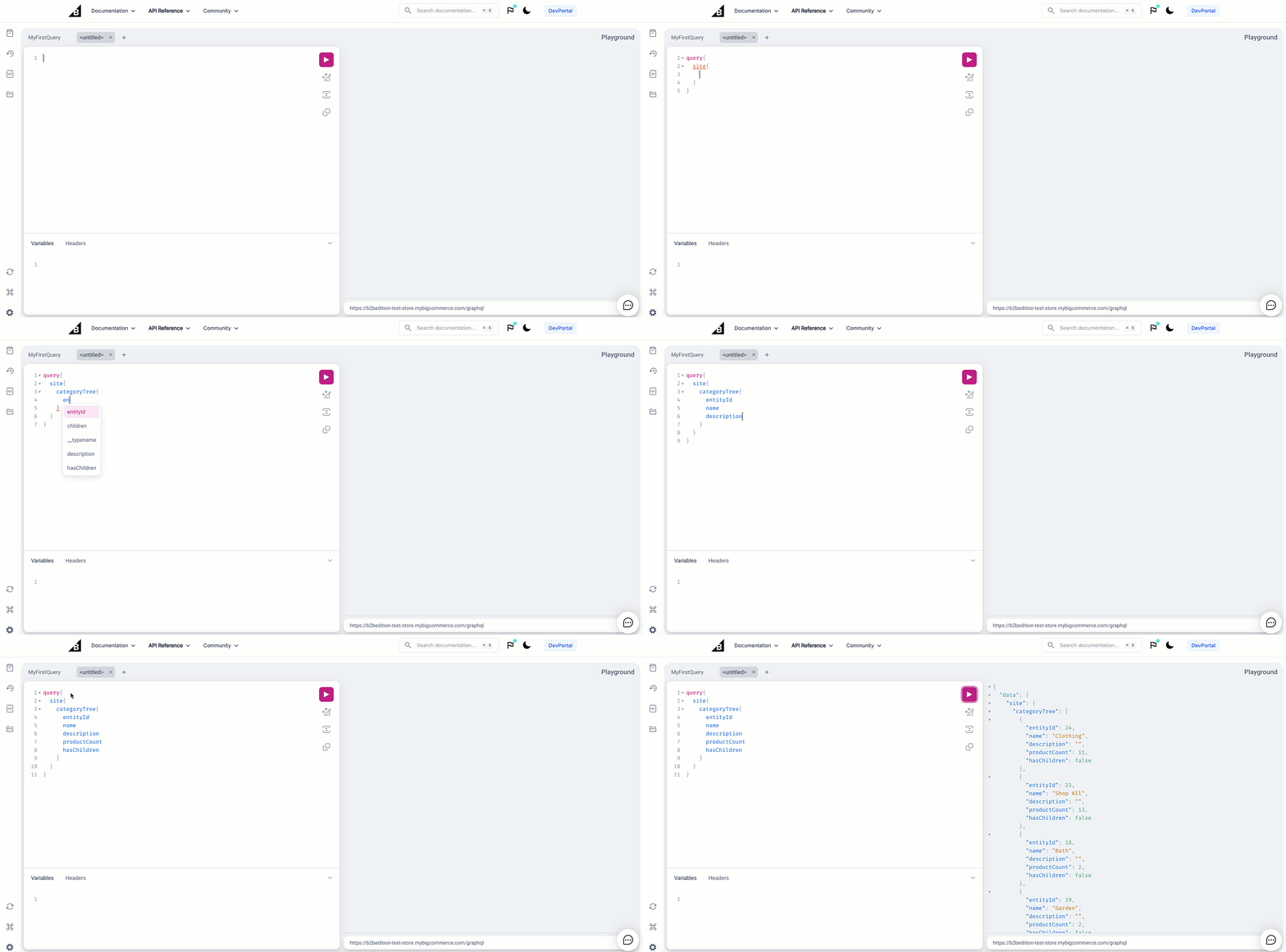
To use the playground, input queries on the left side and then click the play button. Query results will be displayed on the right side:
View Documentation and Schema
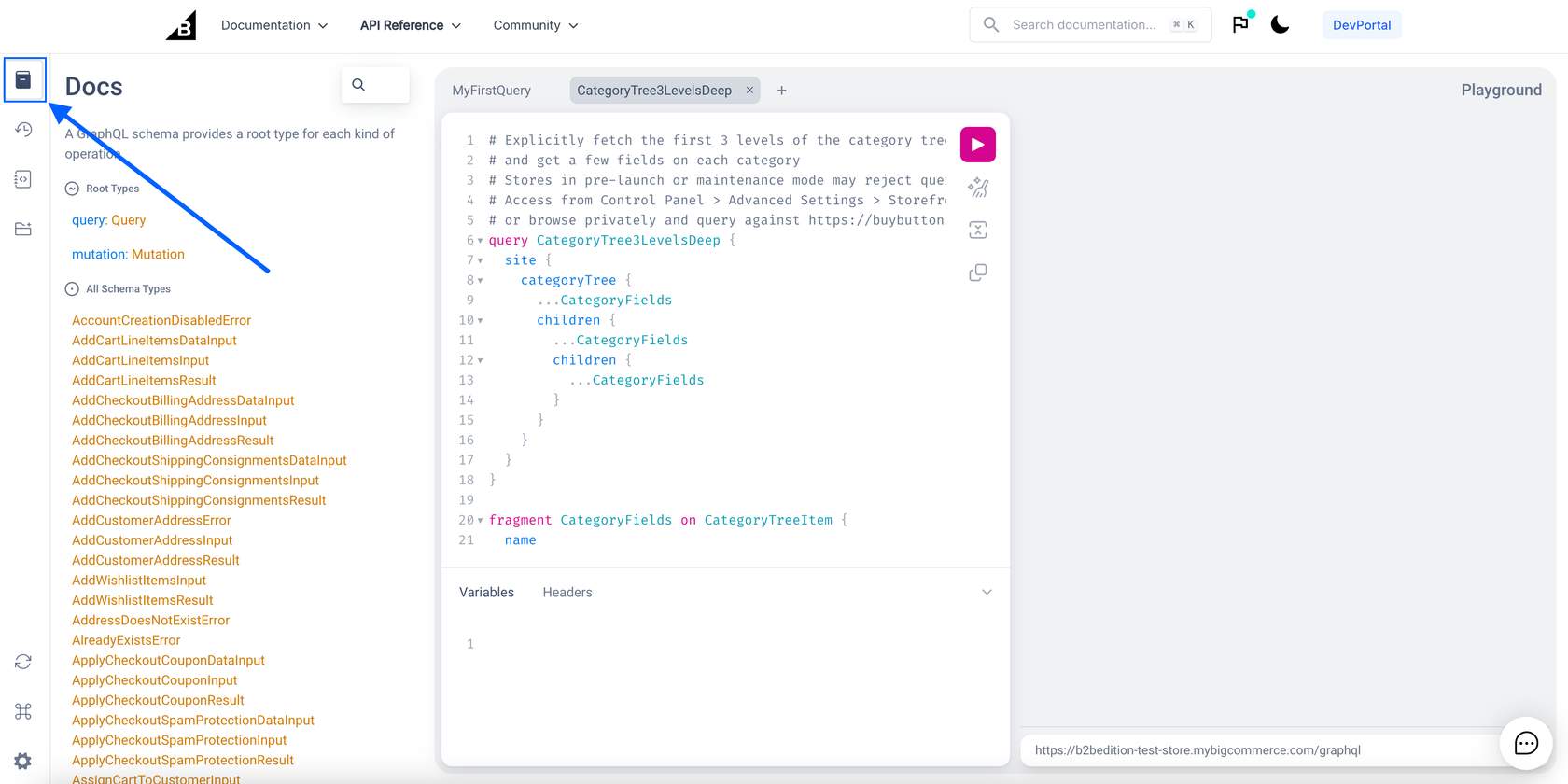
To explore the storefront GraphQL schema, click on the Docs tab on the left side of the Storefront API Playground.
GraphQL Storefront API Reference
The dynamic API reference available in the BigCommerce docs is an exhaustive and cross-linked list of the GraphQL Storefront API schema, including all queries, mutations, and types. This reference can be used to drill down easily from a top-level query or mutation to all fields and sub-fields below it.
GraphQL Explorer
The GraphQL Explorer is an important tool that can help you write queries. In the explorer, the entire BigCommerce GraphQL Storefront API is represented as an interactive graph that allows you to visually explore the GraphQL Storefront API schema.
How to Use the GraphQL Explorer
The GraphQL Explorer is a useful tool to explore the structure of the GraphQL API. You can zoom in on schema and move around the graph by simply clicking and dragging. The Explorer is a great tool to use when you are writing new queries and you need help with the structure of the query. The steps below demonstrate how easy it is to use the Explorer to write new queries:
- On the left side of the Explorer is a list of schemas. You can either scroll to find or use the search bar to locate a specific schema. In the example below, we will search for
categoryTree.
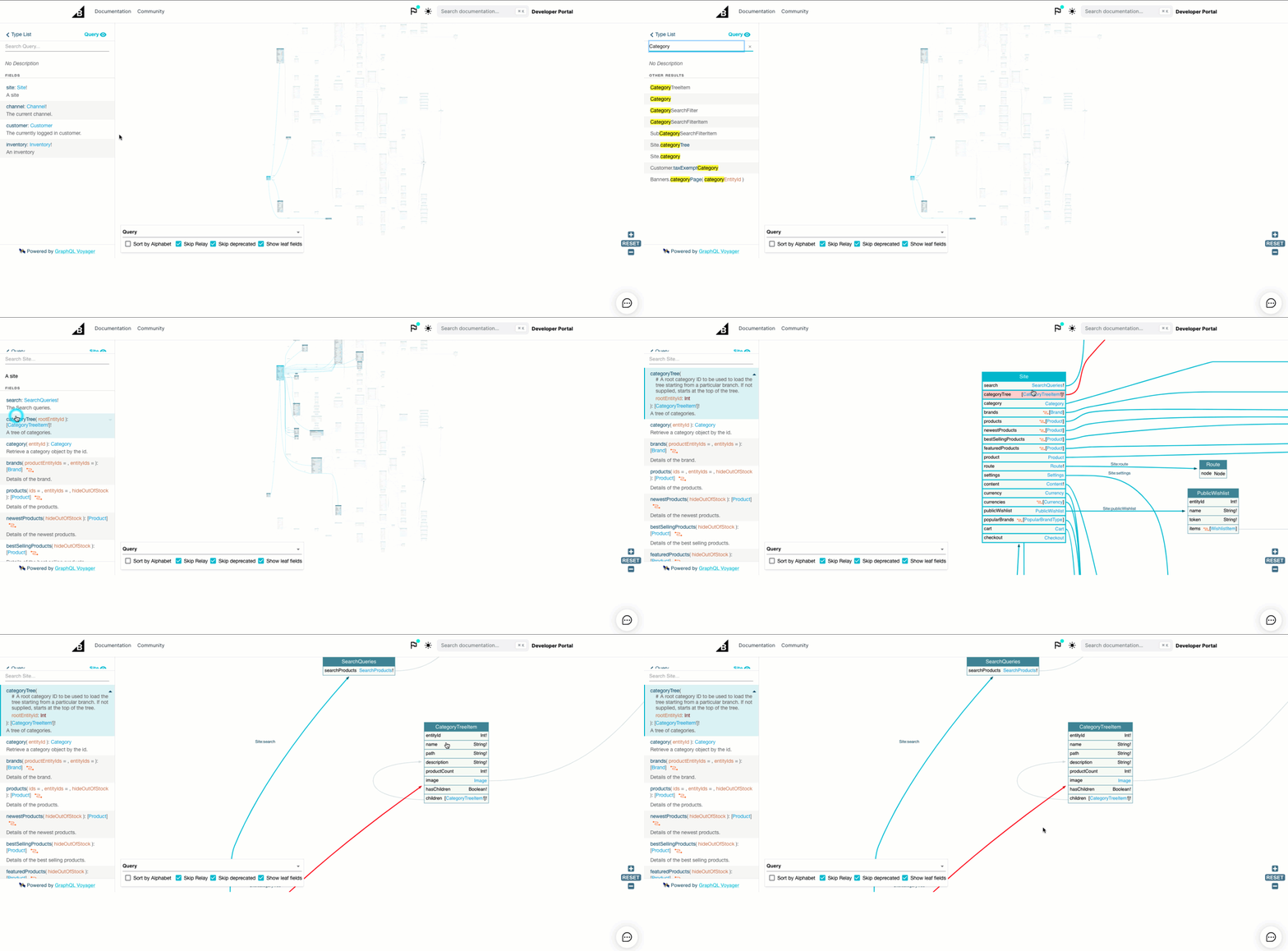
The CategoryTreeItem schema contains all of the information you can include in your query. We will include some of those items in the final query since we will need to ask for specific information about the Category Tree.
For this example query, we will ask for the entityId, name, description, productCount, and hasChildren.
- When you click on the desired schema, the graph will zoom in on the location of that schema. You can then follow the arrows backward to find the structure of the query.
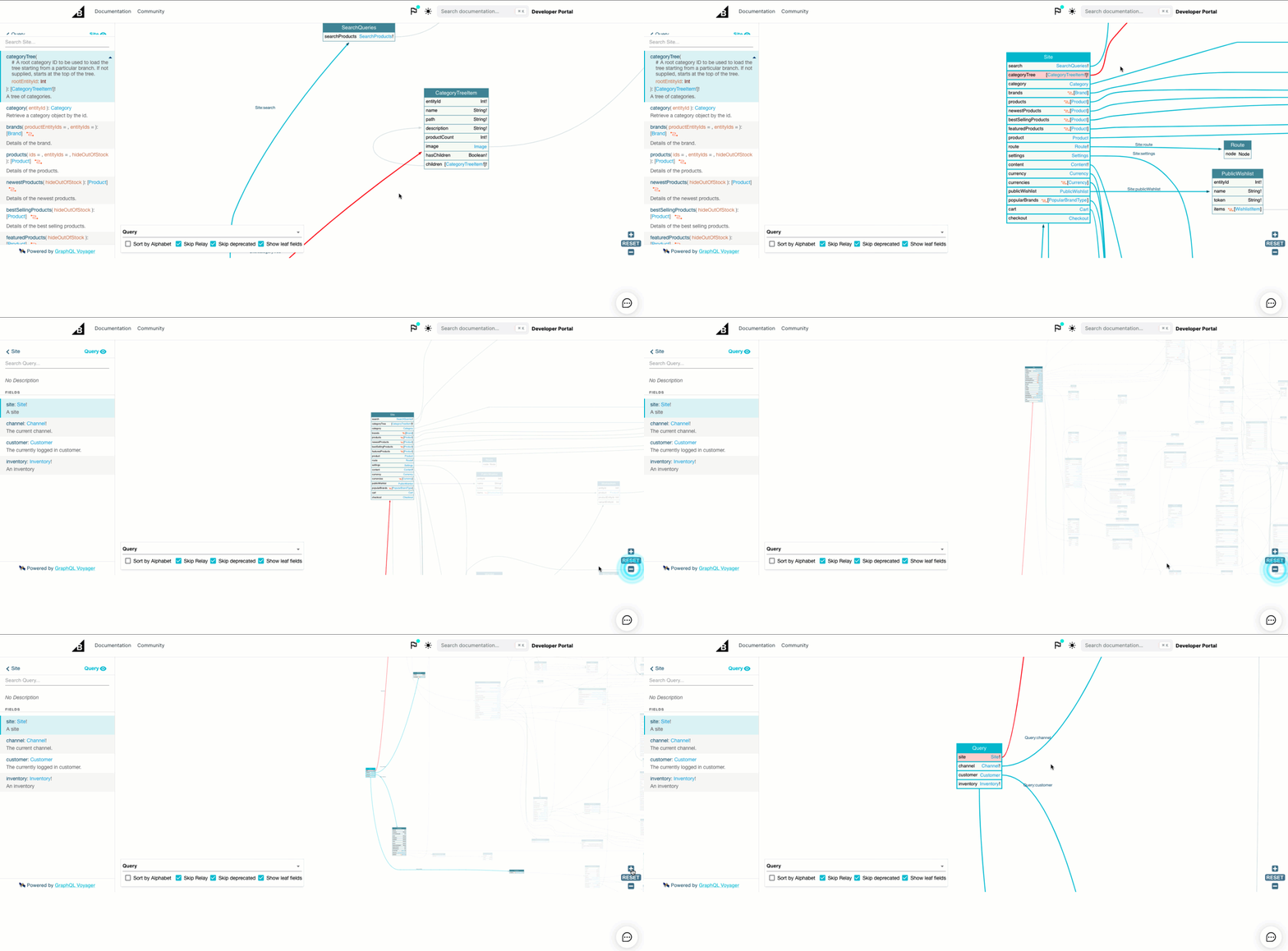
- Based on the information we gathered from the Explorer, the structure of the query for
categoryTreewould be:
- Use the GraphQL Playground to run the query and see what information you receive.
Pro Tip!
Use the command option + space bar (Mac OS) or control + space bar (Window OS) when writing a query in the GraphQL Playground to view possible sub-selections.

