Optional Lab - Complete Checkout Flow with Payment
Introduction
Our previous workflow simulated a checkout workflow, using the GraphQL Storefront API to create a cart, add a product, add shipping and billing information, and “complete” the checkout by creating an incomplete order.
Completing this workflow to “place” an order in your BigCommerce store requires processing payment via the REST Payments API. Follow these exercise steps if you want to complete your Postman checkout workflow with this step, or feel free to skip it, since this step doesn’t pertain to the GraphQL API.
Our general prerequisites remain the same, but we must add to those a required configuration for payments.
Payment Configuration
Your store must have the following payment configuration:
- A payment gateway must be enabled and configured in sandbox/test mode.The “Enable test credit card payments” option in payment settings is not sufficient.
A gateway in sandbox mode is important for the successful use of a dummy credit card number, and the enabled payment method must be compatible with the Payments API. The following shows an example of enabling Test Mode with the Stripe payment gateway:
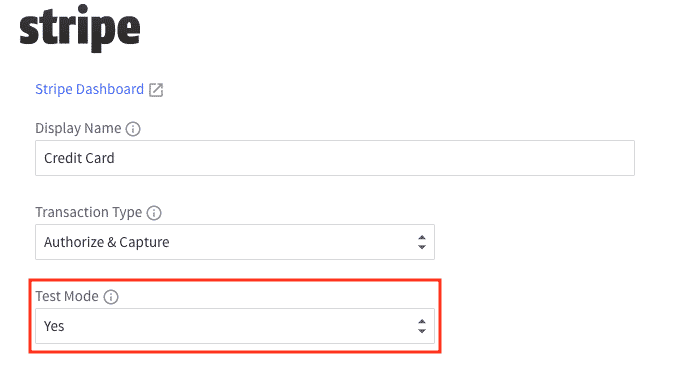
Consider setting up a sandbox account for one of the following payment gateways:
For more about configuring payments, see the article below:
An Important Note About Payments
Our example requests will involve directly supplying a credit card number. For real-world implementations directly handling credit card numbers, you must consider the implications for PCI DSS compliance. If an application passes credit card information to BigCommerce, that application’s PCI compliance and Cardholder Data Environment (CDE) are not managed by BigCommerce.
You can minimize your PCI compliance burden by using the Stored Credit Cards feature provided by BigCommerce. Assuming a cart has a customer ID associated with it, and the customer has previously stored a credit card with BigCommerce, the application can use the customer’s stored payment method to make a payment instead of directly entering a credit card number.
Redirecting to or embedding the BigCommerce checkout means sensitive payment data is never directly entered or transmitted by your frontend application, leaving the burden of PCI compliance to BigCommerce. This is an advantage of this approach. Carefully consider PCI compliance when planning your headless implementation.
Postman Recap
The previous exercise added to your existing Postman configuration with:
- A series of GraphQL requests to create a cart, populate the associated checkout with required billing and shipping information, and “complete” the checkout to create an order
- An
order_idvariable added to the collection
Make sure you have run through your checkout workflow requests and have an order_id value stored before proceeding.
Retrieve Accepted Payment Methods
Now that we have an incomplete order, we need to find out how we can process payment to complete that order. From this step through the rest of the purchasing workflow, we must use the REST Payments API.
Remember that, to be compatible with our workflow, your store must have at least one payment provider in test mode. We will retrieve the list of accepted payment methods, then store the ID of the first payment method with “test_mode” equal to TRUE.
Step 1: Create the Request
- Create a new “REST Get Payment Methods” HTTP request and save it to your collection. This request requires the following details.
- In the Headers tab, select your REST headers preset. (This should include populating the “X-Auth-Token” header with
{{v3_token}}.) - Send the request and observe the response.
You should see a response body with a collection of payment methods, and the payment provider for which you enabled test mode should clearly indicate "test_mode": true.
Paying with Stored Credit Cards
If you intend to use a stored payment instrument (e.g., credit card) to complete payment rather than passing credit card data to the Payments API, you will need to retrieve the customer’s stored payment instrument ID at this point. For the response to include a stored payment instrument, several conditions must be met:
- The payment method must support Stored Credit Cards on BigCommerce, and it must be configured to enable Stored Credit Cards.
- The cart must have a
customer_idassociated with it (this would have required using the GraphQLassignCartToCustomermutation). - The customer must have previously stored a payment instrument with BigCommerce.
Observe the stored_instruments array in the response body to find stored payment instrument IDs.
Step 2: Add Tests and Store Values
Let’s proceed to test the response and store the values we need, which in this case includes only the ID of the appropriate payment method.
- Enter the following “Post-response” value in the Scripts tab:
- Send the request again and verify the tests are successful.
- Add the following script after the initial tests:
- Send the request again and verify that the
payment_method_idvariable is populated on the collection.
Create a Payment Access Token
Step 1: Create the Request
Before we can process a payment, we must generate a payment access token that will then be used to authenticate with payments.bigcommerce.com.
- Create a new HTTP request and save it in your collection with the name “REST Create Pay Token”. This request requires the following details:
- Enter the following body:
- Send the request and observe the response.
Some Notes About Payment Access Tokens (PATs)
- A PAT is a JWT.
- The expiration value encoded in the JWT returned in the response should be one hour ahead of the IAT value (issued at time), meaning the token should be valid for an hour from when BigCommerce generated it.
- The JWT also includes information about the store, order ID, and order amount, meaning this token can only be used to authenticate payment for this order, and only if this order’s total amount hasn’t changed.
Step 2: Add Tests and Store Values
Let’s verify the response contains a token and store it.
- Enter the following “Post-response” value in the Scripts tab:
- Send the request again and verify the tests are successful.
- Add the following script after the initial tests:
- Send the request again and verify the
patvariable is populated on the collection.
Process Payment
All right, it’s time to do the thing you came here to do: complete a checkout with a payment. This example will pass a test credit card to the BigCommerce Payments API on the assumption that your store is configured to use a payment gateway like Stripe (not the Test Payment Gateway) in test mode and that the payment gateway will accept certain test credit card numbers, such as 4111111111111111. See the Stripe Testing documentation for more ways to use test mode.
It’s worth noting again that you must consider the PCI compliance implications for your application and organization if you are building an application that passes credit card numbers to the BigCommerce API. We’ve discussed some alternative ways to process payment, including embedding a BigCommerce-hosted checkout page in your web app and using Stored Credit Cards with the Payments API.
Step 1: Create the Request
- Create a new HTTP request and save it in your collection with the name “REST Process Payment”. This request requires the following details:
- In the Headers tab, set the following header values. (Note that the “Accept” header has a different value than for the typical BigCommerce REST request.)
Note that the Authorization header contains the actual string “PAT” followed by the value of the collection variable we stored in the last request.
- Enter the following body. You can change some of the details in the body if you wish; type must be “card”, the card number must be as shown above, and the expiration date must be in the future.
- STOP! Until now, we have typically tested sending our requests before proceeding to add tests. You can do so now, but completing the order by processing payment will mean you must run through the entire collection again, starting with the Get Products request, in order to generate a new cart, order, and PAT, before running this request again with tests in place.
Step 2: Add Tests
- Enter the following “Post-response” value in the Scripts tab:
- Send the request. If all is well, the tests should pass, and you should observe a response indicating the payment was successful!
You should also now be able to identify a new order in your BigCommerce control panel. (Orders > View Orders)

