BigCommerce Example Queries
In the next part of this lesson, you will be presented with examples of types of queries you can run with GraphQL Storefront API. As you go through the examples, use the GraphQL playground to practice running the queries for your store. If you come across an example where you’d like to get more storefront information, use the GraphQL Explorer to help structure and refine your query.
Category Tree
Let’s query for two products and also ask for details about the category tree.
The query below will give you the top level categories and just their name, along with the first two products in the store.
Those are the top level categories from your store and you have the first two products at the bottom of the response.
The way that the category tree is laid out, you can just keep going down to get the second and third-level categories and so on.
Example Query:
When compared to retrieving information about the category tree with only Stencil, this is easier and comes with a reduced risk of performance problems due to the rapid query speed.
Get Objects By URL
You can get multiple objects by URL and only return information for that URL or page.
For example, let’s say you are writing a generic script that only does stuff on category pages but you don’t know if the current page is a category page. You can write a GraphQL query to say, I’m on ‘shop-all’ right now, what kind of page is this?
You can write a conditional lookup by what URL we are on. For example, you can write something that says “If this is a category page, return these fields and if it’s a product page return something else.”
In the example below, “/shop-all/” is a category page and returns the name and description. If you change the URL to a product page you would get the name, description, and images.
Get Variant Details as a Product Object
When you want to show a variant to someone, you typically don’t care if there are rules or if the variant’s price was set on the variant or the product. You may just want to show the price and the image.
This product node is providing a variant ID, a SKU code, or a collection of product options and the response will return that version of the product. Meaning, if this particular variant has a different image, a different price, or is unavailable for some reason then that is what will reflect in the API response.
This example query below returns variant information appropriately overlaid on the product object. If the variant has a different image, dimensions, SKU, or price, that will be automatically returned. This allows for direct merchandising of particular variants.
Example Query:
Filter by ID
Below are some examples of how you can filter products by ID:
- You can say, “here’s a collection of products and I’m only interested in these particular list of IDs.”
- I’m only interested in this single product and here’s its ID.
- Another thing you can do is create several of these nodes with aliases. The requirement in GraphQL is that if you are requesting the same thing twice, you have to alias it so that you can tell the difference in the response.
Product Node
Comparing to the PDP (Product Detail Page), you can see the option details on the PDP are exactly the details you get back from the API:
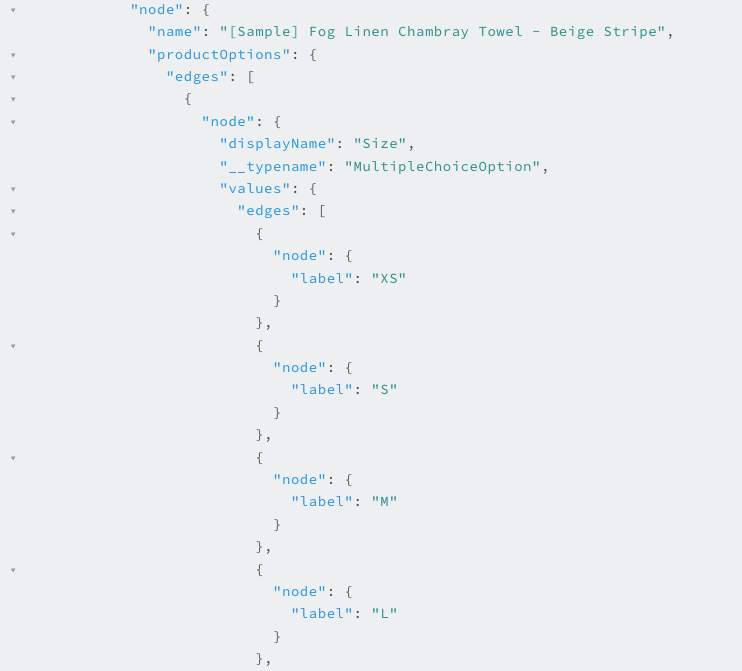
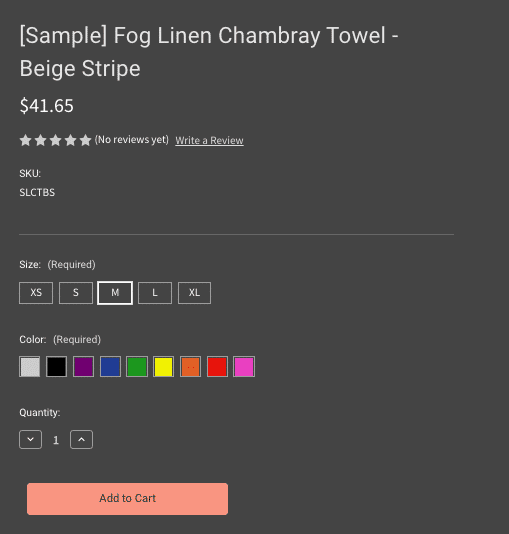
You can imagine how we could take this response and use it to build this page if we wanted to. We could go build this page in React, or bring this experience into the category page.
The Product node acts like an equivalent to the interaction on the product detail page.
The process of clicking on an option when the product details refresh is familiar: you click and the price changes, click again and the image changes or any other combination of rules/custom work that updates the page. The way this works today is you run a different API request to get what’s different about the variant. Then there is a bunch of code in the storefront that combines on top of the existing information, which can be very complex.
With GraphQL you can request a product and essentially assume that the user has clicked on a particular option. Then you can request that product again with that configuration. What will happen here is any of these fields, such as the price or the image that should change based on that option selection will then come back with different values.
Why is this Convenient?
If you are building this page (the Product Detail Page), for example, you don’t want to know about products vs variants, etc., you just want to collect input from the user, send it back to the API and then refresh the whole page with whatever you get back.
Never at any point do you have to interpret if the SKU has changed because of a variant, or if the price changed because of a rule, or if an image changed because of a rule. You just get the information and show it.
Product Inventory
The inventory node has been exposed on products which allows you to fetch the aggregate product inventory.
- For a simple product, this will be the inventory value.
- For a product with multiple variants and variant-level tracking, this will be the sum of the variant inventory.
- If the store settings are such that inventory is not exposed to the storefront, then you will not be able to access the integer stock level and instead can rely on the boolean
isInStockproperty.
If the store’s settings are set to hide products which are out of stock, then you will not be able to fetch information about out-of-stock products in the GraphQL storefront API.
Variant-Level Inventory
You may now request inventory levels for each product variant. Note that inventory levels will NOT be returned if your store settings are set to not display stock levels on the storefront.
Example query:
Metafields
Metafields that have been associated with products, categories, brands or variants can be accessed via the GraphQL Storefront API.
- The metafield must be marked with a
permission_setofread_and_sf_accessorwrite_and_sf_accessin order to be exposed to the API. Metafields with any other permission value will be hidden. - A new metafield’s paginated node is available on the relevant nodes to allow access.
- It’s required to supply the metafield namespace when fetching metafields. It’s also recommended to explicitly supply a list of keys.
Example query:
Types and Subtypes
You have asked for the display name but you can also ask, “What is the type of this object?”
In this case, it is a MultipleChoiceOption, but you actually have multiple subtypes of MultipleChoiceOption. Only MultipleChoiceOptions have values, so if these options were not of multiple choice type (if they were a text value, or text box option, for example), then they would have no value.
Swatches
You can request the hex code of a swatch by adding the hexColors parameter to your request. This will return the actual color value, in addition to the label that is associated with the swatch.

