Checkout API - Hands-on Lab
Lesson 8 of 26 · 45 min
Checkout API
Allows for a checkout to be created from an existing cart using BigCommerce checkout logic. The existing BigCommerce front-end cart/checkout can be bypassed.In this activity, you will use the Checkout API to view and modify the details of a checkout using an API REST client.
In this lab, you will:
- GET a checkout
- Add checkout billing address
- Update checkout billing address
- Add consignment to checkout
- Update checkout consignment
- Add coupon to checkout
- Delete checkout coupon
- Create an order
- Delete checkout consignment
Prerequisites
- BigCommerce store (sandbox or live)
- API credentials for the store
- REST client (Postman)
- Completion of previous lab
GET a Checkout
- Open Postman
- Click the No Environment dropdown in the upper-right
- Select the environment you created in the previous lab
- Copy and** paste**the request below into Postman
If you created your environment correctly in the previous lab, {{store_hash}} will use your store’s store hash automatically.
- Replace
{checkout_id}with a cart/checkout ID - Select GET next to the request url
- Click Send button
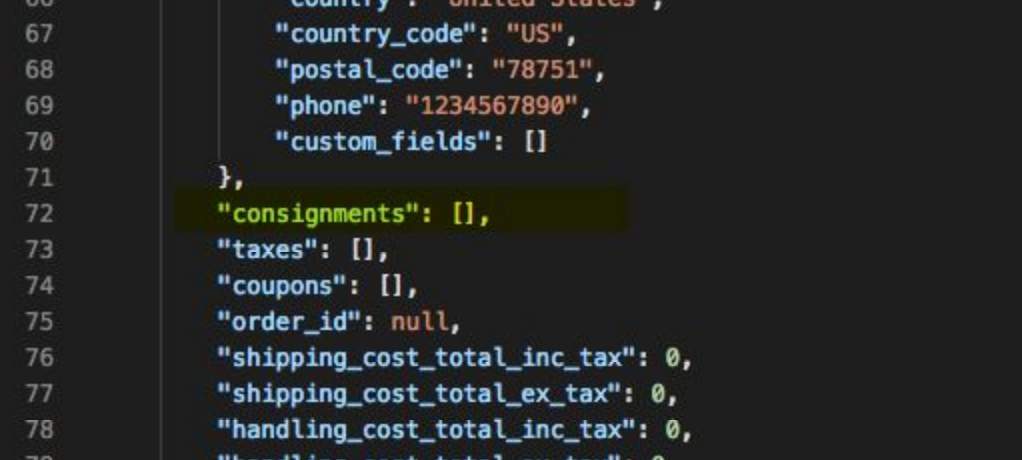
- Observe response and copy a line item ID for next steps
Add Checkout Billing Address
- Copy and paste the request below into Postman
- Replace
{checkout_id}with the Checkout ID from the previous steps - Copy and paste the code below into the Body section of Postman
- Select POST next to the request url
- Click the Send button
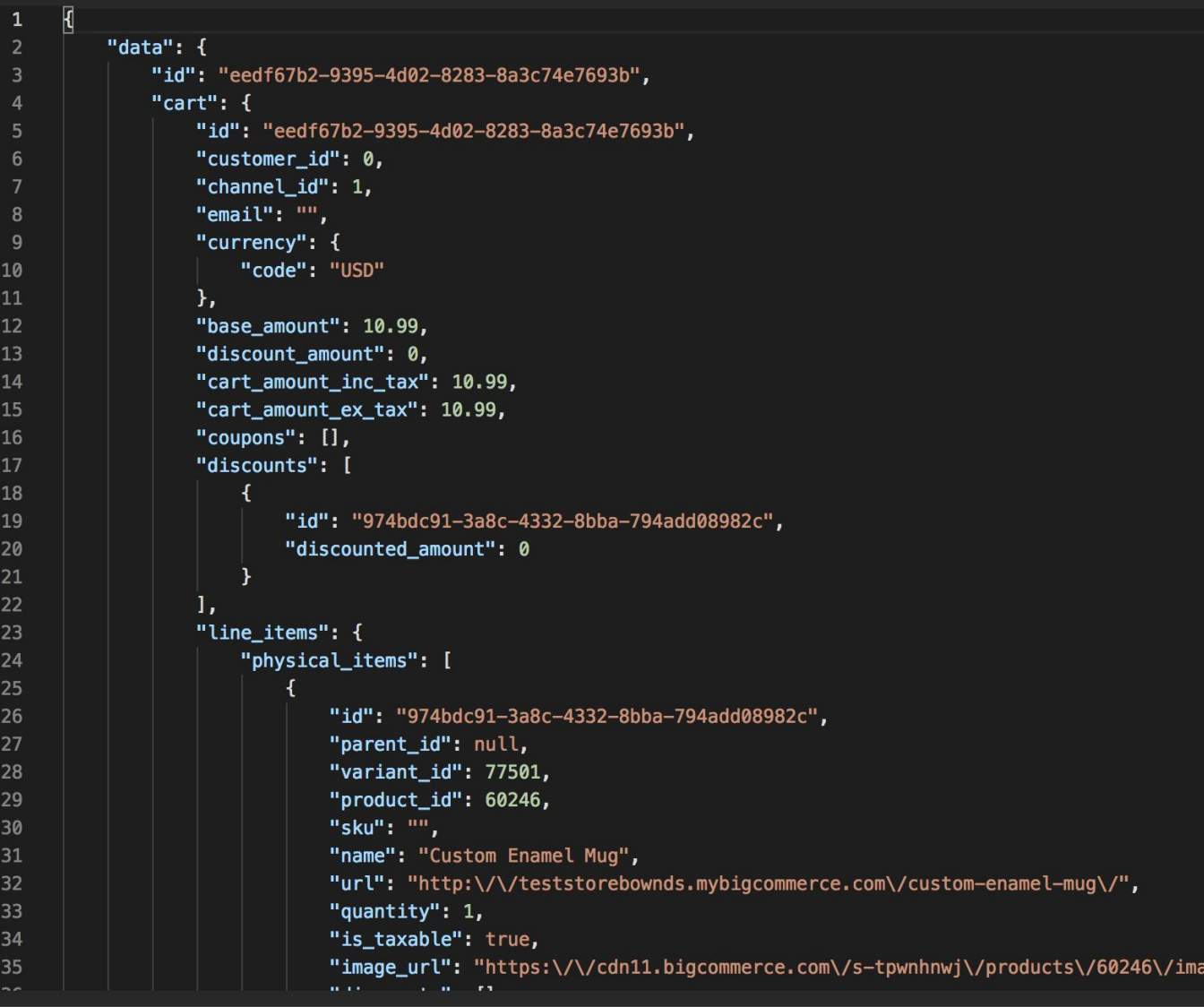
- Observe response and copy the address ID
Update Checkout Billing Address
- Copy and paste the request below into Postman
- Replace
{checkout_id}with a cart/checkout ID - Replace
{address_id}with a cart/checkout ID - Copy and paste the code below into the body section of Postman
- Select PUT next to the request url
- Click the Send button
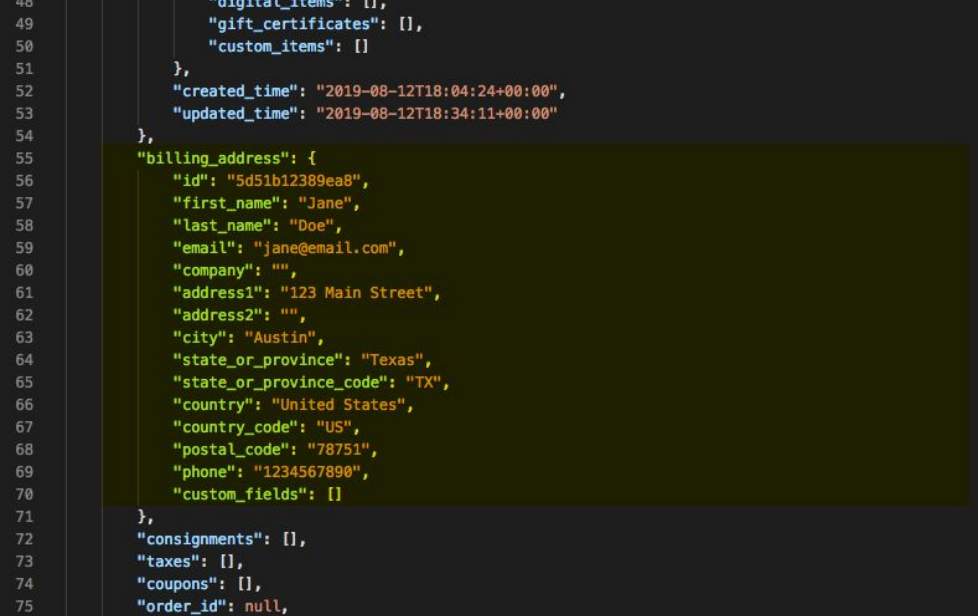
- Observe response
Add Consignment to Checkout
- Copy and paste the request below into Postman
If you created your environment correctly in the previous lab, {{store_hash}} will use your store’s store hash automatically.
- Replace
{checkout_id}with a cart/checkout ID - Copy and paste the code below into the Body section of Postman
- Replace
{item_id}with the item ID copied in previous steps - Select POST next to the request URL
- Click the Send button
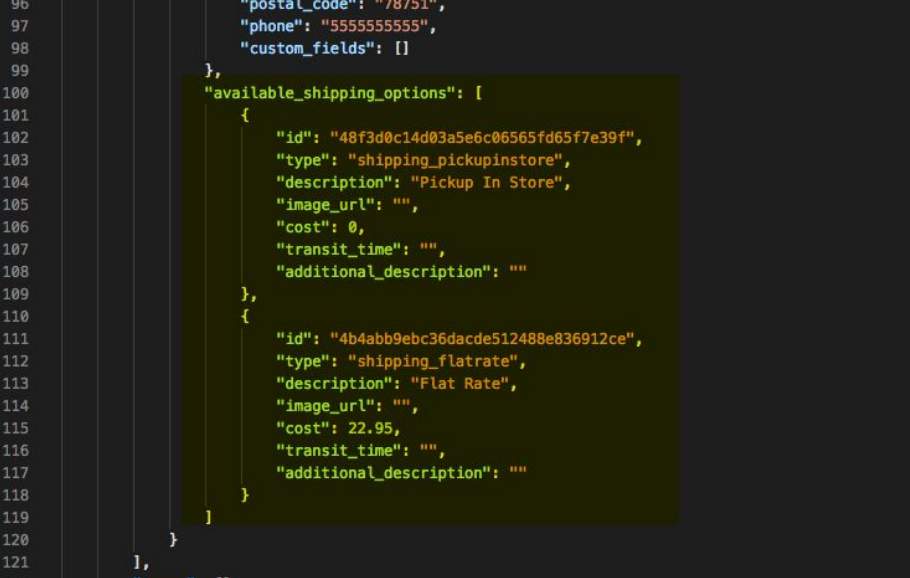
- Observe response and copy consignment ID and shipping option ID
Update Checkout Consignment
- Copy and paste the request below into Postman
- Replace
{checkout_id}with a cart/checkout ID - Replace
{consignment_id}with a consignment ID - Copy and** paste** the code below into the body section of Postman
- Replace
{shipping_option_id}with the shipping option ID - Select PUT next to the request url
- Click the send button
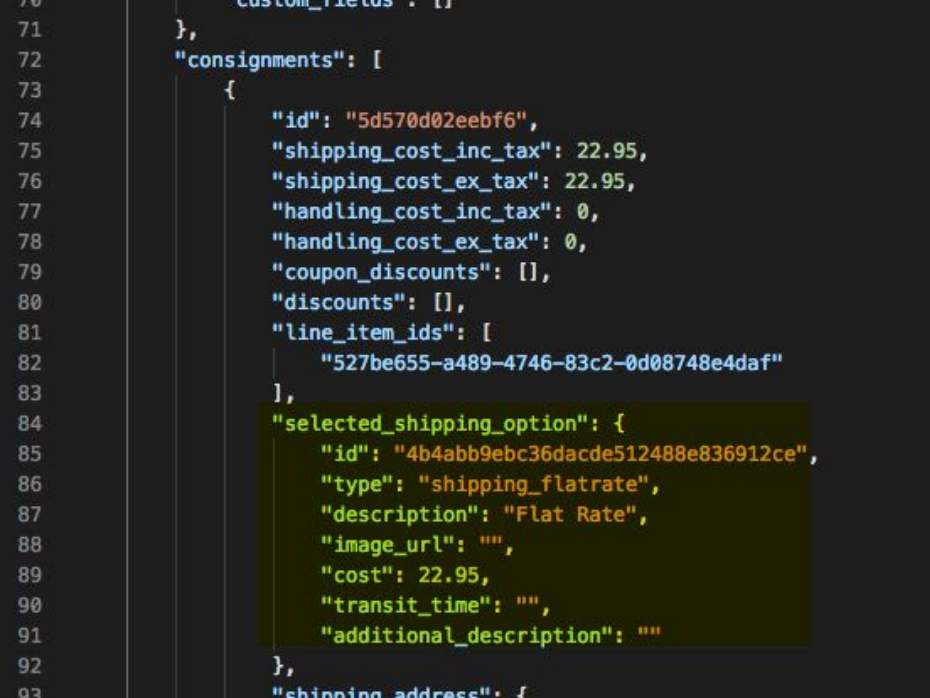
- Observe response
Add Coupon to Checkout
- Copy and paste the request below into Postman
- Replace
{checkout_id}with a cart/checkout ID - Copy and paste the code below into the Body section of Postman
- Replace
{coupon_code}with a valid coupon code from the store - Select POST next to the request URL
- Click the Send button
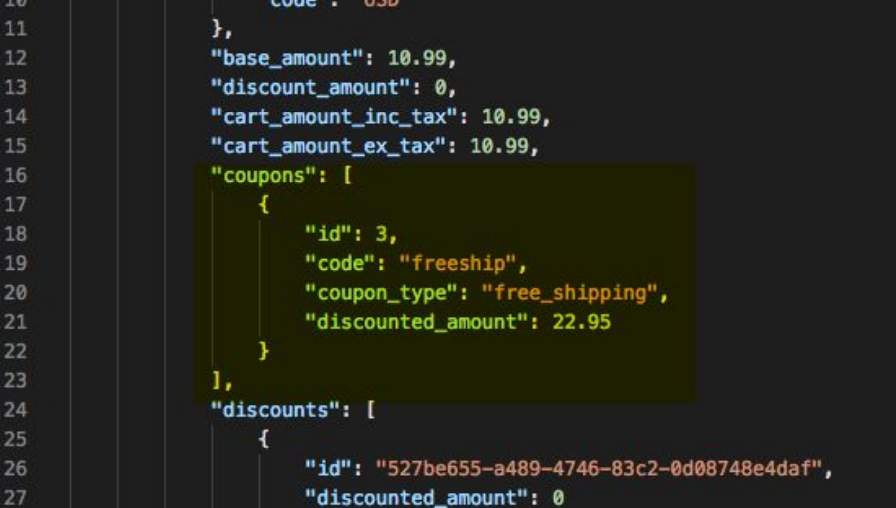
- Observe response and coupon added
Delete Checkout Coupon
- Copy and paste the request below into Postman
- Replace
{checkout_id}with a cart/checkout ID - Replace
{coupon_code}with a valid coupon from the store - Select DELETE next to the request url
- Click the Send button
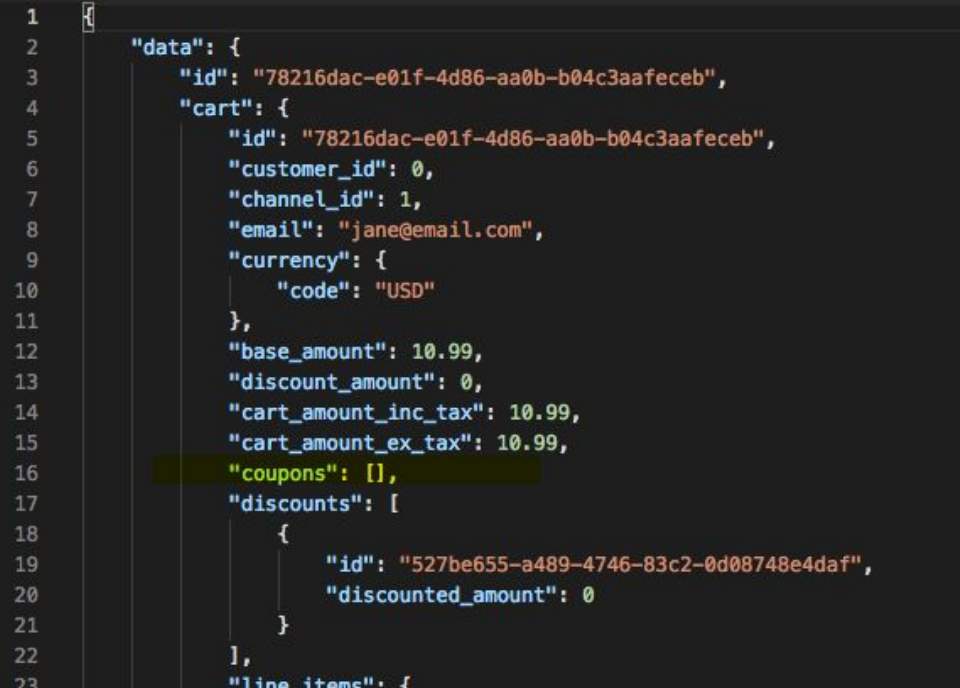
- Observe response
Create an Order
- Copy and paste the request below into Postman
- Replace
{checkout_id}with a cart/checkout ID - Select POST next to the request URL
- Click the Send button
- Observe response and order created
Delete Checkout Consignment
- Copy and paste the request below into Postman
- Replace
{checkout_id}with a cart/checkout ID - Replace
{consignment_id}with a consignment ID - Select DELETE next to the request url
- Click the Send button
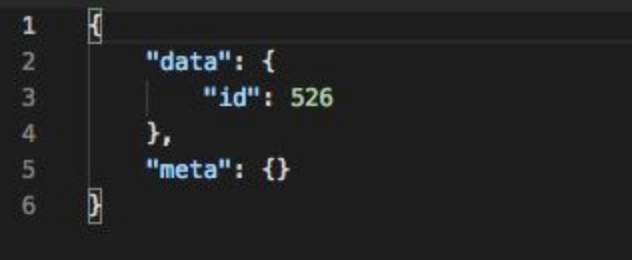
- Observe response