Lab - Variants, Variant Options, and Modifier Options
This lab activity will give you a chance to practice working with variants, variant options, and modifiers via the Catalog API. Each step will walk you through how to use all of the endpoints covered in the previous lesson.
Prerequisites
- BigCommerce store (sandbox or live)
- Basic knowledge of APIs
- REST client (Postman)
- Completion of Catalog API labs 01 and 02
In this lab, you will:
- Create a simple product
- Create a variant option
- GET variant options
- Create a variant
- GET all variants
- Create a product and it’s variants in a single call
- Add a modifier option with price adjuster to an existing product
Create a Simple Product
- Open Postman
- Copy and paste the request below into Postman
- Find a product with the same category id to which your new product will be added
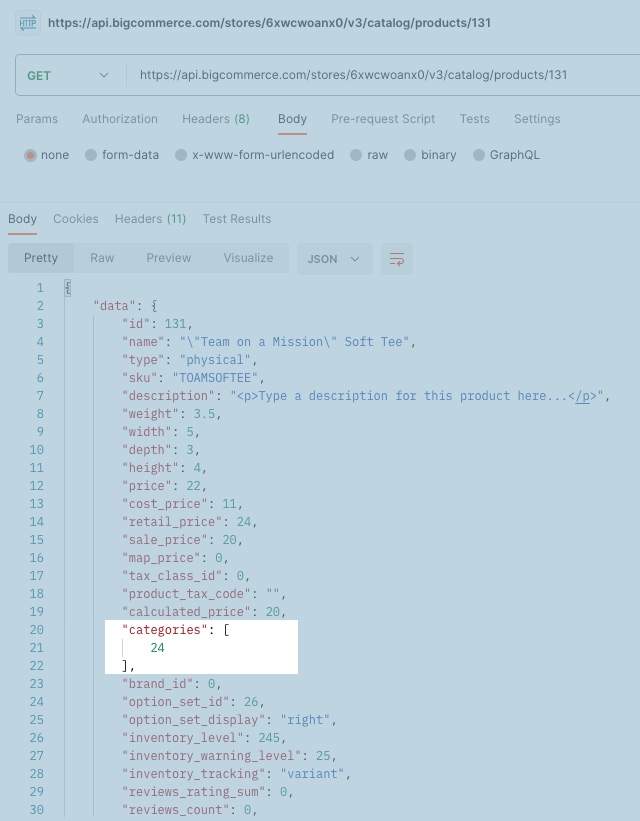
The four required fields for a product are name, price, weight, and type.
-
Copy and paste the code below into the Body section of Postman
a. Under the URL field, click Body
-
Edit the request body
a. Replace
{id}with the category id
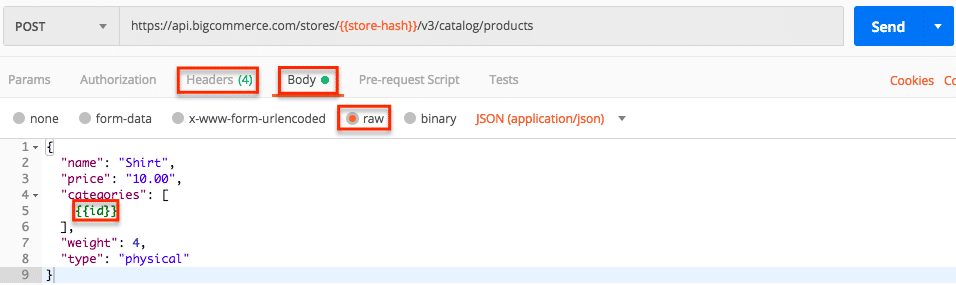
- Select POST next to the request url
- Click the Send button
- Observe response and the product created in the store
- Copy the product ID for next steps
If you are in MSF, creating the product isn’t enough to see it on the storefront, you also need a channel assignment.
There are a number of ways to gather a category’s ID. The video below walks you through identifying a category’s ID from the URL used to access the Edit a Category page in the control panel.
Alternatively, you can send a GET request to the categories endpoint to retrieve a category ID and then skip to Step 2:
https://api.bigcommerce.com/stores/{{store_hash}}/v3/catalog/categories?include_fields=name
Create Variant Options
Create a Variant Option for ‘Size’
- Copy and paste the request below into Postman
- Enter the ID for the product created in Step 1 as the value of
product_idin the Params tab - Copy and paste the code below into the Body section of Postman
- Select POST next to the request url
- Click the Send button
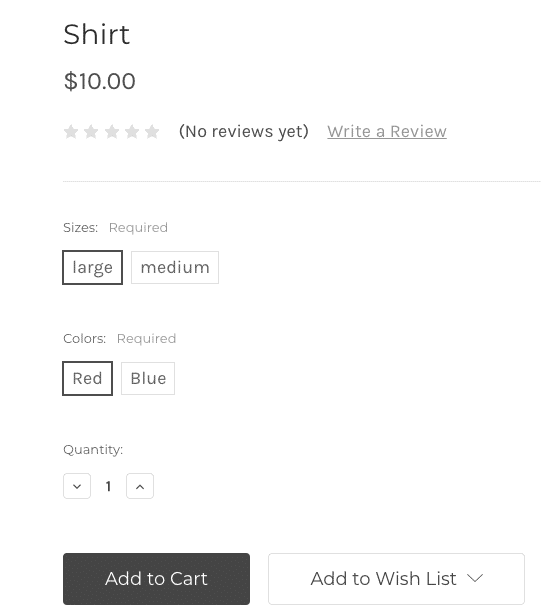
- Observe the changes in the response and Sizes added to product
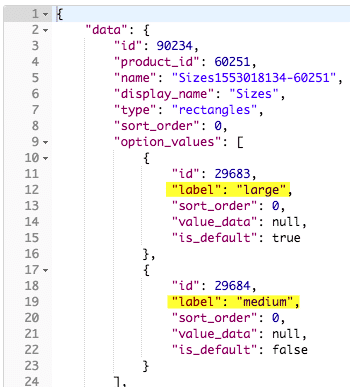
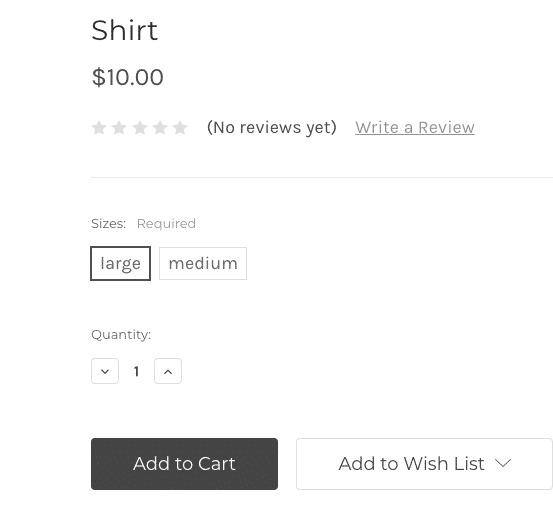
Create a Variant Option for ‘Color’
- Copy and paste the request below into Postman
- Enter the ID for the product created in Step 1 as the value of
product_idin the Params tab - Copy and paste the code below into the Body section of Postman
- Select POST next to the request url
- Click the Send button
- Observe the changes in the response and Colors added to product
.png)
GET All Variant Options
- Copy and paste the request below into Postman
- Enter the ID of the product used in the previous steps as the value of
product_idin the Params tab - Select GET next to the request url (if not already selected)
- Click the Send button
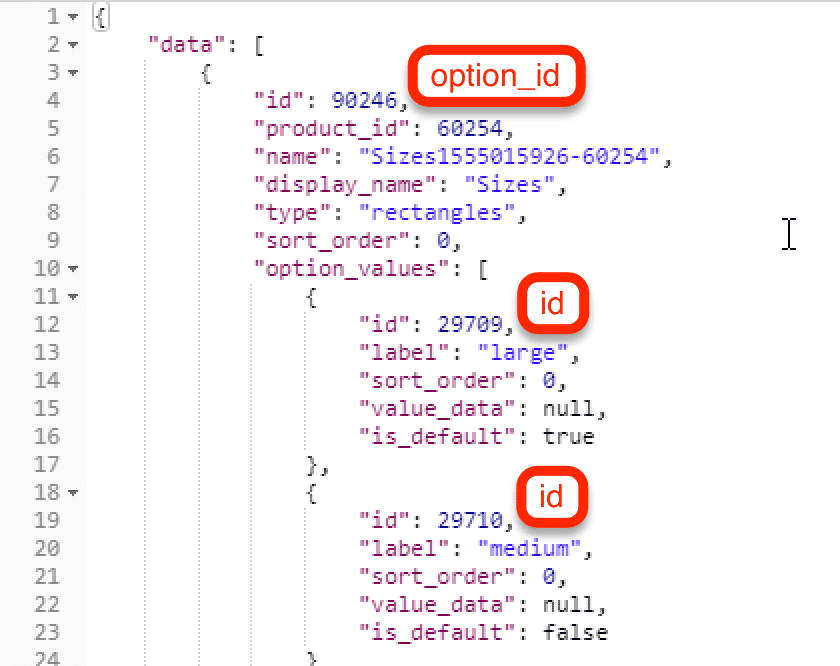
- Observe response and copy the option IDs and variant option IDs (paste into text editor for use in next steps)
Create a Variant
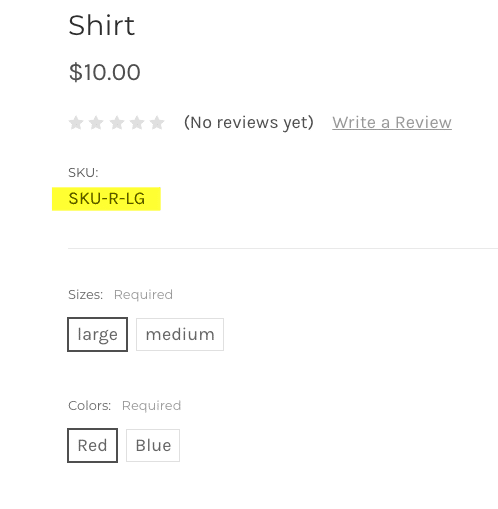
In this step you will create a variant for a Large Red Shirt.
- Copy and paste the request below into Postman
- Enter the ID of a product used in previous steps as the value for
product_idin the Params tab - Copy and paste the code below into the Body section of Postman
- Replace the
{id}in the body request below with option IDs and variant option IDs copied in previous step
The option_values array combines the options Large and Red to create the SKU SKU-R-LG. The id in the option_values array is the id from the variant option response option_values > id (in other words, the id for the value of RED). The option_id is the id of the variant option itself (in other words, the id for the option COLOR).
- Select POST next to the request url
- Click the Send button
- Observe the changes in the response and SKU/Variant added to product
GET All Variants
- Copy and paste the request below into Postman
- Enter the ID of the product used in previous steps as the value for
product_idin the Params tab - Select GET next to the request url (if not already selected)
- Click the Send button
- Observe response
Create a Product and All of Its Variants in a Single Call
- Gather a category ID - use one of the methods from the first activity in this lab
- Copy and paste the request below into Postman
- Copy and paste the code below into the Body section of Postman
-
In the request body, replace the category
{id}with the ID copied in previous step -
Select POST next to the request url
-
Click the Send button
-
Observe response and product created in store
Create Modifier Options
Add a Modifier Option with Price Adjuster to a Product
- Copy and paste the request below into Postman
- Enter the ID of the product used in previous steps as the value for
product_idin the Params tab - Copy and paste the code below into the Body section of Postman
- Select POST next to the request url
- Click the Send button
- Observe response and modifier option added to product
- Copy modifier ID for next step
Update the Modifier Option Value
- Copy and paste the request below into Postman
- Enter the ID of the product used in previous steps as the value for
product_idin the Params tab - Enter the ID of the modifier created in the previous step as the value for
modifier_idin the Params tab - Enter the ID of the “Yes” value in modifier option as the value for
product_idin the Params tab - Copy and paste the code below into the Body section of Postman
- Select PUT next to the request url
- Click the Send button
- Observe response

