Purchasing Entities and Relationships
Shopping Lists
Shopping lists are tools that help you track items you want to buy, even if you’re not ready to add them to your cart. Junior Buyers can create shopping lists, but they need approval from a qualified user, like a Senior Buyer or Admin user.
You can share your shopping lists with teammates, turn them into quotes, or add items to your cart for checkout. Note that store admin users, like sales reps, cannot access company shopping lists (although Super Admins can). Without a Super Admin using the masquerade feature, B2B Edition sales staff cannot convert a shopping list into a quote or create a cart directly.
Orders
A company user can place an order on the storefront by adding products to their cart, submitting an approved shopping list, accepting the terms of a quote, and even re-ordering items from a past order. Once an order is created, it will be managed in BigCommerce, but an order record will also be created in B2B Edition. After creation, an order will go through the remaining lifecycle in BigCommerce, allowing sales staff and super admins to track their status in both platforms.
Orders will go through the same status workflow as any other order placed on a BigCommerce store. See the Order Status support article for more information.
Quotes
Quoting helps you create specific offers for your B2B customers. Sales staff can build a quote from scratch, offering customer-specific discounts, selling custom or request-only products, and negotiating details based on quote requests from the buyer’s storefront account.
On the storefront, customers can request a quote from the following areas:
- Product detail pages in your storefront
- The Quick View window in product listing pages
- The “Add All to Quote” button on the cart page
- The list of previously-purchased products in the “Quick Order” area
- The “Add selected to quote” button in approved Shopping Lists
Submitting a quote request from the Buyer Portal will create a quote in B2B Edition for sales staff to manage in the control panel. Throughout the lifecycle, a quote will go through the following statuses:
- Draft - the quote has been created either by a sales staff or a buyer, but a sales staff hasn’t submitted the quote yet
- In Progress - the quote has been submitted and negotiations between sales staff and the buyer are in progress
- Ordered - the quote is finalized and an order has been created
- Expired - the quote has reached its expiration date before being finalized and is no longer a valid offer
The “Draft” quotes stored on the front-end are not “Request for Quote” records accessible through the API. They stay in the browser’s local storage until you submit the request for quote. You can create a new Request for Quote record using the API and perform the following tasks:
- Update a quote
- Create a checkout URL for the quote
- Mark the quote as Ordered
- Create a quote email
- Export the quote as a PDF
Once a quote has been marked as ordered, an order will be created in both B2B Edition and BigCommerce.
Invoices
Invoicing is important in B2B transactions because it allows customers to pay for their orders after they are placed. This process supports payments for purchase orders and enables asynchronous payments for orders made offline. Usually, a company user places an order, which begins the order fulfillment process. Then, a sales staff member sends an invoice to the finance team for payment.
The Invoice Management section of the B2B Edition settings lets you specify types of payment methods that will automatically generate invoices, such as online or offline payments, define standard invoice payment terms, and choose the payment methods available for paying invoices.
Invoice payments are made in the Buyer Portal. The authorized user should go to the Invoices section of their account, click on the more menu next to the invoice they want to pay, and select “Pay.”
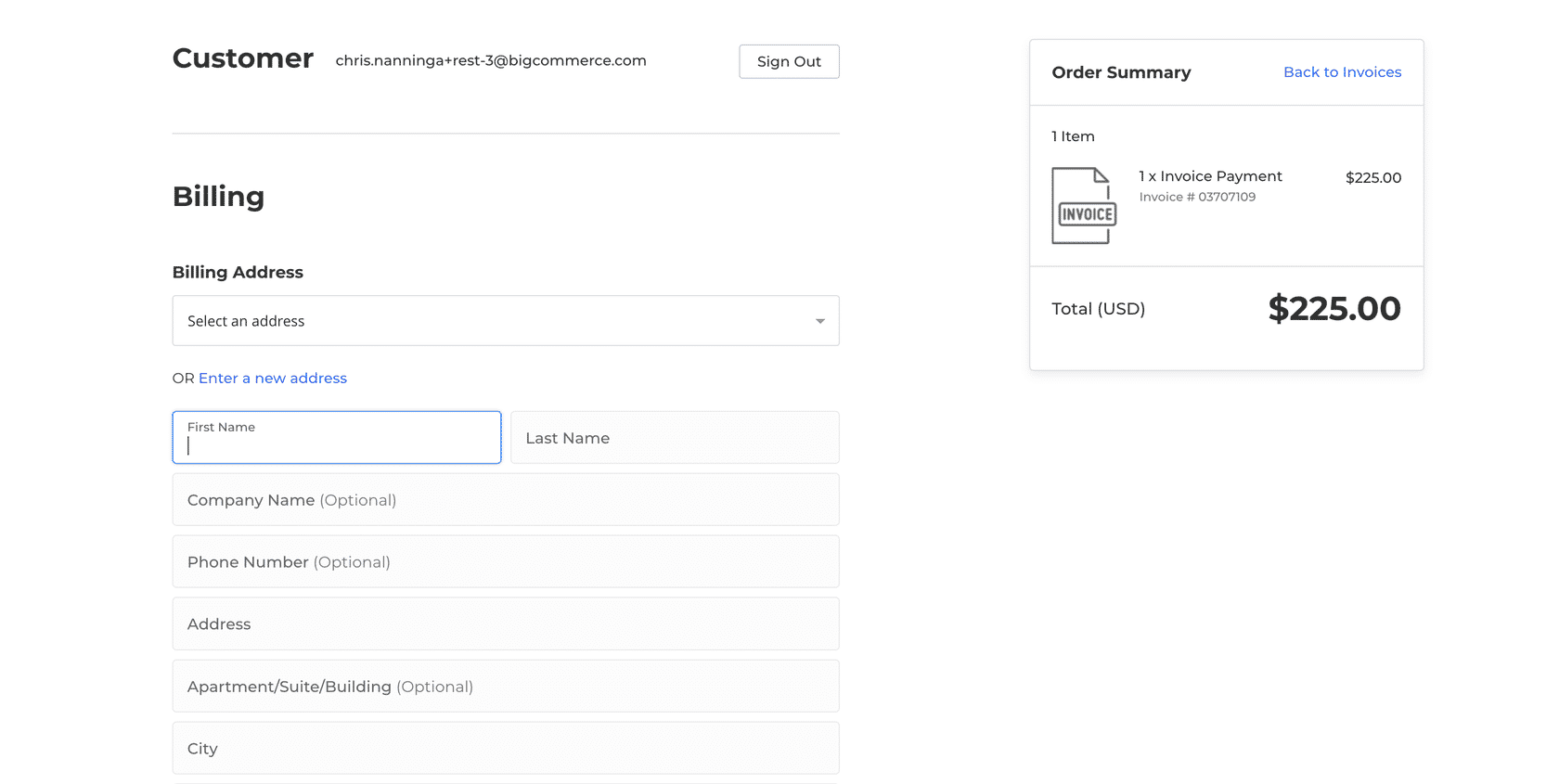
The B2B Edition app creates a hidden product called “Invoice Payment” when payment is made for an invoice instead of for specific products. This line item is connected to the payment methods set in the B2B Edition Invoice settings. When an invoice is paid, it starts a specific cart and checkout process that shows only the allowed payment methods.
Sales staff can record offline payments in the Invoice Management section of B2B Edition. This feature allows for both partial and full payments of invoices, as well as any extra payments. The payment amounts will be updated in the company user’s account, as well as the invoices section of B2B Edition. To apply a payment to an invoice in the B2B Edition control panel, a payment note is required.
Payments
All payment methods available in BigCommerce can be used in the B2B Edition for standard orders on your storefront. B2B customers usually prefer to pay by invoice and use Purchase Orders (POs). You need to manually enable and configure the PO payment method in the B2B Edition checkout settings. Once activated, this payment method will only be visible to B2B buyers with a company account and will not be available to B2C customers or guest shoppers.
The PO payment method uses the check payment option to accept PO reference numbers for asynchronous payments. Before enabling this feature, confirm that you have set up Check payments in the BigCommerce control panel. It is recommended to rename this payment method to “Purchase Order” or a similar title in your BigCommerce payment settings to distinguish it from standard Check payments.
The Display Name field lets you add a custom title that appears when a customer selects Purchase Order as their payment method. The information entered by your buyers in this field will show up in the order comments within your BigCommerce control panel and the Buyer Portal, as well as in the order confirmation email, if enabled.
Company-Level Payment Settings
You can set up payment methods, credit options, and payment terms at the company level to meet each company’s needs. The payment options for company accounts match the allowed payment methods in BigCommerce, so you can choose which payment options each company can access.
If the PO payment method is enabled for your B2B Edition storefront, you can activate the “PO (cheque)” payment option for a company. This means the company is using the credit feature and will get invoices for their orders.
Company credit and payment terms are also configured in this area of B2B Edition. As mentioned earlier in this course, this is not actual credit but will set limits to how much a company user can spend per order.

