Multi-site Setup
BigCommerce for WordPress
Multi-site Setup
When connecting more than one WordPress site to your BigCommerce store, you need to use an API account to link them. If you try to connect using the ‘connect your store’ flow, which uses a BigCommerce app to streamline the connection, your first WordPress site will lose its connection to BigCommerce.
Multi-site and subdirectories
Multiple sites can share the same API credentials, or you can choose to create a new set of credentials for each site.
Note that embedded checkout is only supported on a single domain at a time. See the BigCommerce for WordPress documentation.*
Getting your API credentials
- To get your store’s API credentials, sign in to your active MSF-enabled BigCommerce store and head to Settings > API > API accounts.
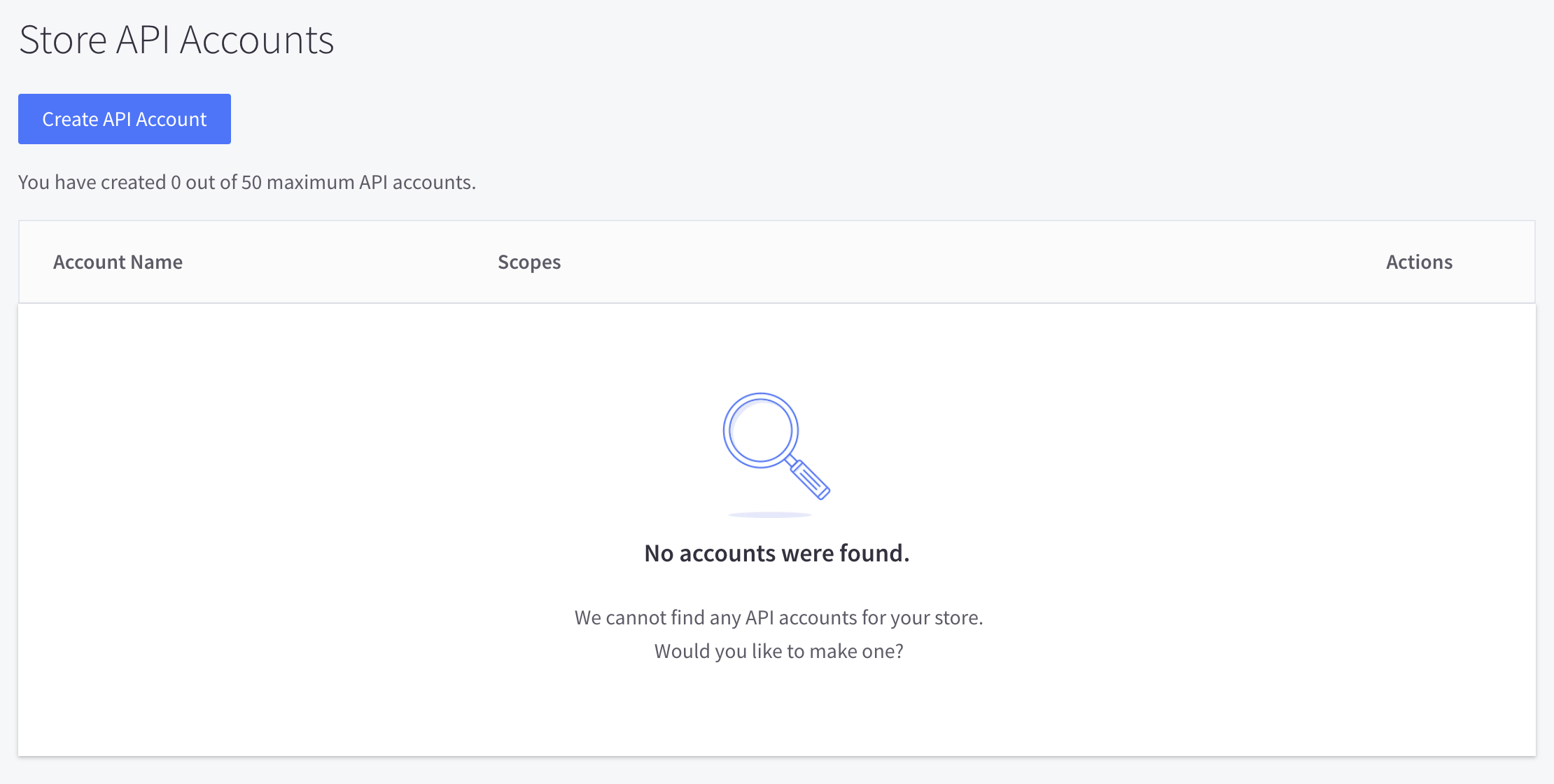
- Click the blue
Create API Accountbutton on the top left-hand side. This opens up a screen that will ask you to enter a name and select scopes for the API account.
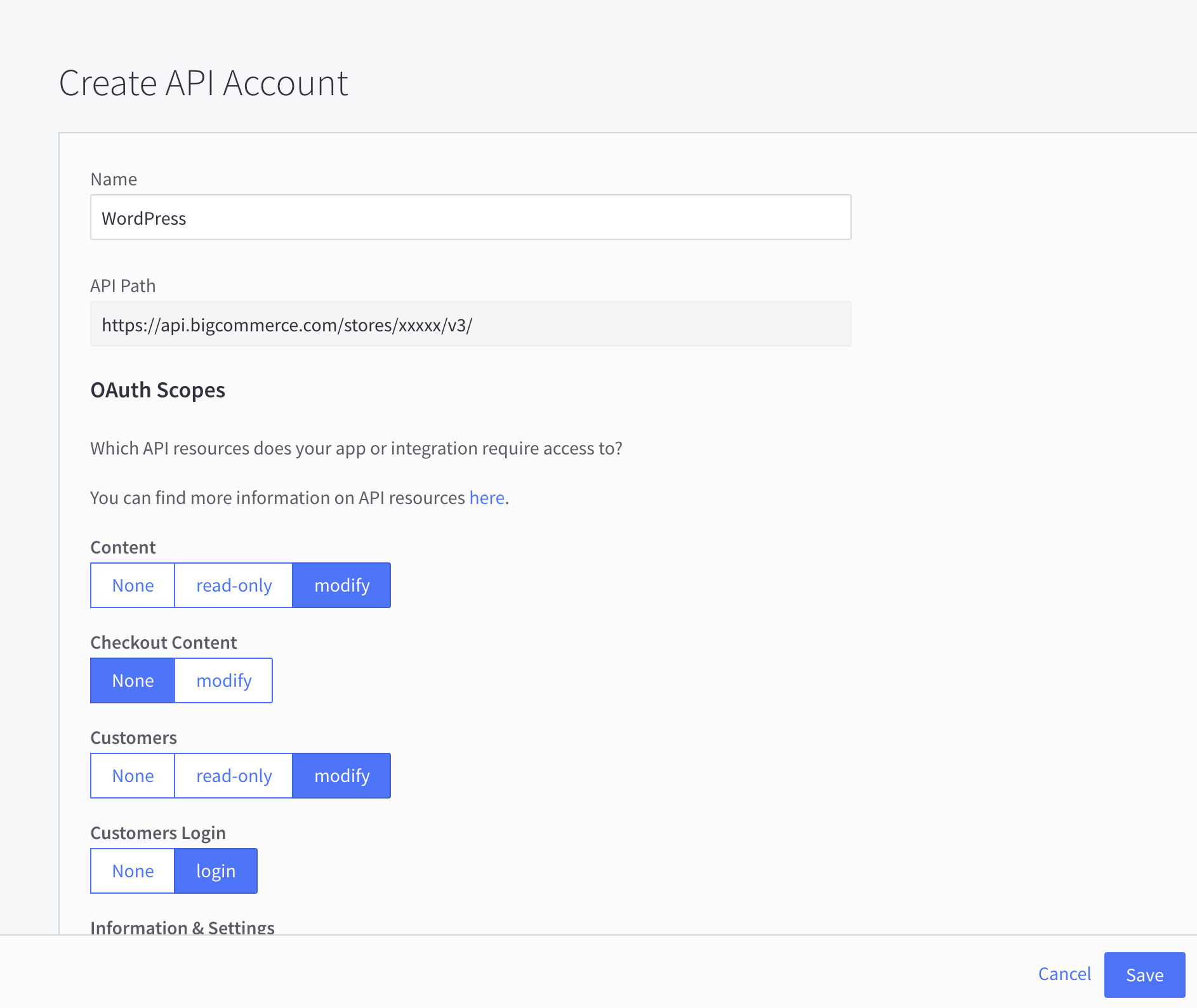
API account name field
We suggest ‘WordPress’ for the name, although you can name it anything you’d like as long as it’s unique within your API accounts and is more than three characters.
-
Depending on the product import options you select, the OAuth settings must match up accordingly to prevent importing errors. For more information on product import options, check out our Product Import page.
Set the OAuth scope settings to the following defaults according to your import options.
- After you have finished setting a name and selecting scopes, click
Save. You will then see a modal that contains theClient ID,Client SecretandAccess Tokennecessary for the remaining fields in the WordPress API Credentials settings.
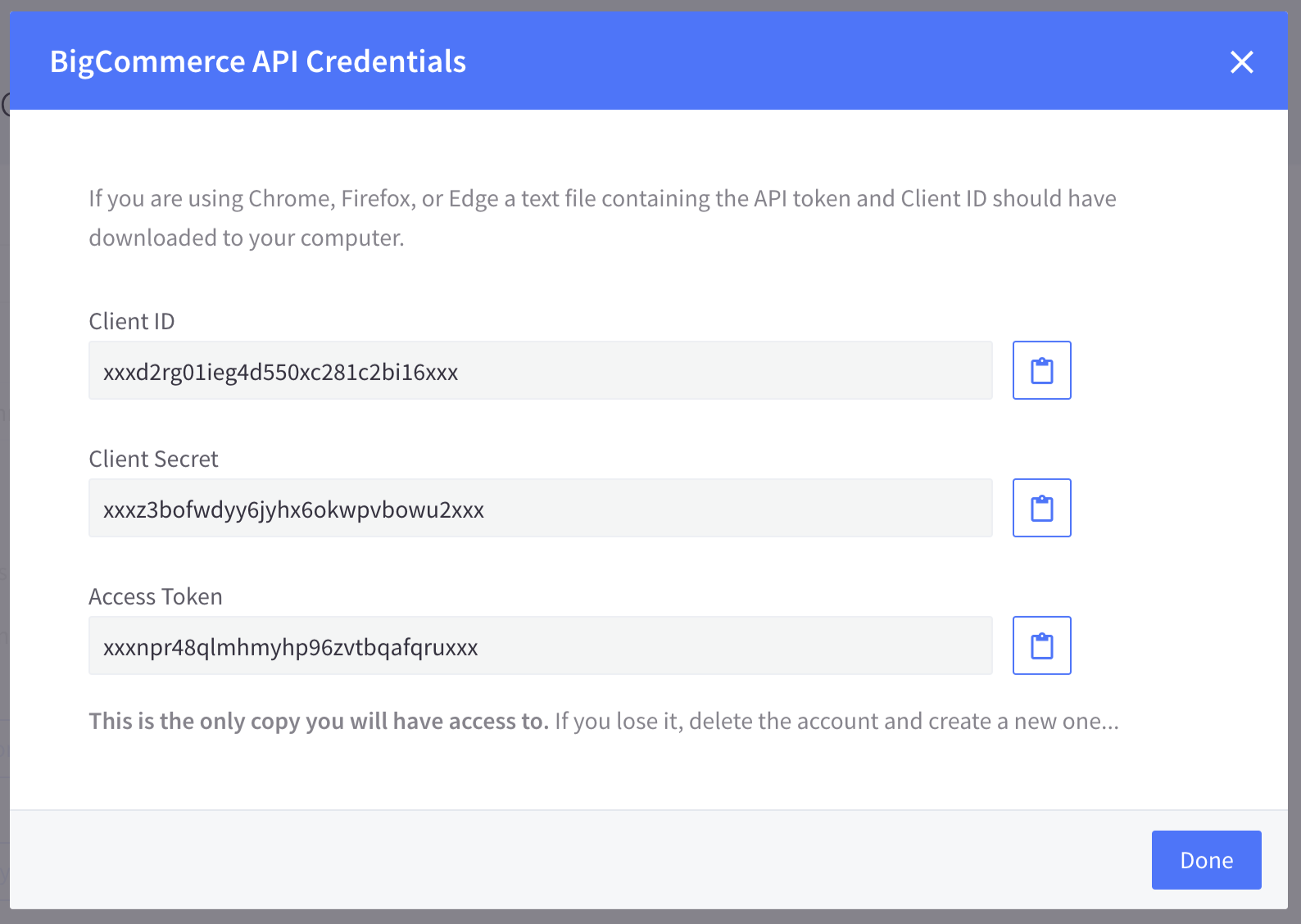
.txt file download
You’ll also see a .txt file download in your browser that contains the same information in an easy-to-read format, once again including your API Path in case you didn’t copy it before.

Setting up a WordPress site using API account credentials
- To set up a WordPress site using this method, click
Enter your API credentialson the welcome screen in the plugin.
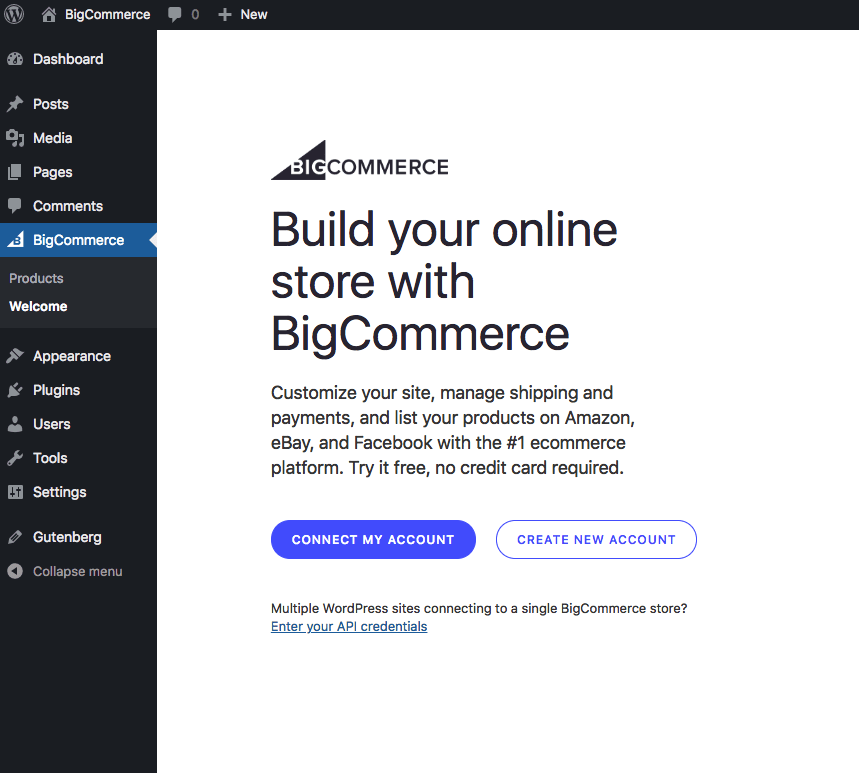
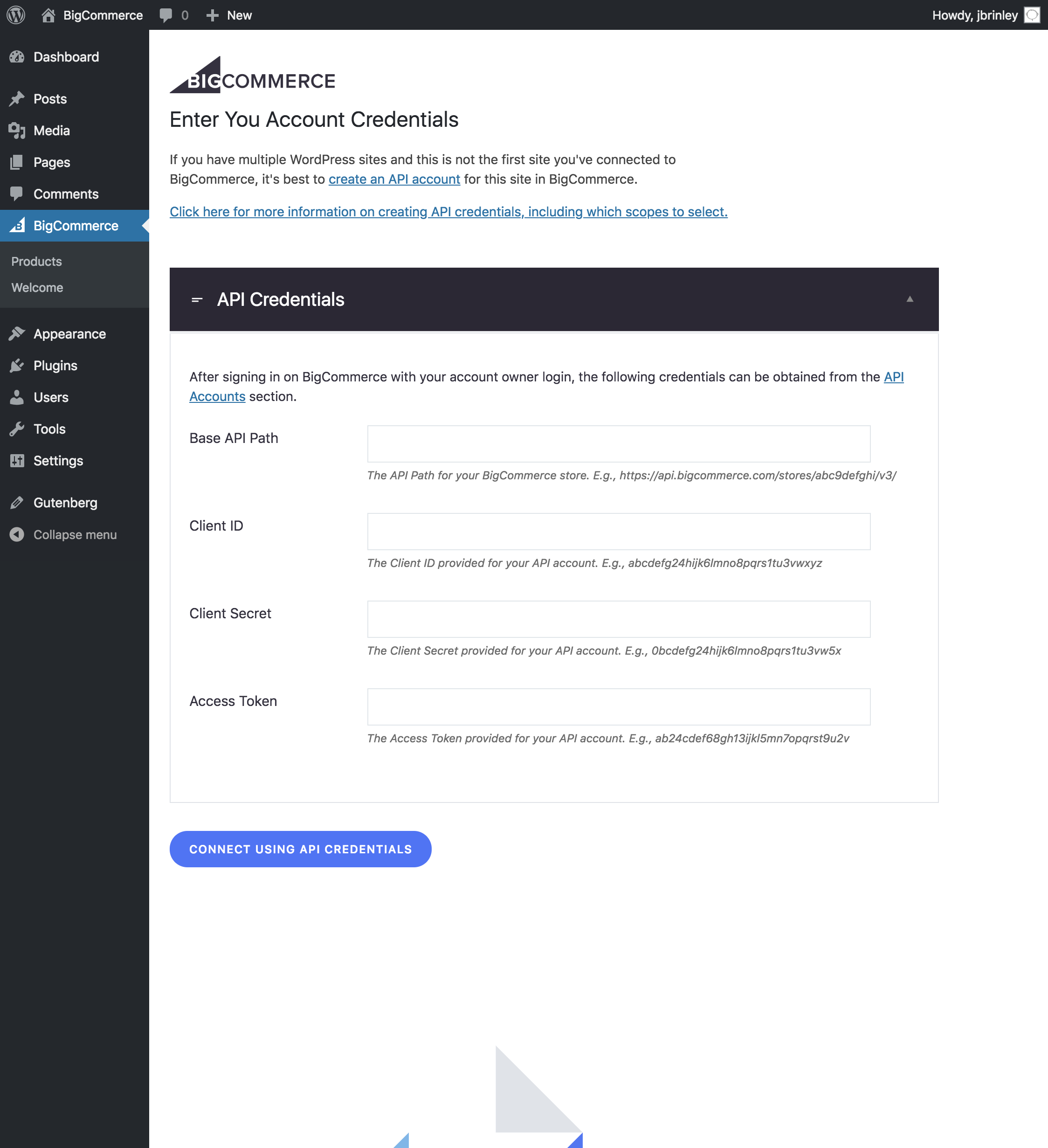
- Enter your API credentials on your WordPress site.
Saving the API credentials on your WordPress site will direct you to name the channel that the plugin will create. This allows you to list product to the channel from within BigCommerce and link orders back to the channel that comes from the WordPress site. You can also link to an existing channel.
Congratulations, you’re done setting up your additional site!
WordPress currency processing
The WordPress sites you connect to your BigCommerce store will process in the same currency as the BigCommerce store.

