Integrating Third-party Search with Algolia
Introduction
In this guide, we’ll walk through how to integrate Algolia with Catalyst to enable powerful, fast search functionality. You’ll learn how to:
- Connect your BigCommerce data with Algolia
- Replace Catalyst’s default search experience
- Use the Algolia React InstantSearch library to build a searchable product UI
By the end of this guide, you’ll have a fully functioning custom search experience powered by Algolia, with facets and product cards styled to match your Catalyst store.
Prerequisites
Before getting started, you’ll need:
- An Algolia account
- A locally running Catalyst instance
Follow our Getting Started guide and then our local development documentation to ensure you’re able to run your Catalyst application locally.
Be sure to Use sample data when creating your new Catalyst channel if you do not have any existing products you would like to use for your Catalyst channel already.
Create an application in Algolia
In your Algolia dashboard, create a new application. You can use Build plan to get started for free.
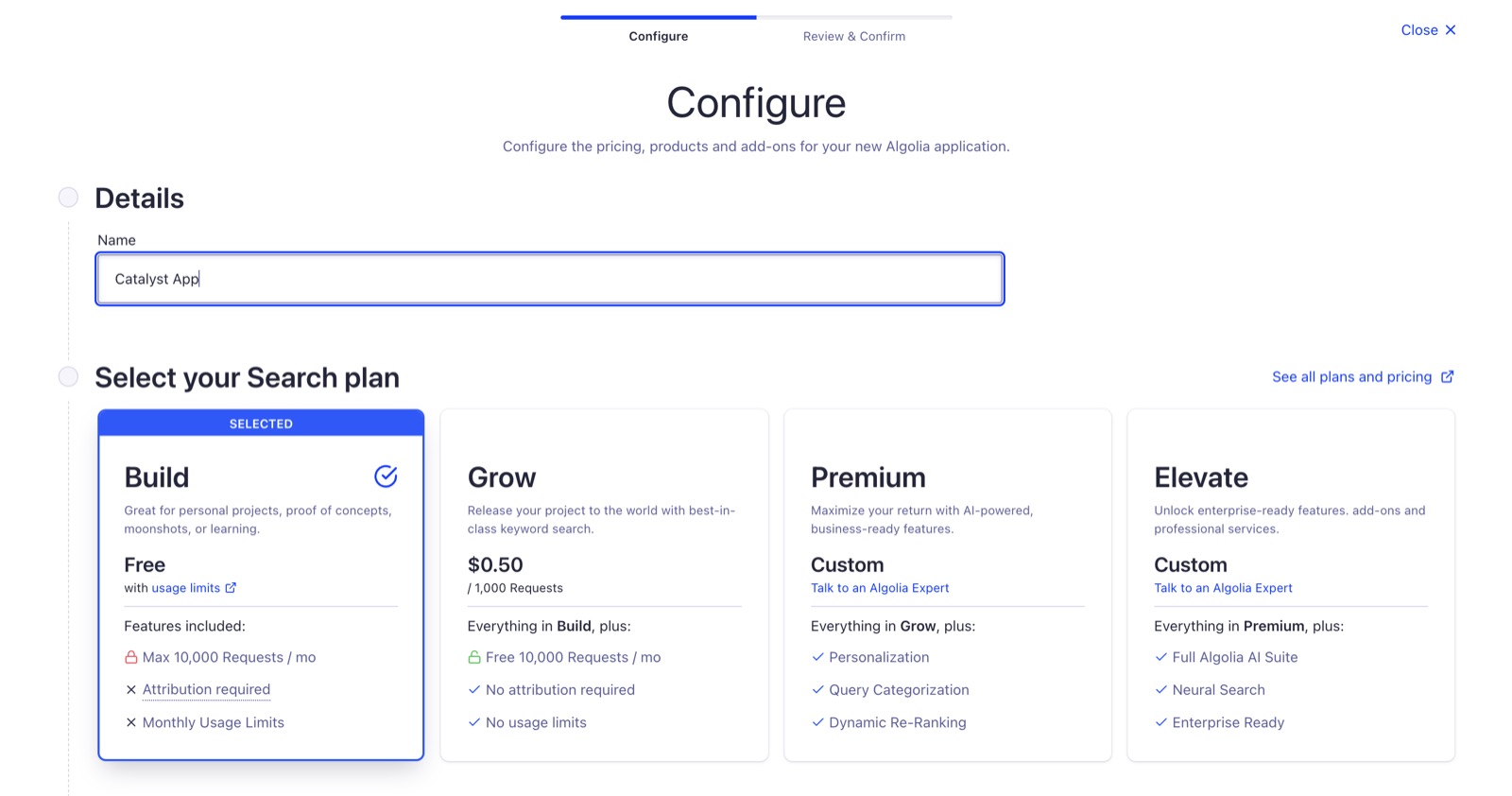
- Choose a region based on your location (e.g., US East)
- Click Next: Review & Confirm
- Click Create Application
You should see a Congratulations page which indicates your application was created successfully.
Connect Algolia to BigCommerce
Next, we’ll need to create an Algolia index for your Catalyst channel’s products. An Algolia index is where the data used by Algolia is stored. From the Algolia docs:
An index is the equivalent of a table in a database but optimized for search and discovery operations.
Luckily, the Algolia Single-Click App for BigCommerce makes the process of creating an Algolia index for your Catalyst channel’s products easy.
Due to the 10 KB limit on Algolia Record sizes for the Build plan, you will need to unassign the 3 Plant Bundle product from your Catalyst channel’s catalog if you elected to Use sample data when creating your new Catalyst channel. Otherwise, the indexing of your data will fail.
- Navigate to the Algolia Single-Click App
- Click Get this App and log into your BigCommerce store
- Click Install
- Review and accept the API scopes that the Algolia app requires to properly function
- Click Login With Algolia and log into your Algolia account
- Select the application you just created from the dropdown and click Next step: Channel selection
- Choose your BigCommerce channel
- Name your Algolia index using Product level indexing as the Record type and click Save
- Click Yes, index now to start indexing your products
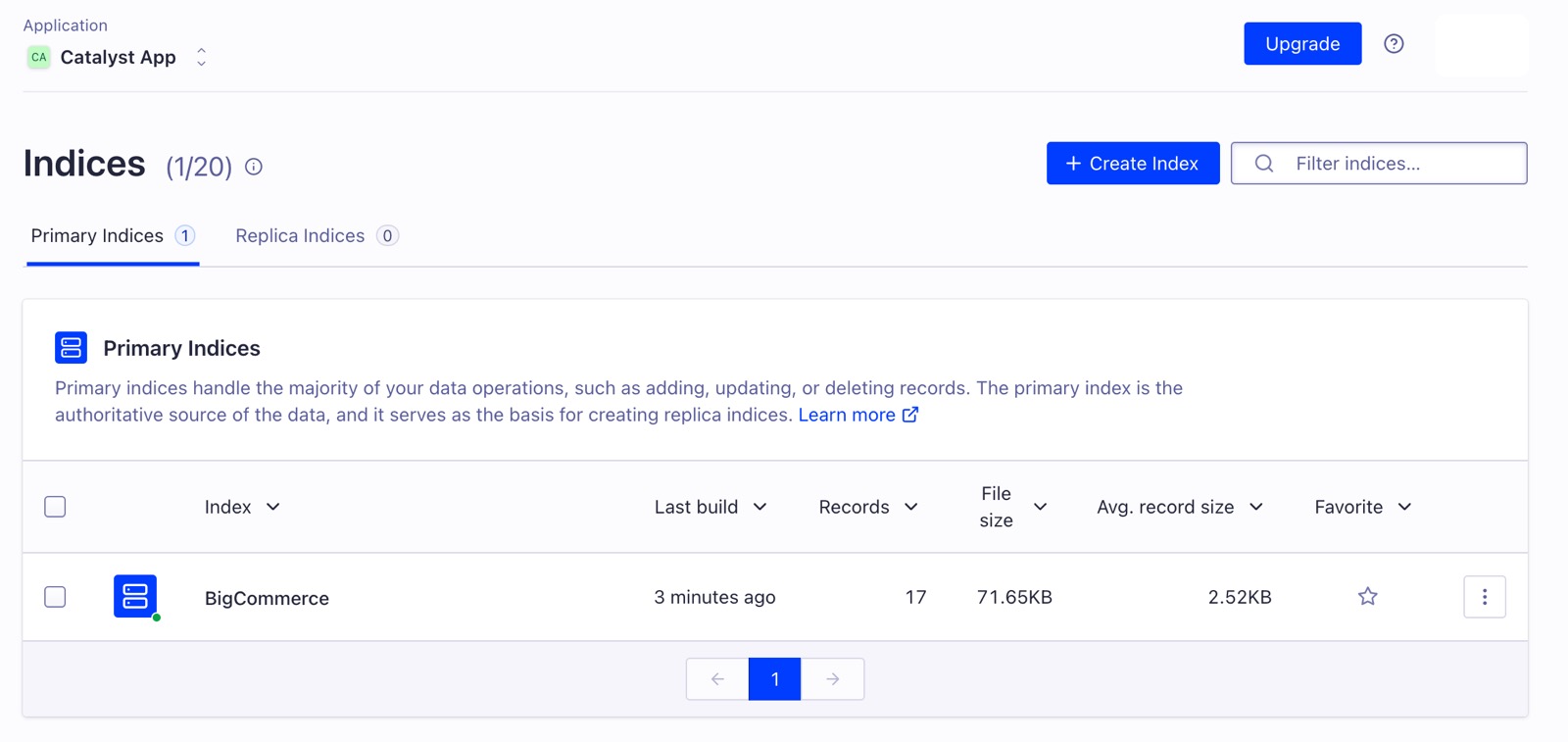
You can find you newly created Index in Algolia under Data Sources -> Indices.
Environment variables
In your Algolia dashboard, navigate to the Overview tab and copy your Application ID and Search API Key.
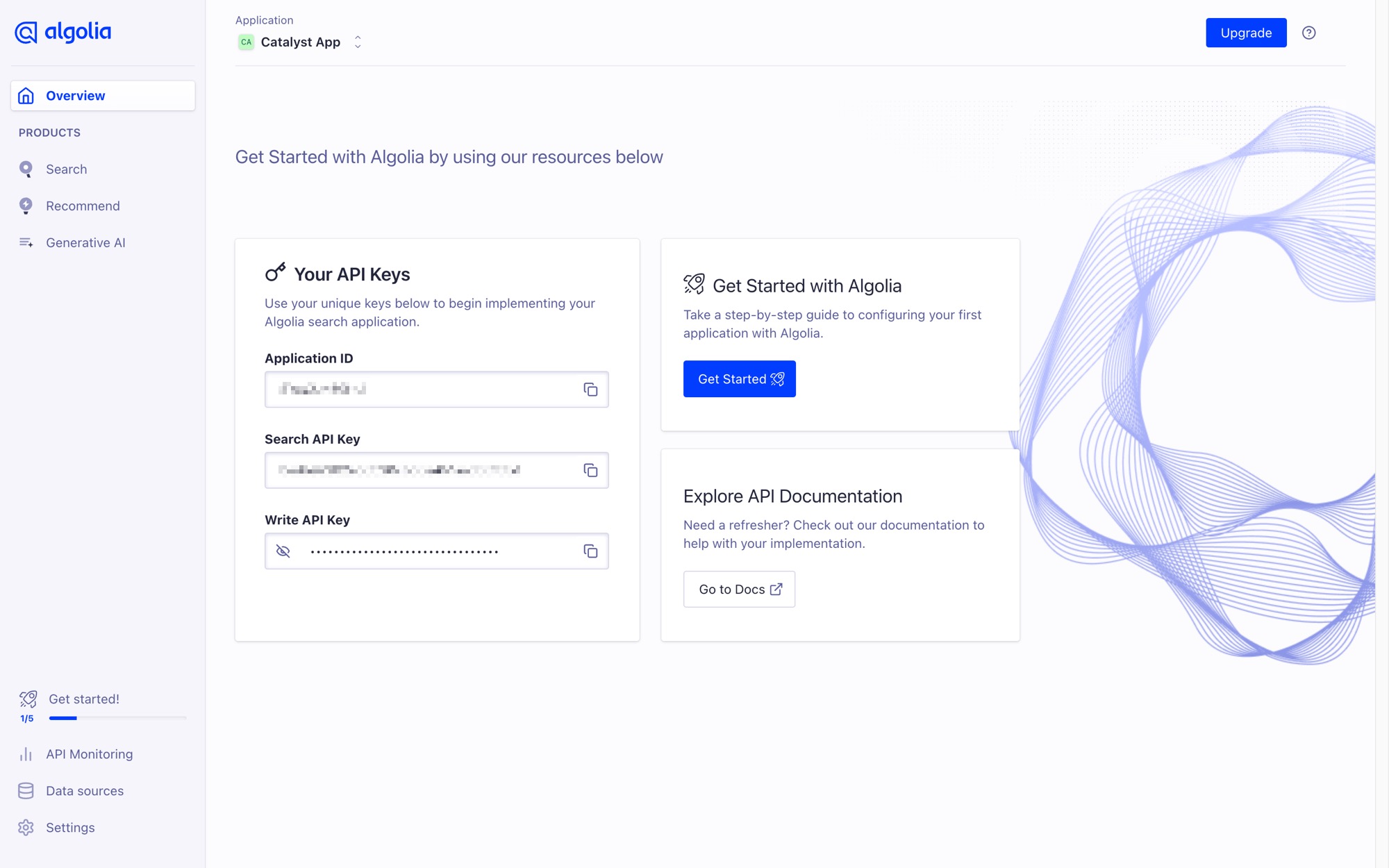
Add the following environment variables to your .env.local file:
These will be used by the Algolia search client in your frontend.
Install Algolia dependencies
Install the following dependencies in the core/ workspace of your local Catalyst project:
The --filter flag is used by pnpm to specify
the workspace to install the dependencies in.
Implementation
We’ll need to:
- Create a new Algolia client
- Modify the existing search results data transformer
- Modify the existing search server action to fetch search results from Algolia
1. Algolia client
Create a new directory core/lib/algolia and, inside, add a new file client.ts. Then, create and export a new Algolia client:
2. Modify the search results data transformer
Now, you’ll need to transform data from Algolia to the type of data that Catalyst is expecting. For this, you’ll need a type definition for the Algolia data and an algoliaResultsTransformer function to transform the data. Open core/data-transformers/search-results-transformer.ts and replace its contents with the following.
3. Modify the search Server Action
To use the transformer you just created, you’ll need to update the core/components/header/_actions/search.ts file which handles search on the server. Open that file and replace its contents with the following:
4. Check your work
Ensure you’ve saved all your changes and then run the development server:
Open http://localhost:3000 and try searching for Plant. You should see the Algolia search results rendered in your Catalyst storefront!
Next Steps
- Optimize your Algolia settings for ranking and typo tolerance
- Expand your facets for improved filtering

