Deploying to Vercel
Before deploying your storefront, make sure to follow the Local Development documentation. Alternatively, ensure you already have the appropriate environment variables set up as well as a source code repository.
To deploy to Vercel, you’ll need to first sign up or sign in to your Vercel account.
Using the Vercel dashboard
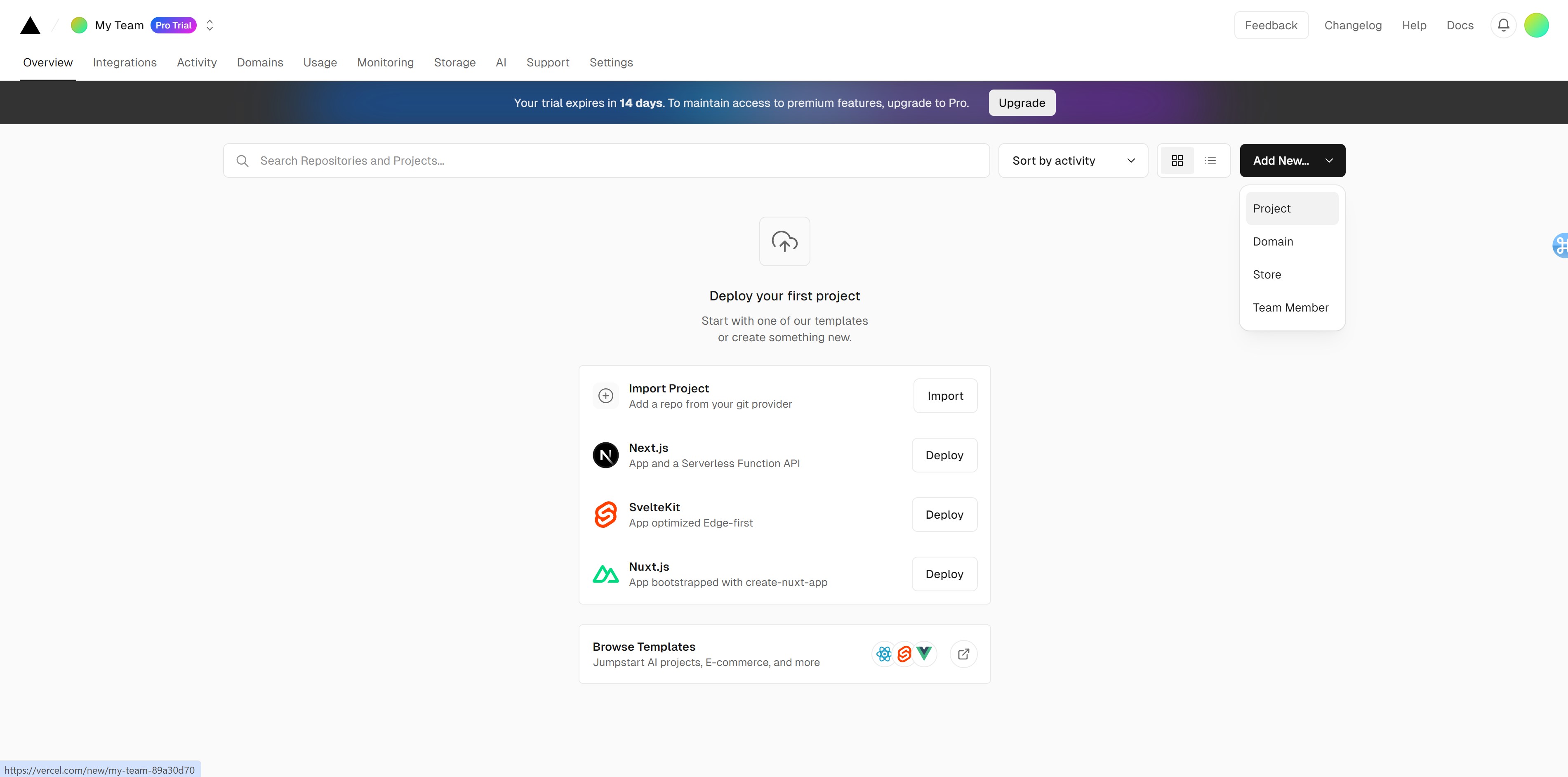
To deploy to Vercel using the Vercel dashboard, select Add New… > Project from the top right of the Overview page.
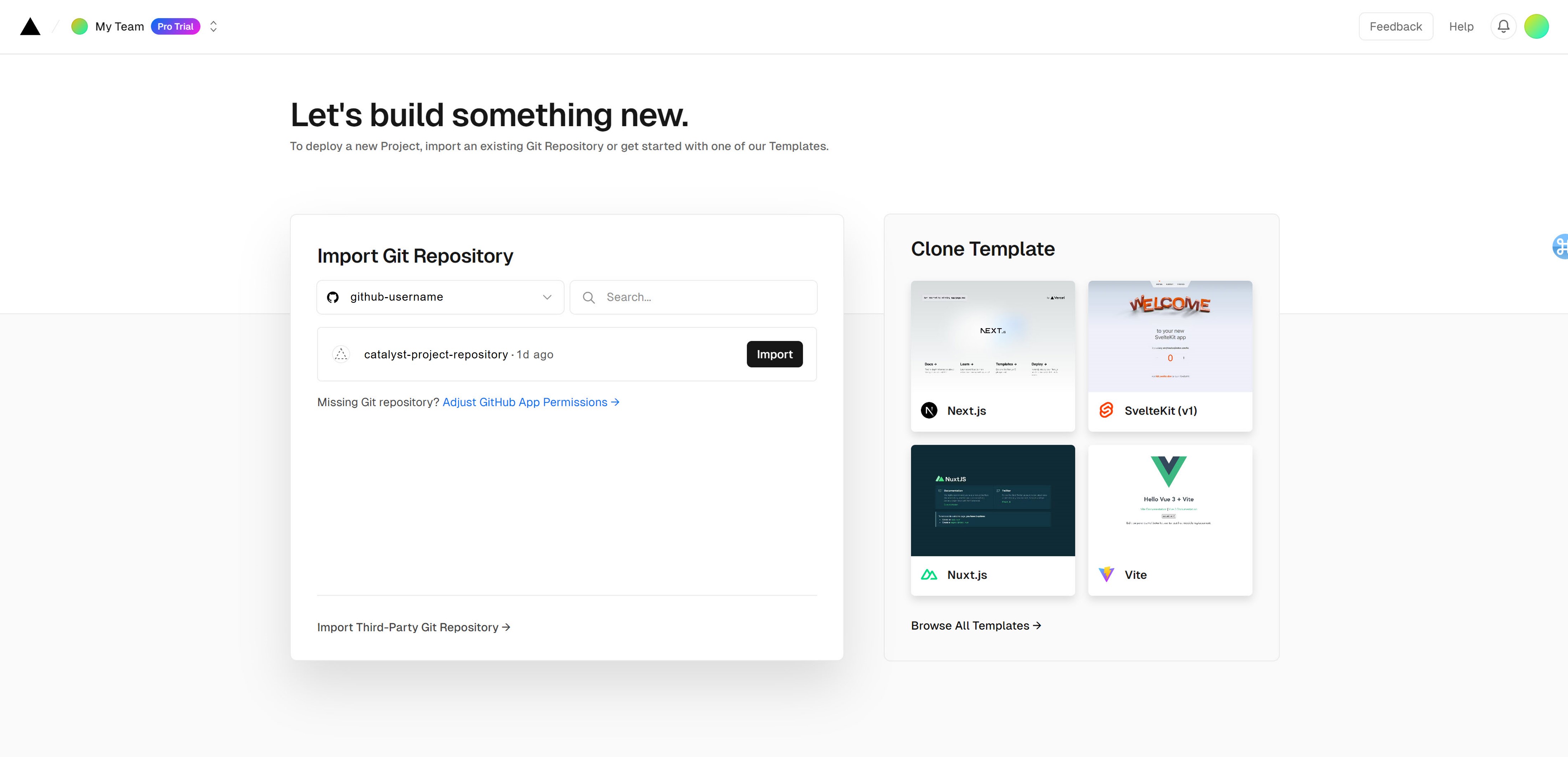
Then, connect to the GitHub, GitLab, or Bitbucket source repo that contains your Catalyst storefront’s code.
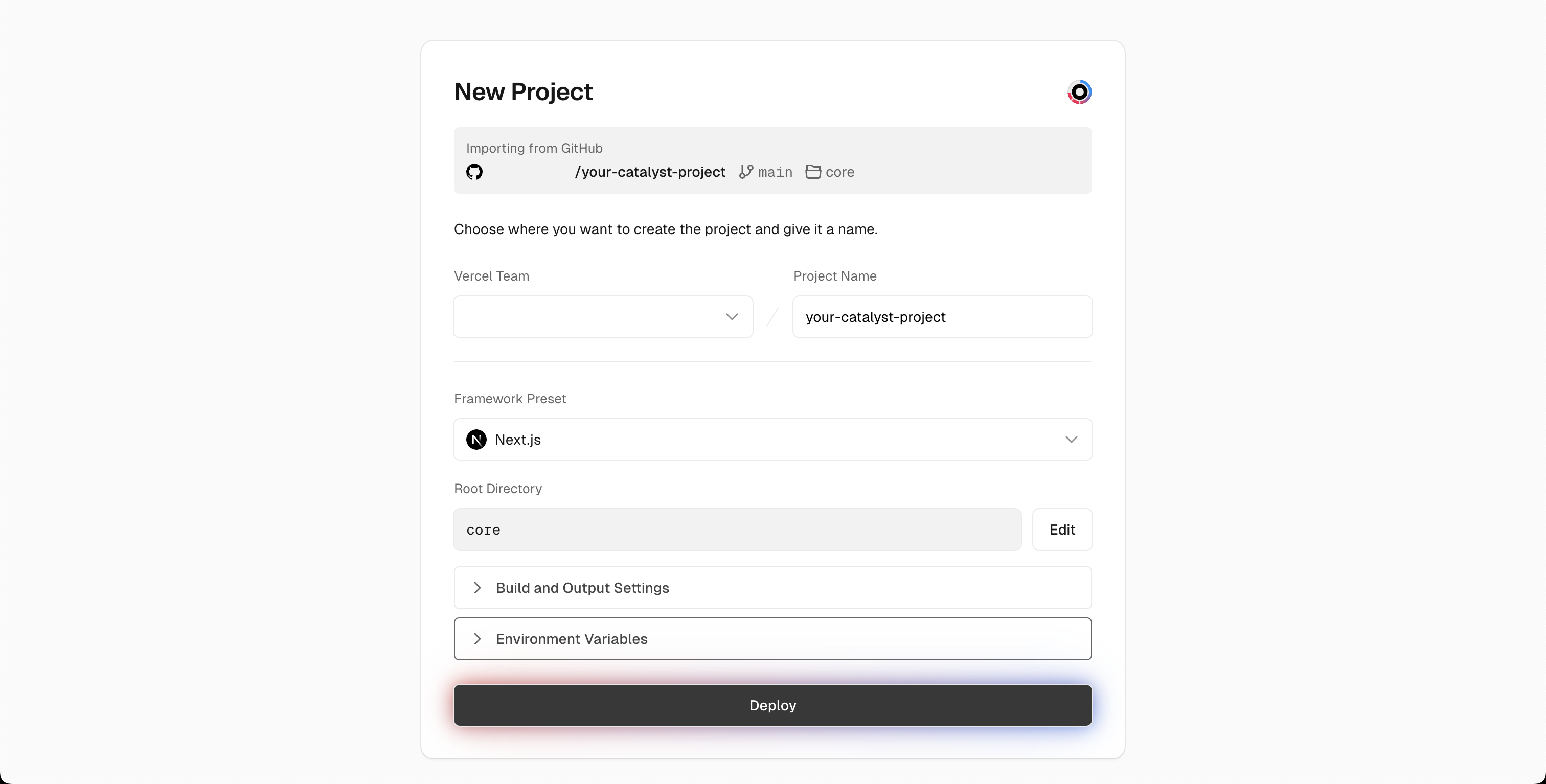
Since we are deploying from a monorepo, we need to adjust some of the default Vercel deployment configuration. Update the following properties:
- Framework Preset - Next.js
- Root Directory - click Edit and select the
core/folder.
You may leave the Build and Output Settings section as-is.
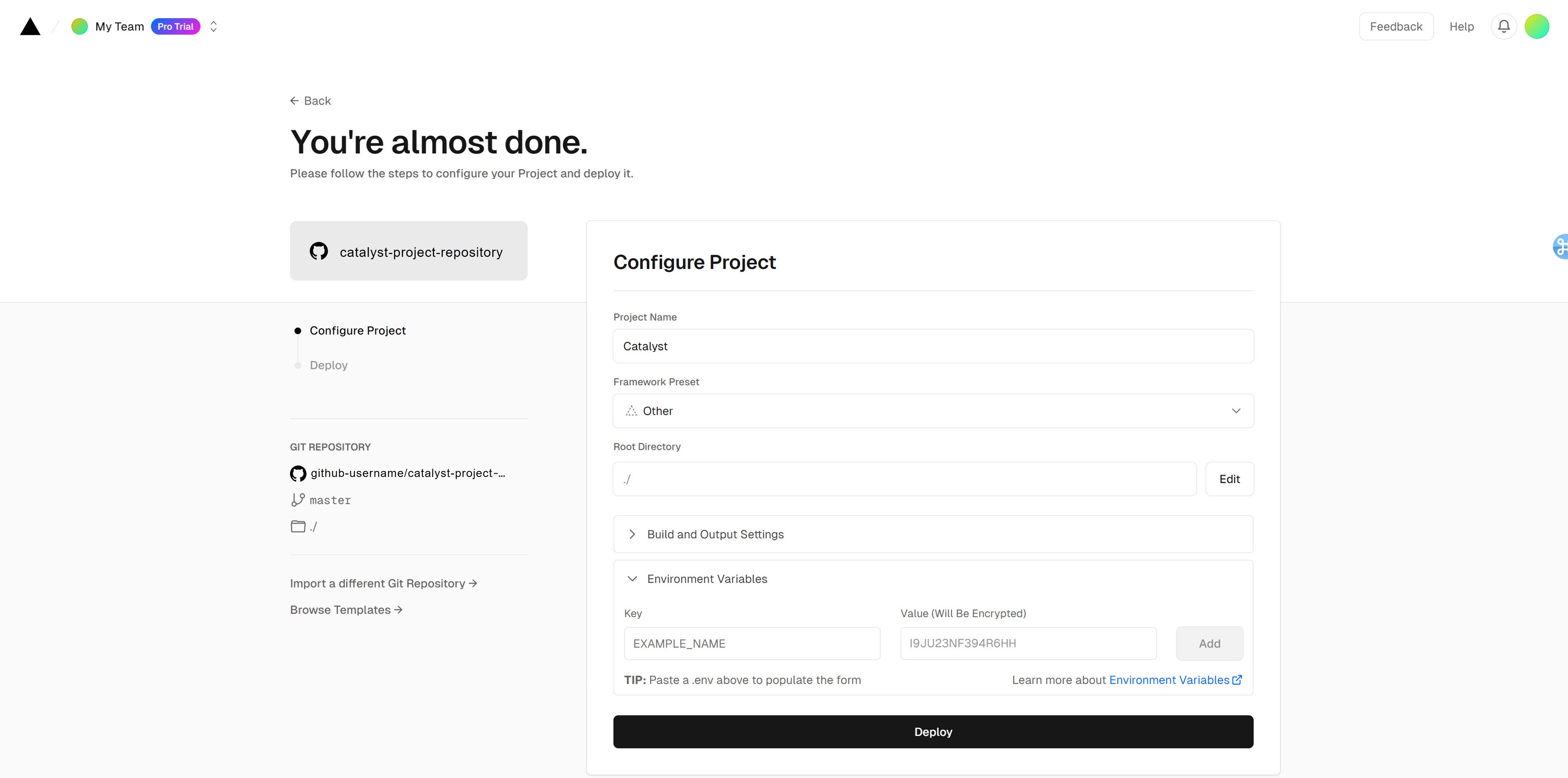
Next, you’ll need to upload your environment variables. Then, click Deploy.
To learn more about deploying to Vercel, consult the Vercel deployments overview.
Using the Vercel CLI
To deploy using the Vercel CLI, first install it by running npm i -g vercel or pnpm i -g vercel.
Next, in your terminal, navigate to the root of your project. Then, run vercel to create a preview deployment or vercel --prod to create a production deployment. If this is your first time using the Vercel CLI from this project, the CLI will take you through a few prompts to connect an existing Vercel project or create a new one, and you can use the answers below to help work through those prompts:
If you are creating a new Vercel project using the CLI, you need to add the environment variables; your first build will fail if no environment variables are populated. You can add the variables one at a time using vercel env add, or sign in to vercel.com, choose your project, and add them there.
Once added, navigate back to your Vercel project, click Deployments and click Redeploy inside the ellipses dropdown menu. For more information on the Vercel CLI, consult the Vercel CLI Documentation.
Editing in Makeswift
If you are using Makeswift, you’ll need to update the Host URL property with the URL of your deployed site on Vercel. Vercel will automatically generate a URL for your project, but you’ll probably be using your own custom domain. Regardless, you’ll want to update the Host URL property within your production Makeswift site, not the development one. You can find this property under Settings -> Host. xln

