Google Cloud Platform (GCP) Pub/Sub Webhooks Overview
Google Cloud Pub/Sub is a fully managed, asynchronous messaging service that enables seamless communication between distributed systems through the exchange of event data. It allows applications to publish messages to a topic, which other services can then subscribe to, ensuring that important events are delivered reliably and at scale.
In an eCommerce ecosystem, where merchants and applications often need to coordinate real-time updates (such as order status, inventory changes, or customer events), Pub/Sub can serve as a critical backbone for communication by decoupling the publisher (e.g., BigCommerce) from subscribers (e.g., merchant systems, third-party apps), this architecture ensures that:
- Applications can react to import events ---- like new orders, product updates, or payment confirmations --- without direct dependencies
- Scalability is inherent, allowing merchants to handle sudden spikes in demand (e.g., during holiday sales) without service degradation
- Messages are durable and persist until delivered, reducing the risk of lost information during outages and processing delays
- Filtering capabilities ensure that subscribers receive only relevant events, improving efficiency
- Storage and retry mechanisms guarantee reliable delivery, even when subscribers’ applications experience temporary downtime
- By leveraging Google Cloud Pub/Sub, merchants and app developers can build more resilient, responsive, and scalable systems --- delivering a better experience to end customers while simplifying backend complexity
Key benefits
- Decoupled Architects: BigCommerce, merchants, and apps can operate independently, enhancing system flexibility and maintainability
- Scalability: Automatically manages the load, accommodating high-throughput scenarios without manual intervention
- Reliably: Ensures message delivery with built-in acknowledgment and retry mechanisms, reducing the risk of data loss
- Real-Time processing: Enables immediate reaction to events, facilitating timely updates and actions
Real-world examples
Example 1: Product updates
Example 2: Order creation
Example 3: Channel management
Example 4: Multi-vendor order fulfillment
Prerequisites
- Google Cloud Platform account
- Billing enabled for the GCP
- Necessary IAM roles (Pub/Sub admin)
- For app partners, access to the GCP project or service account credential is provided
Helpful
- gCloud CLI
- Pub/Sub API enabled
BigCommerce
Initiate your app
You can initiate your app with Google Pub/Sub to allow for sending and receiving webhook traffic by following the procedure below.
- Navigate to your store’s control panel, and go to Settings > Store-level API accounts.
- Create a new API account or use an existing one.
- Click on the API Account name > Event subscriptions tab.
- In the Google Cloud Pub/Sub panel, copy the BigCommerce service account (webhook-deliveries@bigcommerce-platform.iam.gserviceaccount.com).
Google Cloud Pub/Sub
The following steps discuss how to manage projects, topics, and subscriptions using the Google Cloud console. You can use the Google Cloud CLI, methods, and/or APIs to perform the same tasks. For additional guidance, see the Google Cloud Pub/Sub documentation.
Creating a project
To create a project, you must have the resourcemanager.projects.create permission. This permission is included in roles like the Project Creator role (roles/resourcemanager.projectCreator). The Project Creator role is granted by default to the entire domain of a new organization resource and to free trial users.
For information on how to grant individuals the role and limit organization-resource wide access, see the Managing Default Organization Roles page. If you don’t specify the parent resource, a parent resource is selected automatically if applicable, based on the user account’s domain.
To create a new project go to the Manage resources page in the Google Cloud console.
In the Google Cloud console, perform the following steps:
- If you do not have a free trial, you must first select the organization resource from the Select organization drop-down list.
- Click Create Project.
- In the New Project window, enter a project name and select a billing account if required. The project name must be between 4 and 30 characters and can include letters, numbers, single quotes, hyphens, spaces, or exclamation points.
- In the Location box, specify the parent organization or folder resource that will serve as the hierarchical parent of the new project. If the option No organization is available, you can select it to create the project at the top level of its own resource hierarchy
- Click Create.
For more details on how to create a project see, the Console instructions.
Creating a topic
Topics can represent different events such as order created, inventory updated, etc. You must create a topic before you can publish or subscribe to it.
To create a topic, follow these steps:
- In the Google Cloud console, go to the Pub/Sub Topics page.
- Click Create topic.
- In the Topic ID field, enter an ID for your topic.
- Ensure Add a default subscription is enabled.
- Click Create topic.
For more details on how to create a topic see, Create a topic.
Once you create a topic, add BigCommerce as a principal.
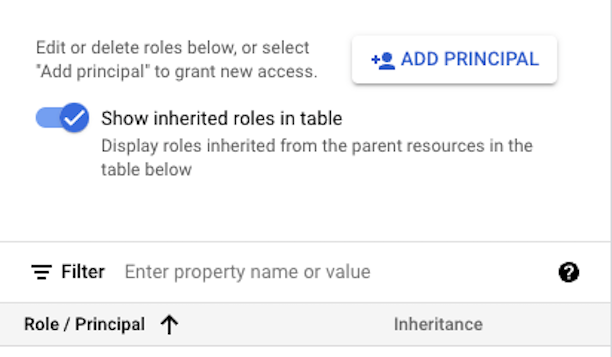
You can subscribe to webhook subscriptions after integrating your app with Google Cloud Pub/Sub. See the following GraphQL example:
GraphQL Admin API endpoints use the X-Auth-Token header to authenticate to BigCommerce servers. To make a call to the Admin GraphQL, use an API client tool such as Postman.
Request
Response
For a complete reference of all BigCommerce webhook events and their callback payloads, see Webhook Events.
Creating a subscription
By default, subscriptions use pull delivery, unless you explicitly set a push configuration. A push configuration grants BigCommerce access to publish webhooks to your Google Pub/Sub topic. The following section describes how to create a push subscription.
Creating a push subscription
To create a push subscription, complete the following steps:
- In Google Cloud console, go to the Subscriptions page.
- Click Create subscription.
- For the Subscription ID field, enter a name.
- Choose or create a topic from the drop-down menu.
- Select the Delivery type as Push.
- Specify an endpoint URL.
- Retain all other default values.
- Click Create.
You can also create a subscription from the Topics section. This shortcut is useful for associating topics with subscriptions.
- In the Google Cloud console, go to the Topics page.
- Click the three dots next to the topic and select Create subscription.
- Enter the Subscription ID. For information on how to name a subscription, see Guidelines to name a topic or a subscription.
- Select the Delivery type as Push.
- Specify an endpoint URL.
- Retain all other default values.
- Click Create.
For more details on how to create a push subscription see, Create push subscriptions.
Deleting a subscription
If you try to create a subscription with the same name as the one that you just deleted, expect an error for a brief period.
To delete a subscription, complete the following steps:
- In the Google Cloud Console, got to the Subscriptions page.
- Select the subscription to delete.
- Click Delete.
For more details on how to delete a subscription, see Delete subscriptions.
Managing project access control
You can use the Google Cloud console to manage access control for your topics and projects.
To set access controls at the project level, complete the steps below:
- In the Google Cloud Console, got to the IAM page.
- Select your project.
- Click Add.
- Type in one or more principal names.
- In the Select a role list, select the role you want to grant.
- Click Save.
- Verify that the principal is listed with the role that you granted.
To set access controls for topics and subscriptions, follow the steps below:
- You can use the Google Cloud console, go to the Pub/Sub Topics list.
- If needed, select your Pub/Sub-enabled project.
- Perform one of the following steps:
- To set roles for one or more topics, select the topics
- To set roles for a subscription attached to a topic, click the topic ID. In the Topic details page, click the subscription ID. The Subscription details page appears.
- If the info panel is hidden, click the Show info panel.
- In the Permissions tab, click Add principal.
- Type in one or more principal names.
- In the Select a role list, select the role you want to grant.
- Click Save.
View metrics
To view a single Pub/Sub metric by using the Google Cloud console, perform the following steps:
- In the Google Cloud Console, go to the Monitoring page.
- In the navigation pane, select Metrics explorer.
- In the Configuration section, click Select a metric.
- In the filter, enter
Pub/Sub. - In Active resources, select Pub/Sub Subscription or Pub/Sub Topic.
- Drill down to a specific metric and click Apply.
For more details on monitoring the dashboard see Cloud monitoring.
To see what metrics Pub/Sub reports to Cloud Monitoring, see the Pub/Sub metrics list in the Cloud Monitoring documentation.
To see the details for the pubsub_topic, pubsub_subscription, or pubsub_snapshot monitored resource types, see Monitored resource types in the Cloud Monitoring documentation.

