Currencies Overview
BigCommerce’s flexible Currency settings assist developers in building Multi-Currency storefronts that empower shoppers and merchants to do business in their currency of choice. Allowing customers to shop and check out in their native currency provides a more consistent and positive shopping experience, and maintaining price expectations throughout the shopping process encourages conversions for merchants.
This article provides a high-level guide to multi-currency concepts in BigCommerce as well as specific instructions on adding currencies via the control panel. For additional details on how currencies are surfaced throughout BigCommerce APIs, user interfaces, and storefront components, see How Currencies Work.
Active vs. Transactional
In BigCommerce, there are two types of currency that can be set up: active currency and transactional currency.
-
Active currency - When a currency is set to display-only, shoppers in associated countries will see prices on the storefront in that currency, but the actual order will be transacted in the store’s default currency. Shoppers at checkout see the estimated price in the active currency with a note indicating the actual currency and amount to be charged.
-
Transactional currency - When a currency is set as transactional, shoppers in associated countries will both see prices on the storefront in that currency and be charged in that currency when they check out.
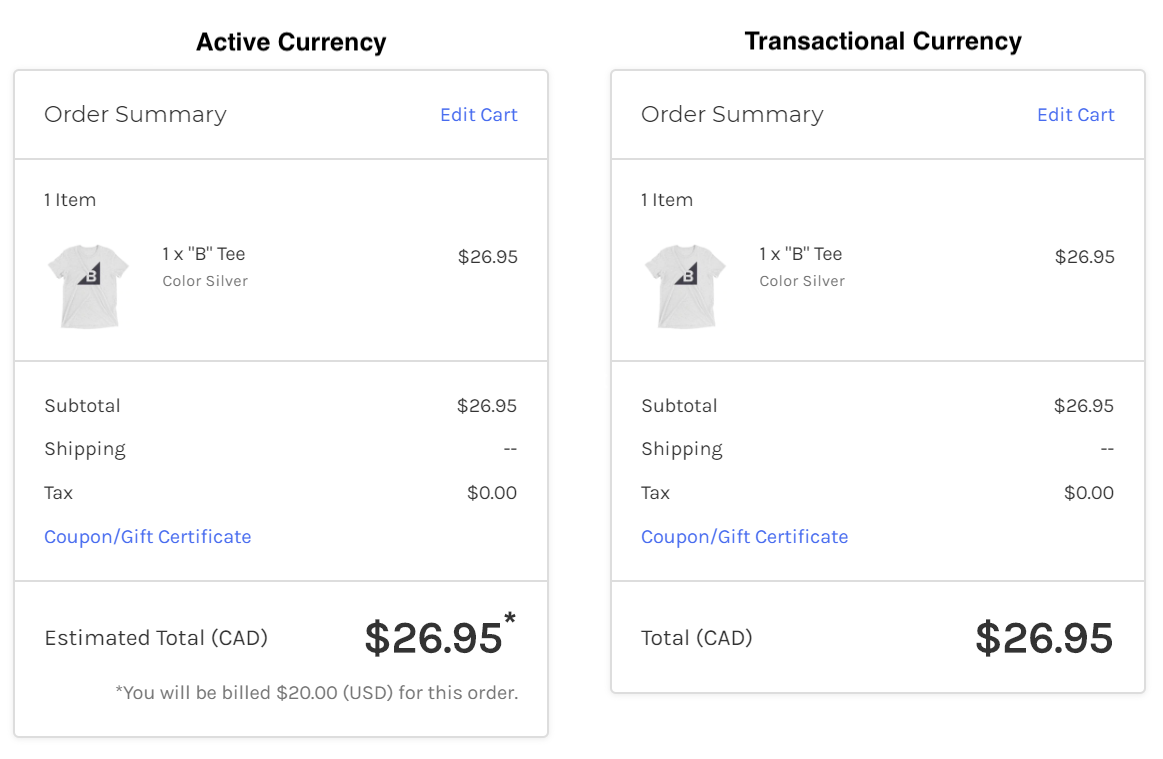
- If the shopper’s card-issuing bank differs from the merchant’s bank account country, additional cross-border fees may apply that can change the final settlement amount.
- You can choose whether a currency should be display-only or transactional when adding or editing a currency.
Preconfiguring the store
Before setting up multiple currencies on a store, ensure your store is using the following:
- A Stencil theme.
- The Optimized One-Page Checkout type.
- A multi-currency compatible payment gateway set up and enabled. (Your store’s default currency can use any gateway).
Additionally, review the Currency API reference to get acquainted with the endpoints and resources related to configuring multiple currencies.
Make sure to not change the store’s default currency. This could cause the currency to malfunction.
Adding a currency
Transactional currencies can’t be created via API, so they’ll need to be added via the active MSF-enabled control panel. To do so:
- Navigate to Settings > Setup > Currencies, then select Add a Currency…
- Select the currency code that corresponds to the currency you want to set up, then click Next.
- Configure the currency’s display and transactional settings.
- Click Save.
For more in-depth instructions and helpful screenshots, see Adding a Currency in the Help Center.
Do not change the default currency — this may lead to unintended currency conversion issues. For instance, changing the default currency will not trigger price recalculation for the catalog. Additionally, changing the default currency will enable the newly assigned currency as transactional.
How currencies work
For details on how currencies are surfaced throughout BigCommerce APIs, user interfaces, and storefront components, see How Currencies Work
Supported and unsupported features
See the table below for a list of supported and unsupported features.
Multi-currency definitions
FAQ
Do Multi-Currency settings work with the Checkout SDK?
The Checkout SDK works with multi-currency. There is no additional setup needed for the SDK. After setting up currency in the Control Panel the SDK will work as normal.
Do my theme customizations work with Multi-Currency Settings?
If the theme is set up to show the currency on the storefront, there should be no issues. Please see your theme developer if that is not the case.
Can shoppers still select a currency?
Shoppers will still be able to select their currency of choice on the storefront. This will depend on the stores themes and customizations.
Will my analytics show in the transactional or active currency?
Analytics shows an approximate price in the store’s default currency. This is based on the configured exchange rate. There is no abandoned cart analytics or web analytics such as Google Analytics. Currently, it does not break down analytics by currency.
How can I setup settlement currencies in Stripe?
Please reach out to Stripe for more information on setting up the account. Supported Settlement Currencies (Stripe Documentation)
Related resources
Articles
- How Currencies Work
- Using Price Lists
- Managing Currencies
- Tax
- Supported Currencies
- Supported Settlement Currencies

