Lab - Bundling a Theme
.png)
In this lab, you will:
- Bundle a theme
Prerequisites
- Previous labs have been completed
Introduction
You have verified all requirements have been met. Stencil CLI provides two options for creating a .zip file that contains all your theme’s essentials, while excluding redundant components A theme’s zip file must be no larger than 50 MB. If your file exceeds that size, use either a WebDAV or a CDN upload to exclude large static assets.
Writable Permissions Are Required
Without these permissions, bundling your theme will fail, blocking its upload to BigCommerce.
No Automatic Check for Dependencies
The stencil bundle and stencil push commands do not check for the dependencies that these build systems install. So if those dependencies are missing, these commands will not immediately report errors. However, your resulting .zip file will not properly upload to BigCommerce, and will not run properly on a storefront.
Verify Directory and File Permissions
If you have added any new subdirectories or files to your base theme, verify that you have:
Set newly added directories to permission 755 (drwxr-xr-x). Set newly added files to permission 644 (rw-r—r—).
Step 1: Bundle a Theme
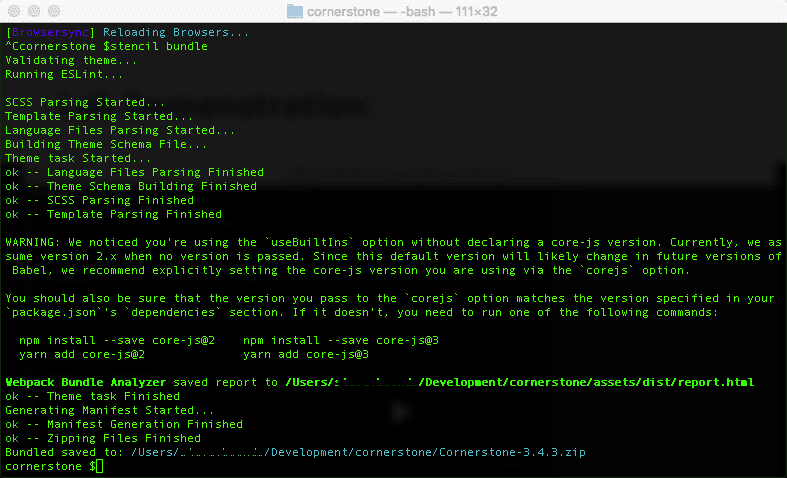
- Enter the following command in CLI:
- The bundle command will notify you of its progress and completion
- A .zip file is generated
Check the resulting .zip file’s size. (It cannot exceed 50 MB). If your .zip file meets this requirement you are now ready to upload your theme.
If your .zip file exceeds 50 MB, you will need to use one of the following procedures to restructure your theme to a size that is manageable for upload to BigCommerce:
- Shrink Your Theme with the help of WebDAV
- Stage your Theme for CDN Delivery to restructure your theme to a size that’s manageable to upload to BigCommerce
Successful Bundling
Stencil CLI will display:
- “ok” confirmations
- “not ok” errors
- warnings for individual substeps in bundling and uploading your theme If bundling is successful, you will next see a “Processing” progress bar to track the upload.
If bundling your theme triggers multiple lint errors related to the bundle.js file, then your theme is missing the .eslintignore file. Please retrieve this file from the Stencil Cornerstone repo, then re-run stencil bundle or stencil push.

