Handlebars
Handlebars is an essential part of the Stencil technology stack, allowing developers to create dynamic, templated customizations across the Stencil-themed Storefront. It is a minimal templating language that enables developers to create dynamic and robust templates for any BigCommerce Stencil storefront.

In Stencil development, Handlebars provides developers with complete access to data objects. Data objects contain dynamic data that can be used to personalize the storefront experience for customers. Handlebars expressions can be embedded into HTML files to create dynamic logic that reflects the data stored in data objects.
Example of a Handlebars expression:
Note: Handlebars should only be used in .html files. If found elsewhere the code will display unchanged or possibly create syntax errors. To check which objects are available in a page’s context, add the parameter ?debug=bar to the localhost URL when running the Stencil CLI.
Using Handlebars
Handlebars keeps your HTML page clean by separating the logic-less templates from the business logic in your JavaScript files. This organization improves the structure of the application, promoting maintainability and scalability. BigCommerce implements Handlebars in Stencil themes to render content exposed by Stencil Objects.
Handlebars expression
A Handlebars expression begins and ends with curly braces. When executed these expressions are replaced with values from an input object.
Example:
In Handlebars, the values returned by the {{expression}} are HTML-escaped. For example, if the expression contains ”&”, the returned HTML-escaped output is generated as &. If you don’t want Handlebars to escape a value, use the “triple-stash”, i.e. {{{content}}}.
Example:
Stencil Theme Platform & Using Handlebars Helpers
The Stencil theme platform enables developers to control store data flow from the BigCommerce back-end to the front-end. Developers can direct the presentation of each page using Handlebars Helpers.
There are various examples of this throughout the Cornerstone theme:
- Where product fields are assembled = templates/components/products/product-view.html
- The account page’s list of previous orders = templates/components/account/order-contents.html
In production, Handlebars statements run on the server-side, generating HTML received by the shopper’s browser.
Handlebars Helpers
Helpers can be used to implement functionality that is not part of the Handlebars language itself.
BigCommerce offers documentation for Stencil supported Handlebars helpers, including custom helper documentation, usage examples and a list of whitelisted standard helpers.
It is not possible to implement custom helpers in a theme. BigCommerce’s custom Handlebars helpers are open source. To contribute, make a pull request to bigcommerce/paper-handlebars.
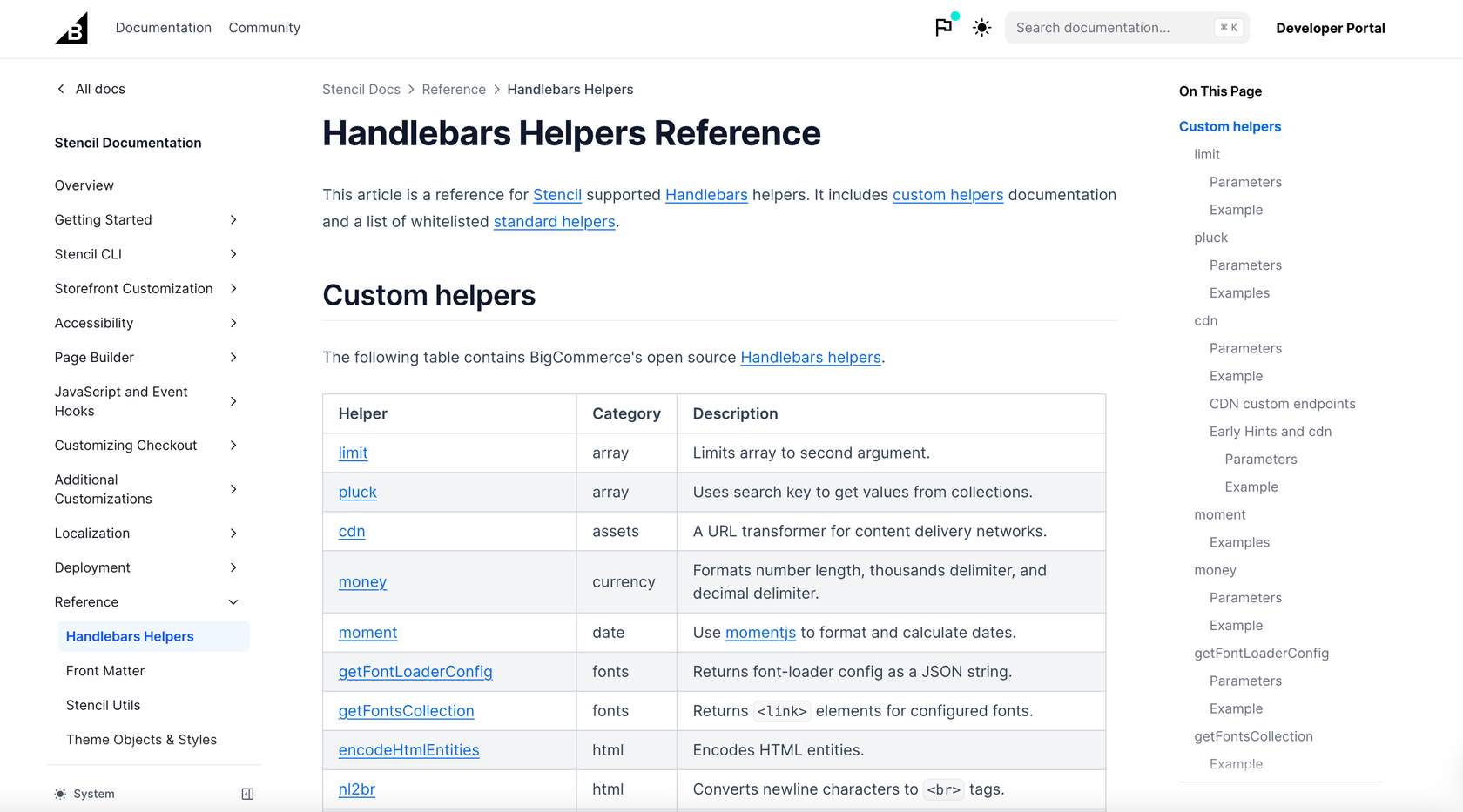
Handlebars Helpers expedite development time by removing the need for verbose coding, and can quickly impact any Stencil developer’s effectiveness.
Example 1 - Handlebars helper
string helper {{json}}.
This string helper is a custom helper added with our built-in paper-handlebars plugin that converts a JavaScript object into a JSON string. {{json}} can be used when working with Stencil objects to quickly test what is returned in a given context, which is where the JSON Handlebars Helper shines.
If you’re trying to add blog posts to the home page, you can quickly see what the blog object returns on /templates/pages/home.html by adding {{json blog}} to that file.
For more examples of Handlebars Helpers check out Kyle O’Brien’s article, 5 Handlebars Helpers BigCommerce Developers Should Know.
Example 2 - Handlebars helper
CDN helper {{cdn}}
The CDN helper can be used to reference an image from the BigCommerce CDN, which provides all the benefits of using a CDN for static assets like caching and geographic proximity. This example shows how to use the {{cdn}} helper to pass an image URL to a component in the theme.
Calling of a component:
Code Inside Component
How do you get the CDN expression to use the img text that is being passed in?
Reference the image location within the new context of your custom component. The code is simplified a bit in the example below for a better understanding. Please note this example is not referencing the assets folder because the CDN will assume that path is being used. The bc logo_sprite.png_ is the example being used since it was already available in the Cornerstone theme.
The call for the custom component using Handlebars:
The code itself
The most important change made overall was to the component’s img element src attribute. Now that we’re within the context of the component, the img property is a part of that context from when it was passed through earlier in the initial call to it.
For further information, see dev docs Handlebars Helpers reference page.
Example 3 - Define Custom CDN Endpoints to Use with the CDN Helper
This example includes large, high-resolution image assets in themes, without exceeding BigCommerce’s 50 MB limit when bundling the theme for upload to BigCommerce.
You could use a local version of the image in development, and a version on a CDN (e.g. Imgix) in production. To do so, define custom CDN endpoints in your theme’s config.json file as shown in the example below:
After defining an endpoint, you can use the short name:
In local development, that helper would return:
Whereas in production, it would return:
As shown above, the helper is configured to rewrite local URLs to an assets/cdn/ subfolder. The stencil bundle command will exclude this local assets/cdn/ subfolder from the bundle that it creates. This filtering circumvents the 50 MB size limit on the resulting .zip file.
Example 4 - JavaScript Template Context Injection
Occasionally, you might need to use dynamic data from the template context within your theme’s client-side application code. Two helpers are provided to help achieve this.
The inject helper allows you to compose a JSON object with a subset of the template context to be sent to the browser:
{{inject “stringBasedKey” contextValue}}
To retrieve the parsable JSON object, call {{jsContext}} after all of the {{inject}} calls.
For example, to set up the product name in your client-side app, you can do this if you’re in the context of a product:
You can compose your JSON object across multiple pages, to create a different set of client-side data depending on the currently loaded template context.
Stencil’s Cornerstone base theme makes the jsContext available as this.context, both on the active page scoped and on global PageManager objects.
STENCIL DEBUG TOOL
If you are running the theme locally using the Stencil CLI, you can simply add ?debug=context to any URL and you will be able to see all of the data on that page that can be accessed through Handlebars.
If an object is not scoped to a page type in Stencil and you need to access it, GraphQL is a great way to do so quickly and easily.

