Lab - Working with Products
This lab activity will give you a chance to practice working with products via the Catalog API. Each step will walk you through how to use all of the endpoints covered in the previous lesson.
Prerequisites
- BigCommerce store (sandbox or live)
- Basic knowledge of APIs
- REST client (Postman)
- Completion of Catalog API Lab 1
In this lab, you will:
- Create a simple product
- Send a GET request to view a list of products in your store
- Send a GET request to view all products channel assignments
- Use include to return variant and image subresources in the response body
- Return the first 5 products in a store, including variant and image information
- Return the next 5 products (6-10)
- Use name=X filter to find a product by name
- Use include_fields to return only product names, prices, skus, and ids
- Use exclude_fields to exclude the product descriptions and categories from the response
- Combine multiple parameters in a single request
- Change (PUT) a product’s price, description and weight
- DELETE a single product by ID
Create a Simple Product
- Open Postman
- Copy and paste the request below into Postman
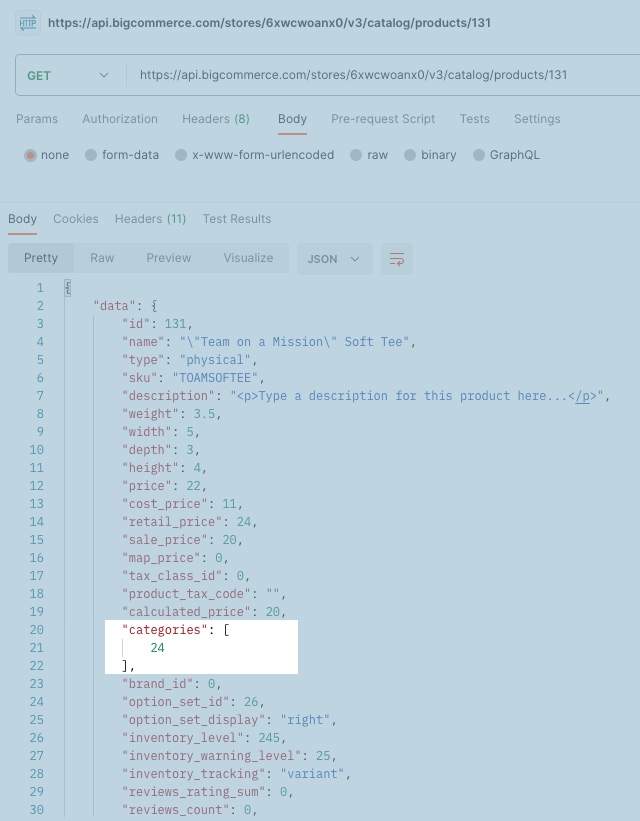
- Find a product with the same category id to which your new product will be added
The four required fields for a product are name, price, weight, and type.
-
Copy and paste the code below into the Body section of Postman
a. Under the URL field, click Body
-
Edit the request body
a. Replace
{id}with the category id
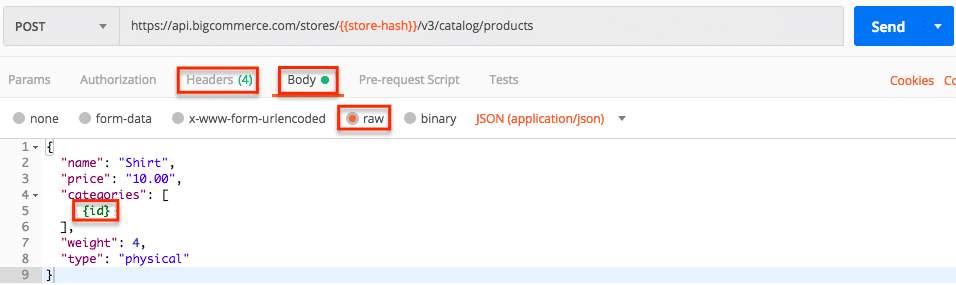
- Select POST next to the request url
- Click the Send button
- Observe response and the product created in the store
- Copy the product ID for next steps
If you are in MSF, creating the product isn’t enough to see it on the storefront, you also need a channel assignment.
There are a number of ways to gather a category’s ID. The video below walks you through identifying a category’s ID from the URL used to access the Edit a Category page in the control panel.
Alternatively, you can send a GET request to the categories endpoint to retrieve a category ID and then skip to Step 2:
https://api.bigcommerce.com/stores/{{store_hash}}/v3/catalog/categories?include_fields=name
GET a List of Products in Your Store
- Open Postman
- Click the No Environment dropdown in the upper-right
- Select the environment you created in the previous lab; make sure you are using the headers from the previous lab as well
- Copy and paste the request below into Postman
If you created your environment correctly in the previous lab, {{store_hash}} will use your store’s store hash automatically.
- Select GET next to the request url
- Click the Send button
- Observe response
GET a List of Product’s Channel Assignments
This step is optional. If your store is not set up for multi-channels, the response will return a list of products with a channel ID of 1.
- Copy and paste the request below into Postman
- Select GET next to the request url
- Click the Send button
- Observe response
GET a Variant and Image Sub-Resources Using “Include”
- Copy and paste the request below into Postman
- Select GET next to the request url (if not already selected)
- Click the Send button
- Observe response
In the response section of Postman, you should now see JSON from the response body including the product, variant, and image information for up to 50 products.
GET the First 5 Products and Their Variant and Image Information
If your store has more than 50 products, you can use limit and page parameters in the request URL to return up to 250 products at a time and paginate through them.
- Copy and paste the request below into Postman
- Select GET next to the request url (if not already selected)
- Click the Send button
- Observe response
Use Pagination to GET the Next 5 Products
- Copy and paste the request below into Postman
- Select GET next to the request url (if not already selected)
- Click the Send button
- Observe response
Using the BigCommerce V3 API, you can see how many products are returned per page, which page is being returned, and the total number of pages by observing the meta object at the end of the response body.
Use Name=X Filter to Find a Product By Name
- Copy and paste the request below into Postman
- Enter a valid product name in the Params tab
- Select GET next to the request url (if not already selected)
- Click the Send button
- Observe response
Use Filters to Return Only Product Names, Prices, SKUs, and IDs
- Copy and paste the request below into Postman
- Select GET next to the request url (if not already selected)
- Click the Send button
- Observe response
Use Filters to Exclude the Product Descriptions and Categories from the Response
- Copy and paste the request below into Postman
- Select GET next to the request url (if not already selected)
- Click the Send button
- Observe response
Combine Multiple Parameters in a Single Request
- Copy and paste the request below into Postman
- Select GET next to the request url (if not already selected)
- Click the Send button
- Observe response
The request above combines exclude_fields, include, price:max=X, limit=Y, page=Z parameters in a single request.
Change a Product’s Price, Description, and Weight
- Copy and paste the request below into Postman
- Select GET next to the request url (if not already selected)
- Click the Send button
- Identify and copy the Product ID of a product to modify
- Copy and paste the request below into Postman
- Enter a valid ID for
product_idin the Params tab - Copy and paste the code below into the Body section of Postman
- Select PUT next to the request url
- Click the Send button
- Observe the changes in the response
Delete a Single Product By ID
- Copy and paste the request below into Postman
- Enter a valid ID for
product_idin the Params tab - Select DELETE next to the request url
- Click the Send button
- Observe response
Get a Product’s Category Assignments
- Copy and paste the request below into Postman
- Enter a valid product ID in the Params tab
- Select GET next to the request url (if not already selected)
- Click the Send button
- Observe response
Delete a Product’s Category Assignment
- Copy and paste the request below into Postman
- Enter valid IDs for
product_idandcategory_idin the Params tab - Select DELETE next to the request url
- Click the Send button
- Observe response

