Introduction to the Buyer Portal
The B2B Edition Buyer Portal is the shopper-facing user interface for BigCommerce B2B storefronts. The portal provides out-of-the-box support for key B2B shopping flows, including quotes, invoices, and multiple company users. This UI can be integrated into Stencil, Catalyst, or custom headless storefronts.
Introduction to B2B Edition
B2B Edition is designed to deliver enterprise-level B2B functionality for businesses of all sizes, enhancing business-to-business operations for both enterprise merchants and their customers.
The core features of B2B Edition include corporate account management, sales representative masquerade, quoting, shared shopping lists, and more.
See the B2B Core developer course for more details on B2B Edition’s core capabilities.
The Buyer Portal Experience
The Buyer Portal is a fully realized B2B user interface for stores equipped with B2B Edition. The Buyer Portal replaces the default BigCommerce account area and enhances catalog pages, providing out-of-the-box support for key shopper-facing features.
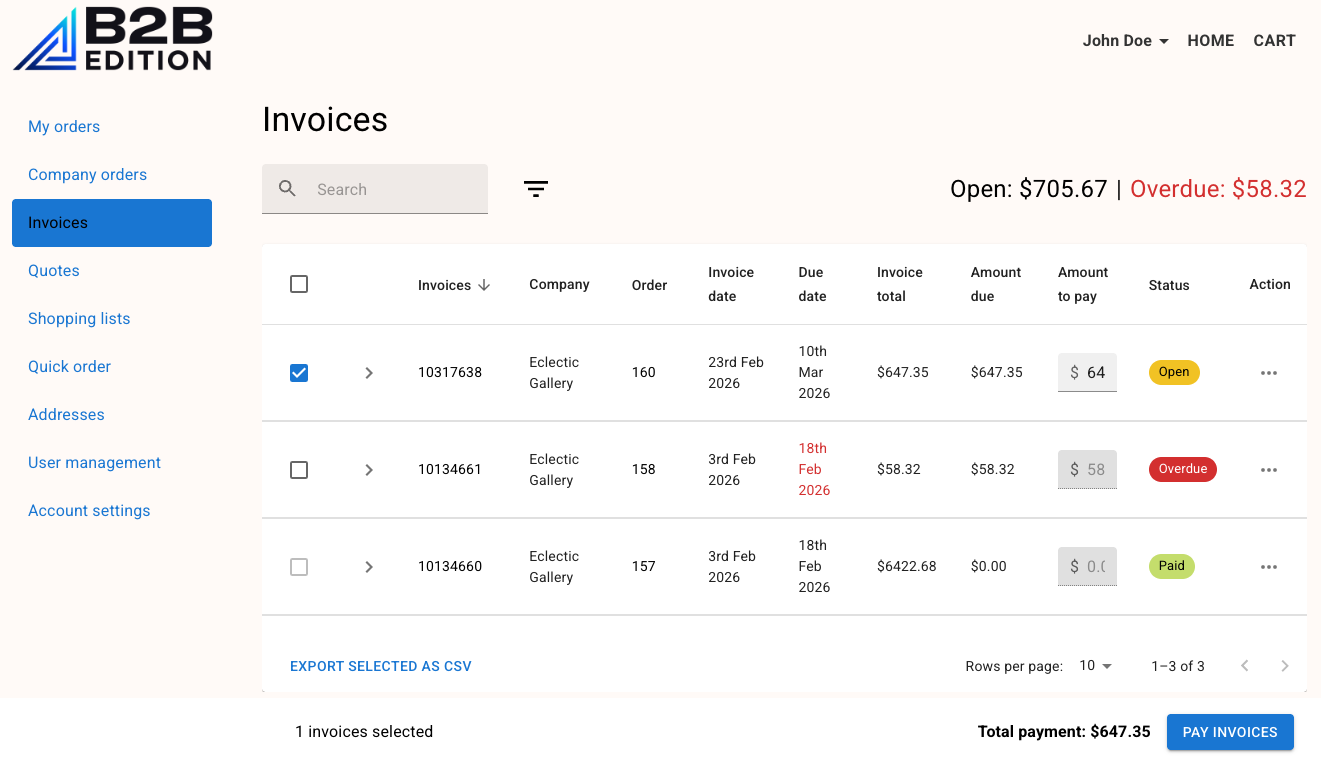
Supported features include:
- Multiple company users
- User roles
- Shared company address book
- Shopping lists
- Quoting
- Invoice management
- Quick order by SKU or previously purchased
- Super admin masquerade *
- Company hierarchy
* The “masquerade” feature allows Super Admins managed by the store owner to assist merchant purchasing flows by masquerading as a user of their assigned companies.
Customizing the Portal
The default Buyer Portal is hosted by BigCommerce and is automatically integrated in B2B Stencil storefronts. As long as your storefront utilizes the default portal, security and feature updates are automatic.
Beyond the default portal, your shopper experience can be customized in the following ways. Each option is successively more complex and enables successively more powerful customization.
- Theme settings in the control panel allow you to customize the look and feel of the portal to match your branding.
- Custom JavaScript can interact with the Buyer Portal and its data while still leaving the default portal in place.
- Forking the Buyer Portal allows you to take full control of the portal’s functionality.
Default Buyer Portal configuration in the control panel—including theme colors, CSS override, injected buttons, and the login page—is covered in the B2B Core course (Buyer Portal lesson in Module 1). We’ll explore the other two options in detail in this course.
Storefront Support
You can take advantage of the Buyer Portal experience on any style of storefront:
- Stencil: The Buyer Portal is automatically integrated in Stencil storefronts with B2B Edition enabled.
- Custom Headless: Integrate the portal with any custom headless storefront using the documented steps.
- Catalyst (experimental): An integration with Catalyst, BigCommerce’s open source Next.js storefront, is available. This starting integration follows the general principles of integrating with a headless storefront. Note: The integration from BigCommerce is currently experimental.
In the exercises in this course, we’ll be using a Stencil storefront.
Any of these storefronts support using the default hosted Buyer Portal or integrating your own custom portal.
While the strategy for initializing the Buyer Portal application differs between Stencil and headless storefronts, the same application code is responsible for the UI regardless of storefront. This means the architecture and patterns we’ll be exploring are applicable regardless of which storefront style you adopt.
Preparing for This Course
This course requires the use of a BigCommerce store with B2B Edition installed and enabled!
Contact your BigCommerce account representative to enable B2B Edition on a partner or developer sandbox store.
The exercises in this course will involve utilizing order, invoice, quote, and user data within the Buyer Portal UI. If you’re using a new sandbox store, you should take a few minutes to prepare the following in order to be prepared for lab exercises:
- Store settings in the control panel
- Enable the offline payment method “Check”.
- Enable the “test credit card payments” payment method.
- Enable at least one shipping method.
- B2B Settings in the store control panel
- In general settings:
- Make sure Quotes, Invoices, and Account Registration are enabled features.
- Enable PO as a default payment method.
- Consider enabling automatic company approval.
- In invoice settings:
- Enable test payment provider as a payment method for paying invoices.
- Consider enabling automatic invoice creation.
- In general settings:
- Company/user registration
- In the storefront, register a new company account.
- In the store control panel, approve the new company account.
- Create a separate user with the Junior Buyer role in the company (from the Buyer Portal or the store control panel).
- If your company is registered before default payment methods are configured, enable PO in the company’s payment settings in the control panel.
- Order workflow
- Submit a quote request.
- Place at least one order for your company with the PO payment method.
- In the store control panel, create an invoice for at least one PO order.

